Setting up pricing rules for a supplier
Turn a supplier's cost prices into your selling prices. Add a blanket markup for the whole catalogue, or rules that price certain brands differently.
Pricing rules turn a supplier's cost price into your selling price. You build them on the Settings tab of a supplier connection, under Sync settings and Automation. Add one markup for the whole catalogue, or rules that price certain brands, categories or products differently.
Considerations
- With no rules, the supplier's cost price passes through unchanged and becomes your selling price.
- Rules are checked by priority, lowest number first, and the first rule that matches wins. Later rules are ignored for that product.
- A rule with no conditions matches every product from this supplier.
- Saving a change to your rules re-prices the products you have already imported. This runs in the background.
Open the Pricing rules section
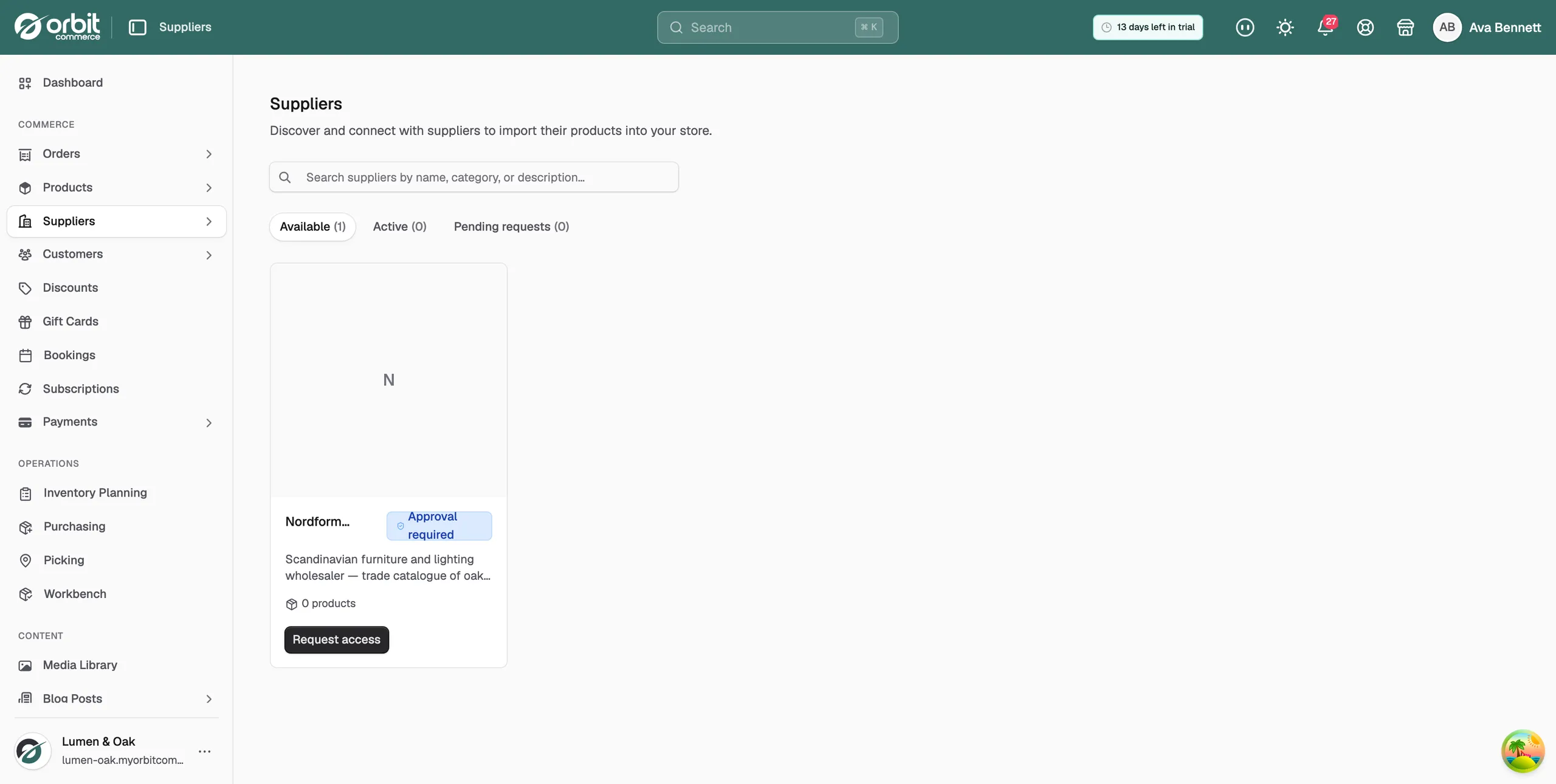
- From your Orbit dashboard, go to Suppliers.
- Open the Active tab.
- On the supplier's card, click Manage.
- On the Settings tab, scroll down to Pricing rules.
Add a blanket markup
A blanket markup is the quickest way to set one margin across the whole catalogue.
- In the Pricing rules section, click Add blanket markup.
- A rule named Blanket markup is added, with one Markup % step of 20. Change the number to the markup you want.
- Click Save changes.
The blanket markup is given a high priority number, so it is checked last. It prices every product that none of your other rules match.
Add a rule for one brand or category
Use a rule with conditions when part of the range needs a different margin. For example, 25% across the supplier, 40% on a premium brand and 15% on a value brand.
- In the Pricing rules section, click Add rule.
- Type a name in Rule name. The name is optional but makes a long list easier to read.
- Set Priority to a lower number than your blanket markup, so this rule is checked first.
- Under When product matches, choose all or any of the conditions you are about to add.
- Click Add condition, choose a field, choose an operator, then pick or type the value.
- Under Then price from cost, set the step. A new rule starts with a Markup % step of 20.
- Click Save changes.
Repeat for any other brand or category that needs its own price.
Condition fields and operators
A condition is a field, an operator and a value. These fields are available:
- Brand: the product's brand.
- Supplier category: the category the supplier filed it under.
- Store category: a category in your own store.
- Custom type: your custom product type.
- SKU: the product's SKU.
- Name: the product name.
- Cost price: what the supplier charges you.
The operators you can choose depend on the field. They are is, is not, is any of, contains, doesn't contain, starts with, ends with, is at least, is at most and is between.
Price steps
Steps run in order from the cost price, top to bottom. Click Add step to stack another change on the price, and use the arrows on a step to move it up or down.
- Markup %: adds a percentage on top of the cost price.
- Margin %: sets the price so the percentage is your margin.
- Discount %: takes a percentage off.
- Add amount: adds a fixed amount in pounds.
- Subtract amount: takes a fixed amount off.
- Set price: replaces the price with a fixed amount.
- Round: rounds the result. Choose Nearest, Round up, Round down, Charm .99 or Charm .95.
To take a step out, click the bin button on its row.
Check a rule before you save
- In Preview sample cost, type a cost price to test. It starts at 100.
- Read the Sample line on each rule. It shows the cost you typed and the price the rule would charge, for example £100.00 → £125.00.
- Read the line on the right of the same row. It shows how many of the supplier's products the rule prices.
Note: A rule that reads Matches no products never prices anything. Check its conditions, or delete it.
The sample cost is only a preview. It changes no prices and is not saved.
Delete a rule
- Find the rule in the Pricing rules section.
- Click the bin button in its top right corner.
- Click Save changes. Its products now fall through to the next rule that matches, or to your blanket markup.
Save or reset your rules
- Change any rule. The text Unsaved changes appears in the bar at the bottom of the page.
- Click Save changes. A message confirms the rules are saved and prices are being recalculated in the background.
- To drop your edits instead, click Reset.
Related guides
Was this helpful?
0 people found this helpful