Controlling what stays in sync with a supplier
Choose which product fields a supplier can keep updating after import, and which of their changes are applied without waiting for your review.
Every supplier connection has a Settings tab. It controls which product fields stay in sync with the supplier after import, and how much of the supplier's activity is applied without your approval. You decide what Orbit keeps up to date and what waits for your review.
Considerations
- A new connection starts with all sync fields on. Only Auto-accept stock changes is on under Automation.
- Turning a field off does not change products you have already imported. It stops the supplier's future changes landing on that field.
- Anything you leave off under Automation still arrives in your supplier updates inbox for you to review.
- Nothing takes effect until you click Save changes.
Open the Settings tab
- From your Orbit dashboard, go to Suppliers.
- Open the Active tab.
- On the supplier's card, click Manage.
- The connection page opens on the Settings tab, showing Sync settings, Automation and Pricing rules.
Choose what stays in sync
Each row under Sync settings has its own switch. When a switch is on, Orbit updates that field whenever the supplier changes it. When it is off, the supplier's changes are ignored and the field is yours to write. That is how you build white-label listings with your own wording and branding.
- Under Sync settings, find the field you want to change.
- Click its switch to turn it on or off.
- Click Save changes at the bottom of the page.
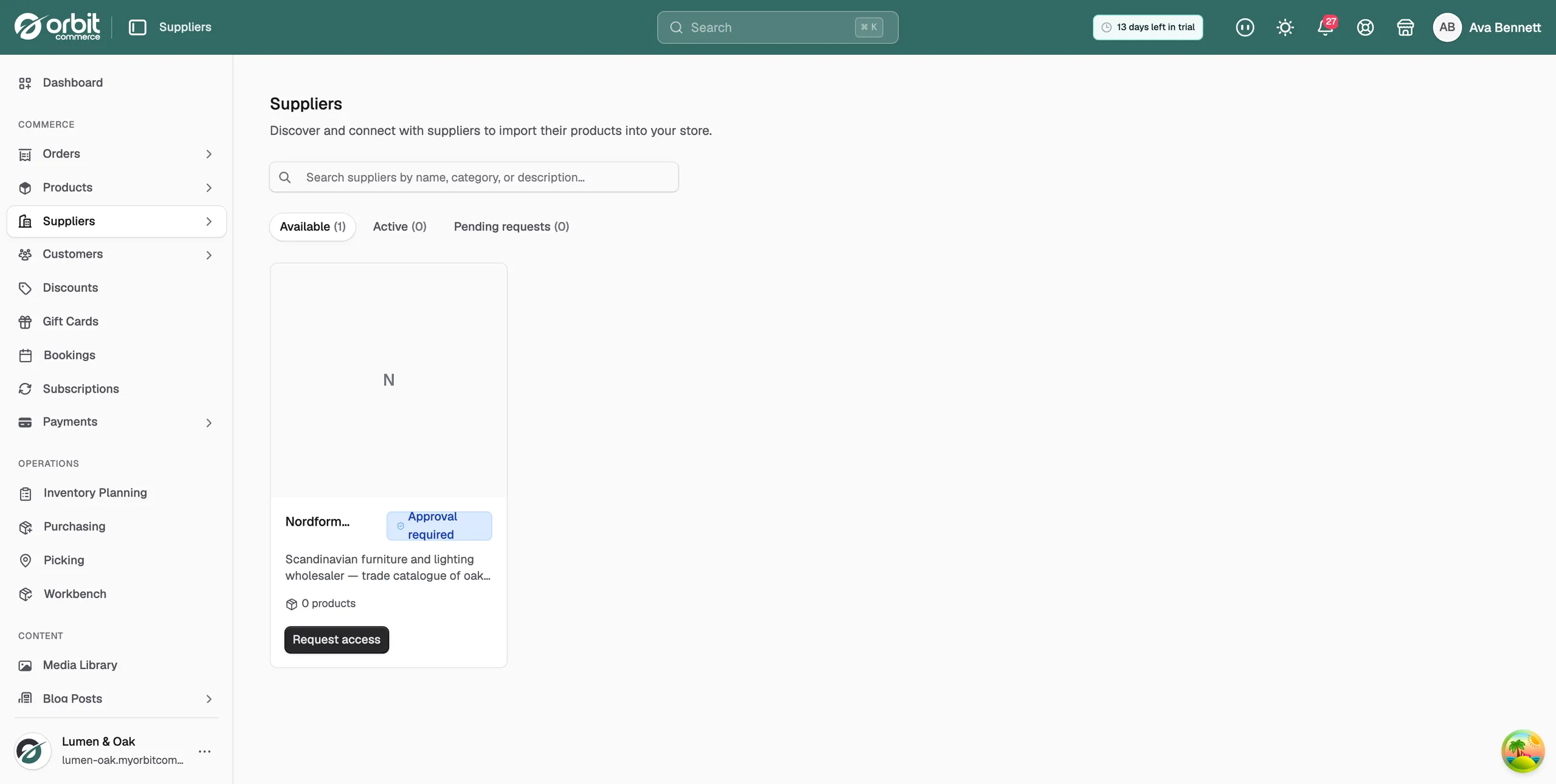
There are eight fields.
- Product title: keeps the product name updated when the supplier edits theirs. Turn it off to set your own names.
- Product description: pulls description changes from the supplier. Turn it off to write your own.
- Stock levels: mirrors supplier stock. Keep it on unless you manage stock yourself.
- Brands: uses the supplier's brand on imported products. Turn it off if you re-brand for your store.
- Categories: applies the supplier's category to imported products. Turn it off to use your own taxonomy.
- Shipping class: uses the supplier's shipping class. Turn it off to assign your own.
- Images: keeps gallery and variant images matched to the supplier's. Turn it off to manage your own pictures.
- Accept tracking from supplier: copies tracking the supplier adds onto your customer's order. Turn it off if you would rather enter tracking yourself for this supplier.
Note: Accept tracking from supplier is fixed off for a supplier who does not send tracking.
Set up automation
Automation lets the supplier's changes flow through on their own instead of waiting in your supplier updates inbox. Leave a switch off and the change keeps arriving in the inbox, so nothing goes live without your say-so.
- Under Automation, click the switch on each change you are happy to accept without review.
- Click Save changes.
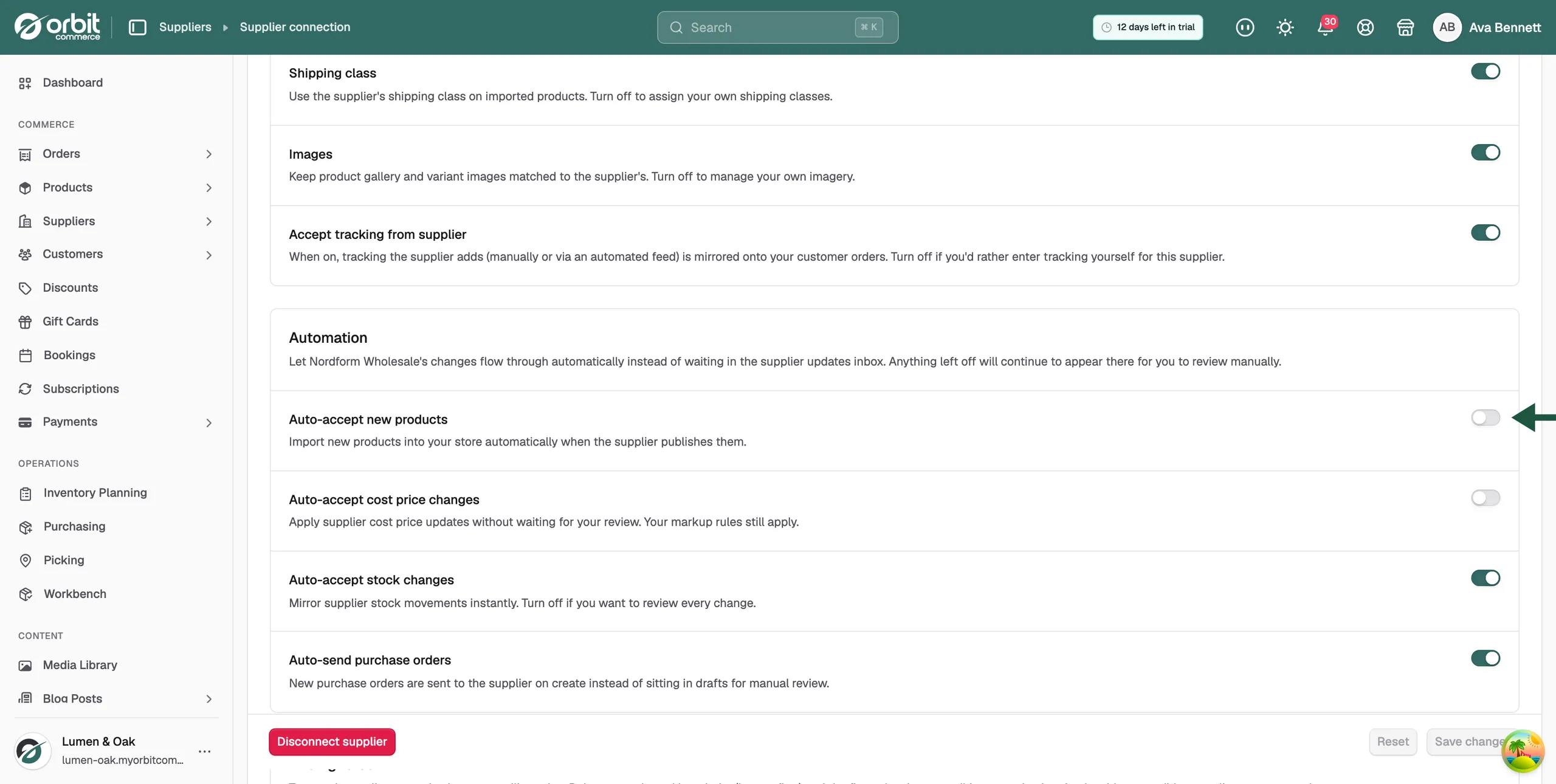
- Auto-accept new products: imports new products when the supplier publishes them. Leave it off to choose which new products to import.
- Auto-accept cost price changes: applies supplier cost price updates without your review. Your pricing rules still apply. Leave it off to check the effect on your margins first.
- Auto-accept stock changes: mirrors supplier stock movements at once. Leave it off to review every change.
- Auto-send purchase orders: sends new purchase orders to the supplier as soon as you create them, instead of leaving them as drafts. Leave it off to check each order before it goes.
Save or reset your changes
The bar at the bottom of the Settings tab is always on screen.
- Change any switch. The text Unsaved changes appears in the bar.
- Click Save changes. A message confirms the settings are saved.
- To drop your edits instead, click Reset. The switches go back to their last saved state.
Tip: To treat one product differently from the rest, use Sync settings on its row in the Products tab. See Importing products from a supplier.
Related guides
Was this helpful?
0 people found this helpful