Reading your subscription figures
Read the cards and charts at the top of the Subscriptions page, and export your subscriptions as a CSV file.
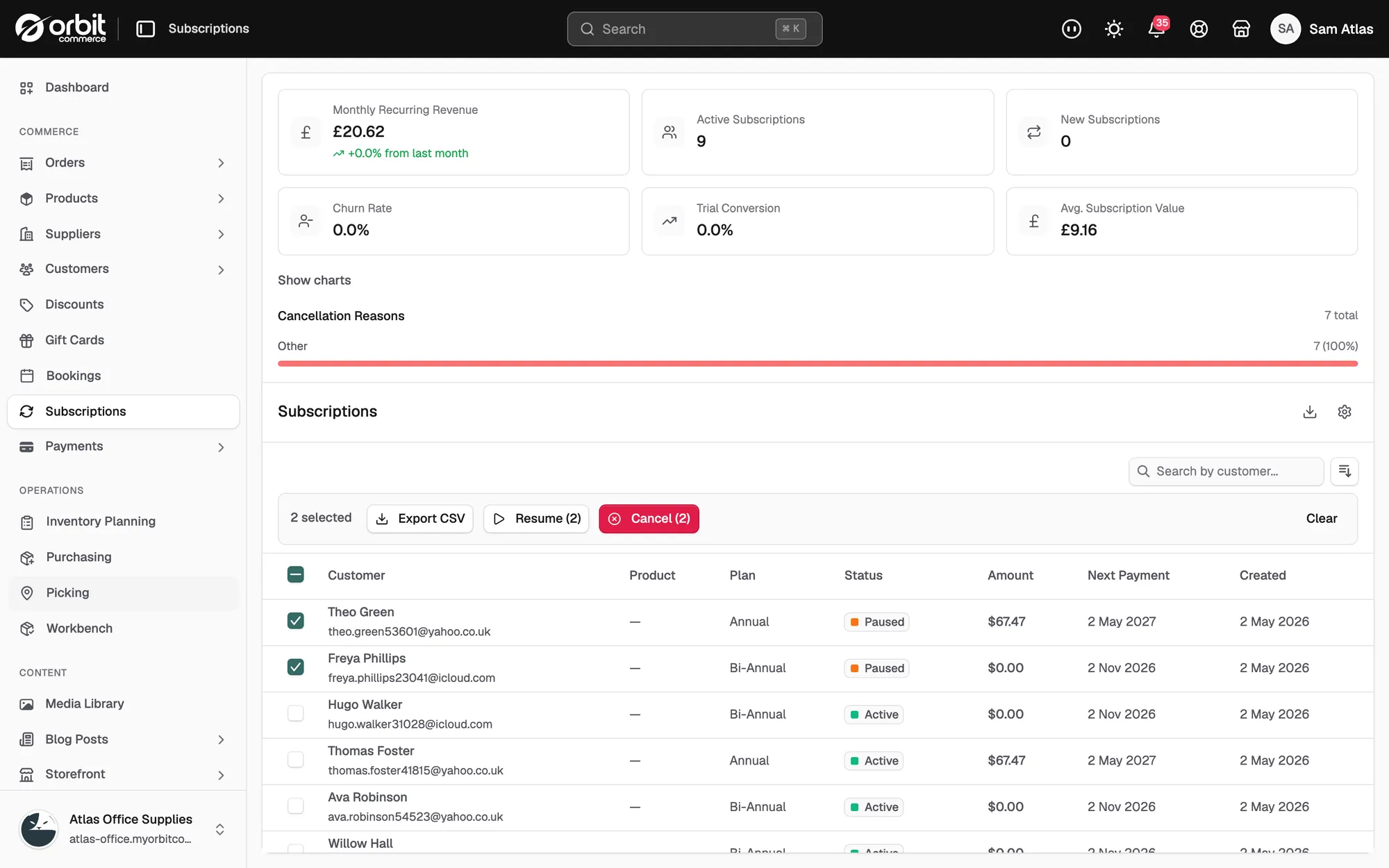
The top of the Subscriptions page shows how your recurring revenue is doing. Six cards give you the headline numbers, and three charts show how they have moved. The figures cover your whole store.
See your subscription figures
- From your Orbit dashboard, go to Subscriptions.
- Read the six cards at the top of the page.
- Below the cards, use the date buttons to set the period the charts cover: 7 days, 30 days, 90 days or 12 months.
- Click Hide charts to close the charts and give the list more room. Click Show charts to bring them back.
Note: The cards and charts always cover the whole store. Filtering the list below by status does not change them.
The six cards
- Monthly Recurring Revenue: what your live subscriptions bill in a month.
- Active Subscriptions: how many subscriptions are running now.
- New Subscriptions: how many started in the period.
- Churn Rate: the share of subscribers leaving.
- Trial Conversion: how many trials turn into paying subscriptions.
- Avg. Subscription Value: the average amount billed per subscription.
The Monthly Recurring Revenue card carries a second line reading from last month. That figure counts subscriptions, not money, so read it as a count and use the chart below for the money.
The three charts
- Monthly Recurring Revenue: your recurring revenue over the period you picked.
- New vs Canceled: subscriptions started against subscriptions lost, side by side. This is the quickest read on whether you are growing.
- Churn Rate: the same share as the card, plotted over time.
A Cancellation Reasons card appears under the charts once at least one subscription has been cancelled. It groups cancellations by the reason chosen at the time, with the total on the right. Nothing shows until you have your first cancellation.
Export the list
- From your Orbit dashboard, go to Subscriptions.
- To export every subscription, click the download icon at the top right of the page.
- To export some of them, tick the rows you want, then click Export CSV in the bar that appears.
- The message Export ready appears and the file downloads.
Related guides
Was this helpful?
0 people found this helpful