Setting up the wishlist
Customers save products with the heart button and open the list from your header. Change the wishlist icon, the wishlist element and the card heart in the page builder.
Your customers can save products they like to a wishlist and come back to them later. The wishlist is built into your storefront. Shoppers save a product with the heart button on a product card or a product page, then open their list from the heart in your header. This guide covers what they see and what you can change in the page builder.
Considerations
- The wishlist is saved in your customer's browser, one list per store. It does not follow them to another device or browser, and it goes if they clear their browsing data.
- Customers do not need an account. Guests and signed-in customers both get a list.
- The list saves the product, not the price. The wishlist page loads the current price and stock each time it opens.
- Changes you make in the page builder reach shoppers only after you save and publish.
What your customers see
Product cards in your storefront carry a heart button, and so does the product page. Your customer clicks it to save the product.
- The heart fills in red and a message reads Added to wishlist.
- Clicking a filled heart takes the product off the list. The message reads Removed from wishlist.
- The heart in your header counts the saved products. Above 99 the badge reads 99+.
- Clicking the header heart opens the list. Signed-in customers land on the Wishlist section of their account. Guests land on your store's wishlist page. Both show the same saved products.
The wishlist page is headed Wishlist with the number of saved products next to it. The products sit in a grid of the same cards used elsewhere in your store. Clear all, at the top right, empties the list. To take one product off, your customer clicks its heart again and the card drops out of the grid.
When nothing is saved, the page reads Your wishlist is empty and offers a Browse products button. If none of the saved products can be loaded any more, because they were deleted for example, the page reads Some saved products are no longer available.
Note: Because the list lives in the browser, a customer who saves products on their phone will not see them on their laptop.
Add the wishlist icon to your header
The Wishlist Icon element is the heart in your header, with the count badge on it.
- From your Orbit dashboard, go to Storefront, then Templates, and click the Header tab.
- Open the header template your shop uses, or create one. See Building a header with the Header Builder.
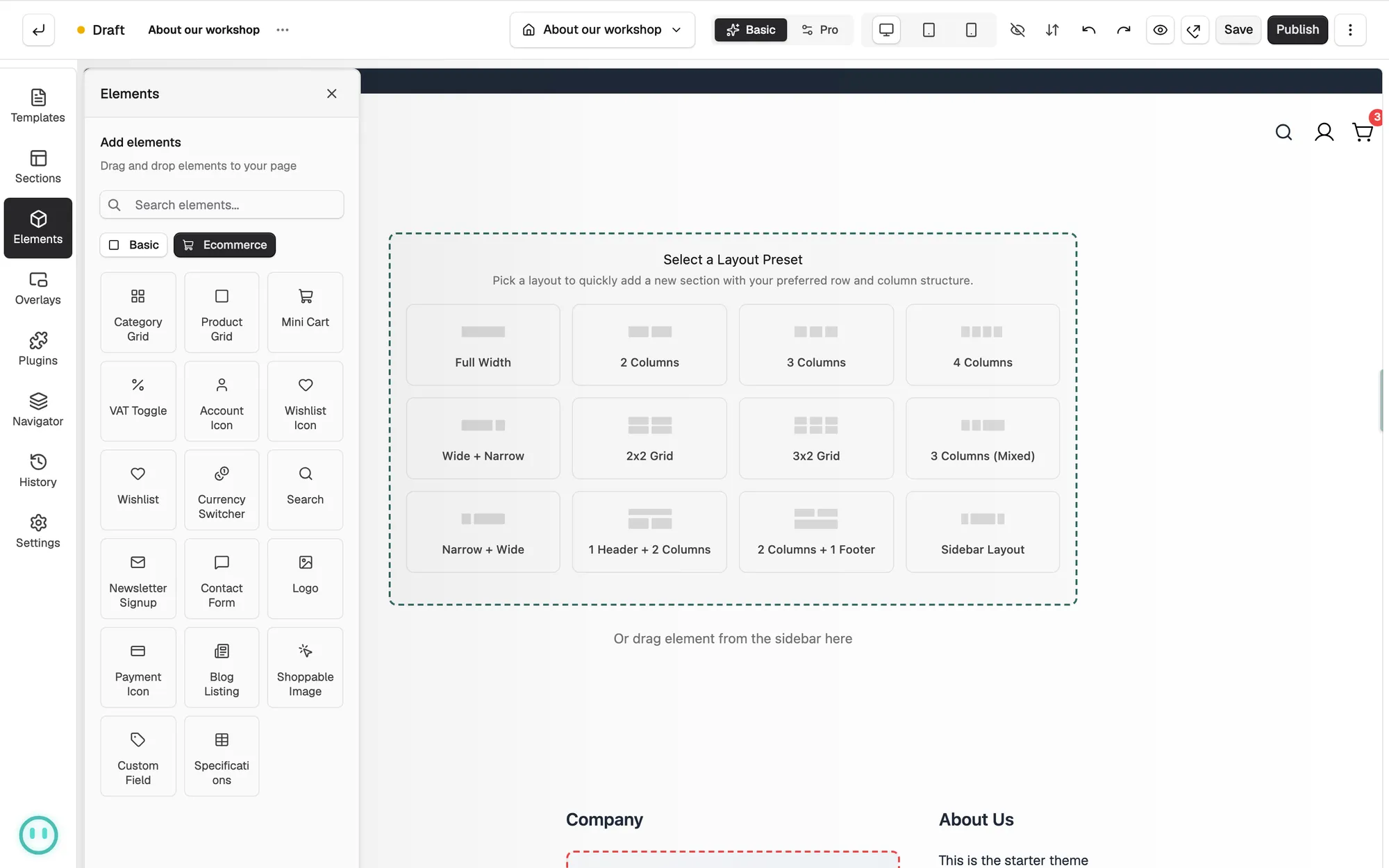
- In the toolbox, click Elements and drag Wishlist Icon from the Ecommerce group into the Header Builder.
- Click the icon to open its settings. Under Icon, pick the icon you want shoppers to see.
- Under Count Badge, turn Show Count on or off.
- Under Label, turn Show Label on to put words next to the icon, then type them into Label Text.
- Click Save, then Publish.
Show saved products on a page
The Wishlist element shows the visitor's saved products as product cards. Use it when you want saved products on a page you build. You do not need it for the wishlist page itself, which is part of your storefront already.
- Open the page you want the products on in the page builder.
- In the toolbox, click Elements and drag Wishlist from the Ecommerce group onto the page.
- Click the element to open its settings.
- Under Wishlist, set Max Products to cap how many cards show.
- Under Section Title, type your heading into Title Text.
- Under When Empty, type the Empty Message that visitors with nothing saved will read.
- Under Card Content, set Title Truncate Lines to control how many lines of the product name show.
- Click Save, then Publish.
Show or hide the heart on product cards
Elements that show product cards have a Wishlist icon setting in their content settings. It is on by default, so the heart shows unless you turn it off.
- In the page builder, click the element that shows the product cards.
- In its content settings, find Wishlist icon.
- Turn it off to hide the heart on those cards. Turn it back on to show it.
- Click Save, then Publish.
Hiding the heart hides the button on those cards only. Anything a customer has already saved stays on their list.
Related guides
Was this helpful?
0 people found this helpful