Controlling storefront search
Set how storefront search matches, which fields it reads, what it hides, and who can see which products in results.
The Search settings control how search works on your storefront: what it matches, what it shows, and who can see which products. Find them at Settings, then Search.
Considerations
- These settings drive every search element placed in the page builder. Changes apply to published pages straight away, with no need to publish again.
- The Search behaviour, What search matches and Who can see search results sections are applied by Save in the Unsaved changes bar.
- Changes under Hidden from search apply as you make them.
Set how search matches
- From your Orbit dashboard, go to Settings.
- Click Search.
- Under Search behaviour, set the fields you want.
- Click Save in the Unsaved changes bar. The message Search settings saved appears.
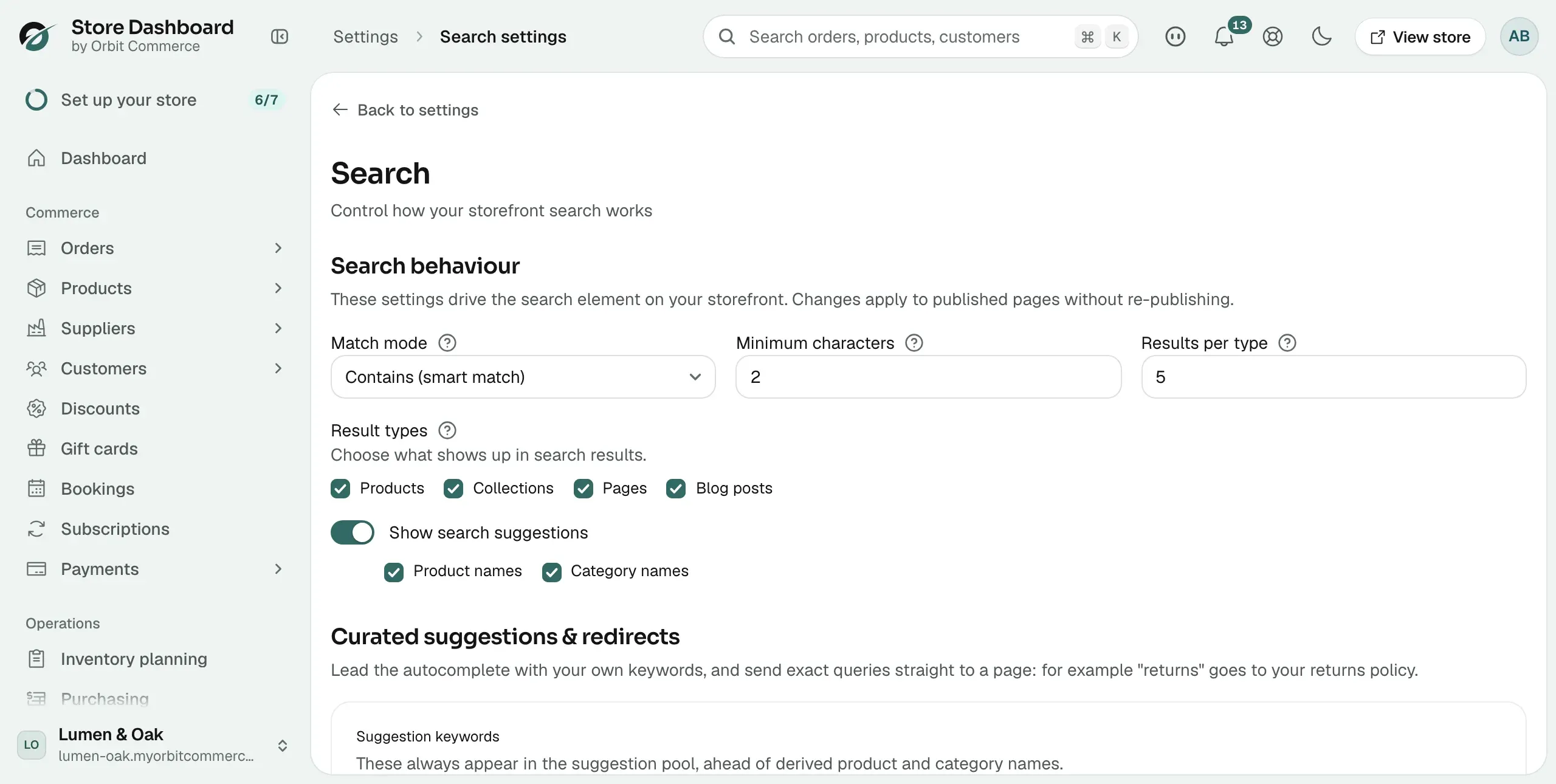
- Match mode: Contains (smart match), Starts with or Exact match.
- Minimum characters: how many letters a shopper types before results appear.
- Results per type: how many results of each type to show.
- Result types: tick Products, Collections, Pages and Blog posts. A catalogue store might show products only.
- Show search suggestions: turns on the suggestions that appear as a shopper types. With it on, you can also tick Product names and Category names.
Choose which fields search looks in
Under What search matches, tick the Built-in fields you want search to read.
- Product name: always searchable, and cannot be turned off.
- SKU & barcode: product and variant codes.
- Brand name: match products by their brand.
- Product tags: match products by their tags.
- Descriptions: short and long product descriptions.
Make custom fields searchable
Under Searchable custom fields, tick the fields shoppers should be able to search on, such as part numbers, compatibility codes or materials. Category and page fields can be indexed too.
If the section reads No custom fields defined yet, click Manage custom fields and create one first.
Add your own suggestions and redirects
The Curated suggestions & redirects section has two lists.
- Suggestion keywords: type a keyword and click Add keyword. These always appear in the suggestion pool, ahead of product and category names.
- Keyword redirects: type the keyword and the URL, then click Add. When a search exactly matches the keyword, the shopper goes straight to that URL instead of seeing results. For example, send returns to your returns policy.
Hide something from search
- Go to Hidden from search.
- Choose Products, Categories or Pages.
- Search for the item and select it.
Hidden items never appear in search results or suggestions. They stay reachable through direct links, menus and category browsing. To undo it, click Make searchable again. The same toggle is on each product, category and page editor.
Control who sees products in search
Set Default product visibility first. It covers every product.
- Everyone: products appear in search for all visitors.
- Logged-in customers: visitors must sign in before products appear in search results.
- Customers with tags: only signed-in customers carrying at least one of the tags you pick under Required customer tags see products in search.
Then add rules for anything that needs tighter control.
- Under Visibility rules, click Add rule.
- Give the rule a name in Rule name. The name is only shown here, to help your team recognise it.
- In Applies to, choose Specific products, Specific categories or Products with tags, then pick the items.
- In Visible to, choose Logged-in customers, Customers with tags, Customers in groups or Customers with a custom field.
- Click Create rule.
Note: Rules combine with the default. An item shows only if the default and every rule covering it allow the visitor. These settings cover search and suggestions only. Category browsing is not affected.
Test what a visitor would see
- Go to Search preview.
- Type a search in Query.
- In Search as, choose Guest, Logged-in customer, Customer with tag, Customer in group or Customer with custom field.
- Click Preview. The results show what your settings hide and show for that visitor.
Related guides
Was this helpful?
0 people found this helpful