Selling in multiple currencies
Add a currency, switch it on or off, and choose whether Orbit keeps its exchange rate up to date or you set the rate yourself.
You can let customers browse and pay in more than one currency. Orbit converts your prices from your store currency using an exchange rate, which it either keeps up to date for you or takes from you. Find this at Settings, then Currencies.
Considerations
- Multi-currency is included on every plan.
- Your store currency is set when the store is created and cannot be changed. Product prices are always entered in it.
- There is no sidebar entry for Currencies. Go to Settings and click Currencies.
- There is no Save button on a currency row. The switch, both menus and the bin save as soon as you use them.
- While a change is saving, the whole row is unavailable, not only the control you touched.
Add a currency
- From your Orbit dashboard, go to Settings.
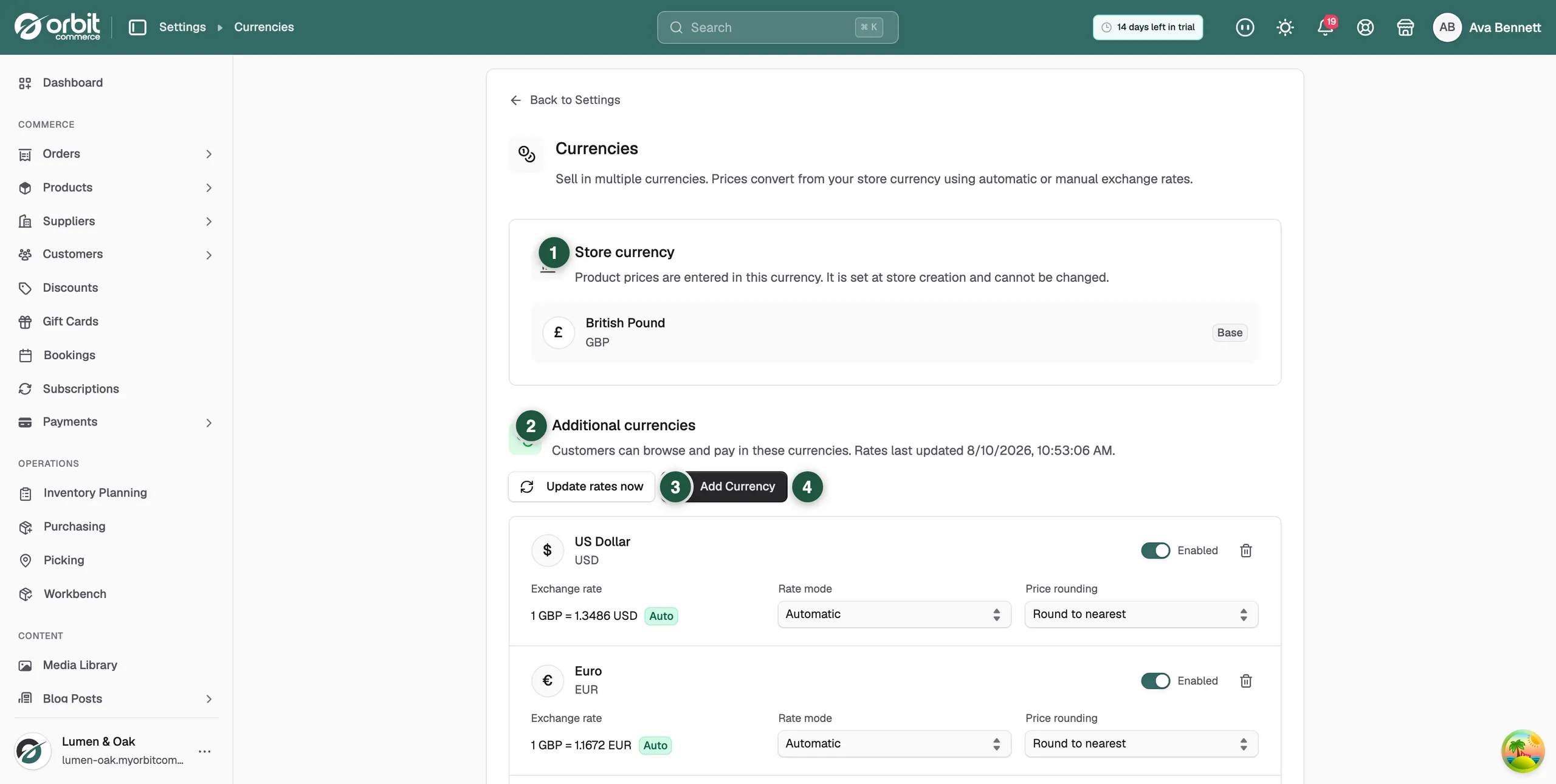
- Click Currencies. The Store currency card at the top shows your base currency with a Base badge. Nothing on that card can be edited.
- Click Add Currency. On a store with no extra currencies yet, you can also click Add First Currency in the panel that reads No additional currencies yet.
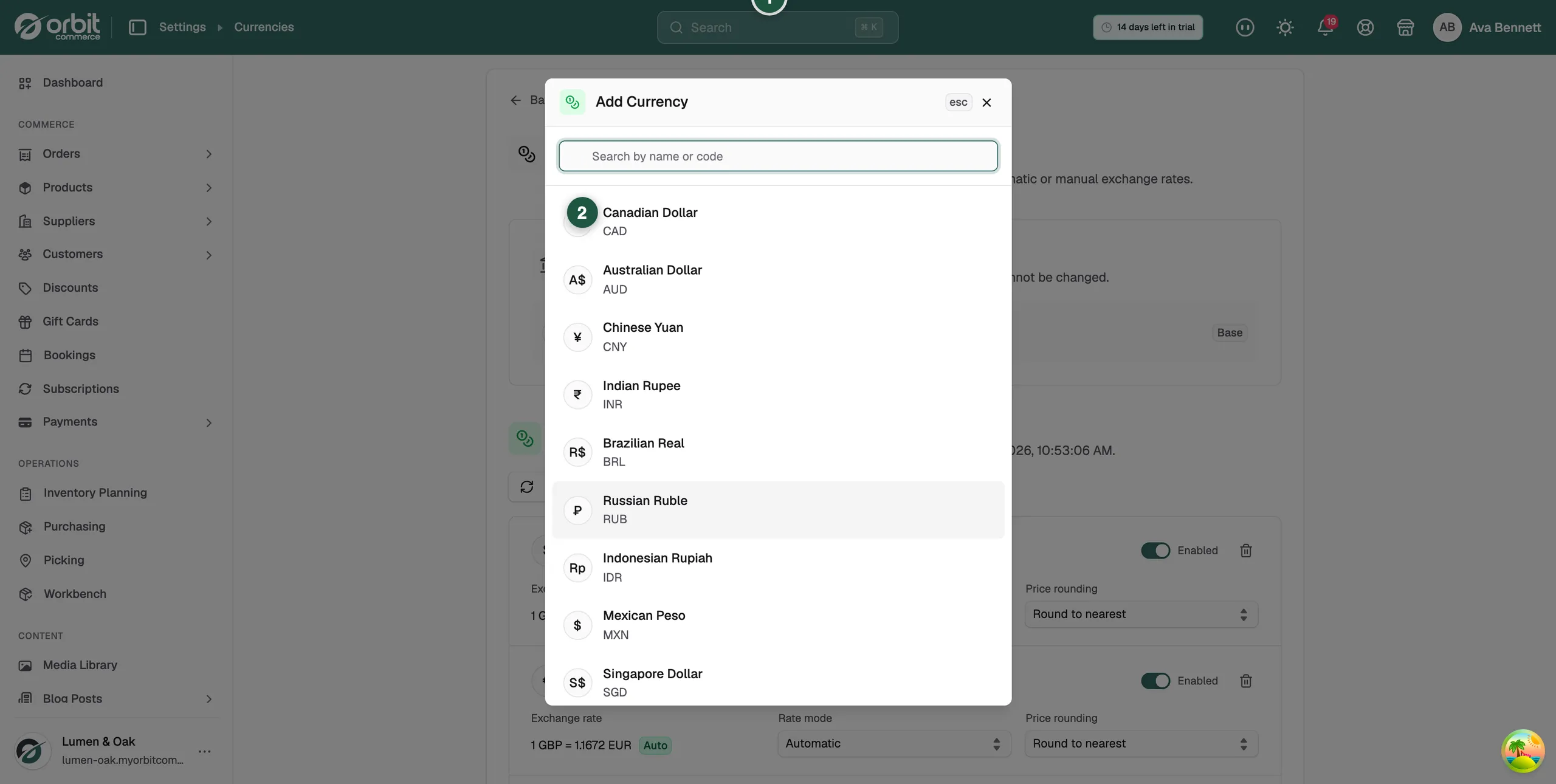
- In the Add Currency window, find the currency you want, or type its name or code in Search by name or code.
- Click the currency. It is added and the window closes. The message Currency added appears.
The currency arrives switched on, with Rate mode set to Automatic, an exchange rate filled in, and Price rounding set to Round to nearest. Customers can switch to it on your storefront straight away.
Note: The list does not offer your store currency, or any currency you have already added.
Turn a currency on or off
- On the Currencies page, find the currency's row under Additional currencies.
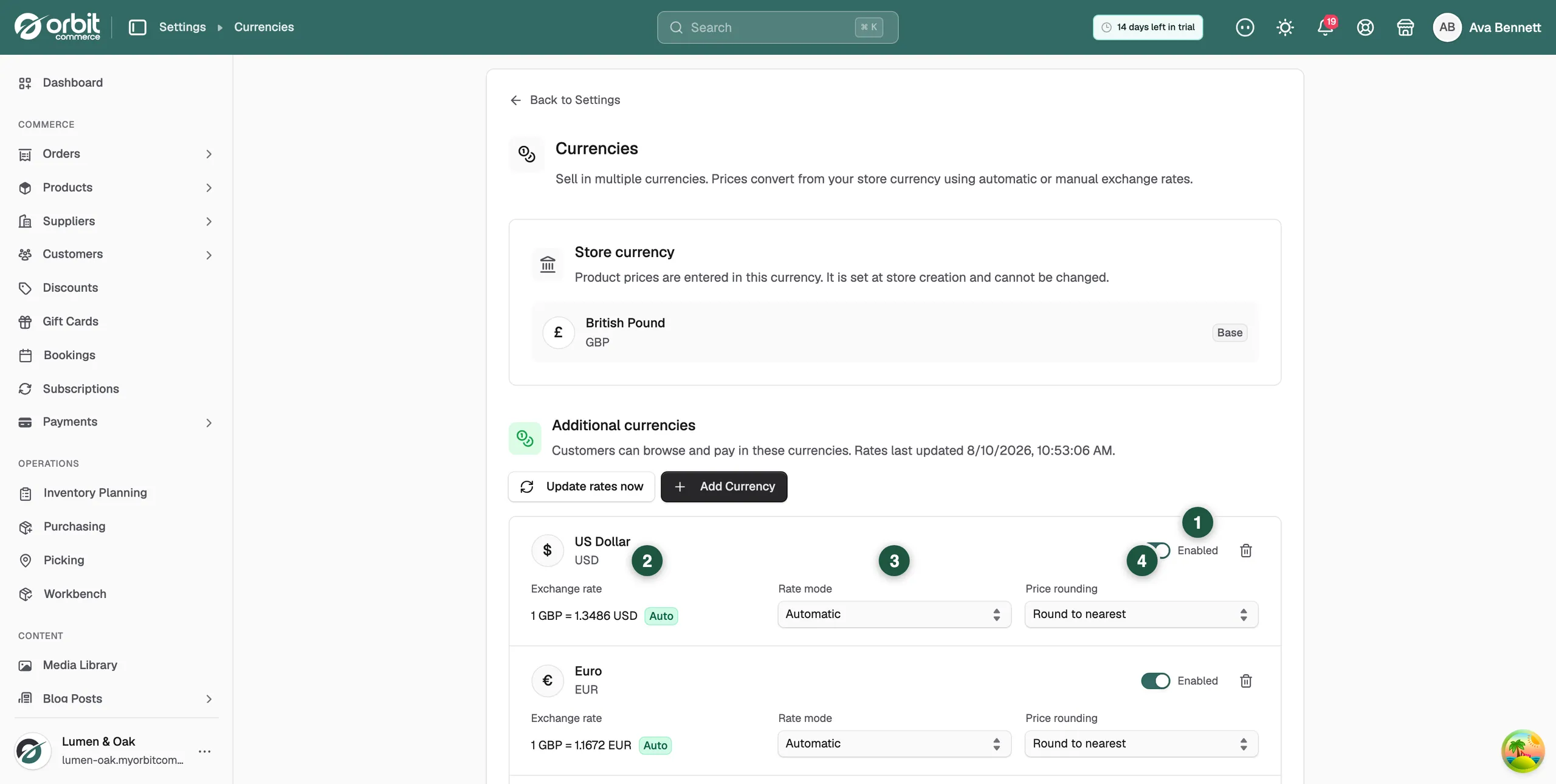
- Click the switch next to its name. The label changes between Enabled and Disabled.
- The change saves on its own and the message Currency updated appears. A disabled currency stays on the page, greyed out, but customers cannot choose it.
Choose how the exchange rate updates
- In the currency's row, click the Rate mode menu.
- Choose Automatic or Manual.
- If you chose Manual, type your rate in the Exchange rate field, then click Save next to it.
- Automatic: Orbit refreshes the rate for you twice a day, at 00:00 and 12:00. The rate shows with a green Auto badge.
- Manual: your rate is used and an automatic update never overwrites it.
Note: The Save button beside the rate appears once you type in the field, and it stays unavailable until the number differs from the rate already saved.
Round converted prices
- In the currency's row, click the Price rounding menu.
- Choose a rule. It saves as soon as you pick it.
- Round to nearest: the default for a new currency.
- Round up: always round up.
- Round down: always round down.
- No rounding: the converted price is used as it comes.
Rounding happens at the currency's smallest unit. For euros that is the cent, so Round up rounds to the next cent, not the next euro.
Update the rates now
- On the Currencies page, click Update rates now.
- The message Exchange rates updated appears, and the date under Additional currencies changes.
- The button only appears once you have at least one additional currency.
- It refreshes currencies set to Automatic. Manual rates are left alone.
Warning: If Orbit cannot fetch a rate, the row shows an orange Rate unavailable badge. That currency is hidden from your storefront until a rate is set, so check the badge after you add a currency.
Remove a currency
- In the currency's row, click the bin icon on the right.
- Confirm in the message your browser shows.
To take a currency off your storefront without losing its rate and rounding settings, use the switch instead.
Related guides
Was this helpful?
0 people found this helpful