Managing your account and preferences
Update your name, photo and email address, and set your language, theme, start page and help tips. These settings apply to you, not the store.
Your account holds your name, your email address and your profile photo. Your preferences set the language, the theme and the page you land on after you sign in. Both live under Settings, in the Team & access group.
Considerations
- These settings belong to you, not to the store. Changing them does not change anything for your team mates.
- Your password, two-factor login and passkeys are on a different page. See Setting up two-factor authentication and passkeys.
- Changing your email address needs your current password, and the new address has to be verified before it takes over.
Open your account settings
- From your Orbit dashboard, go to Settings.
- Under Team & access, click Account.
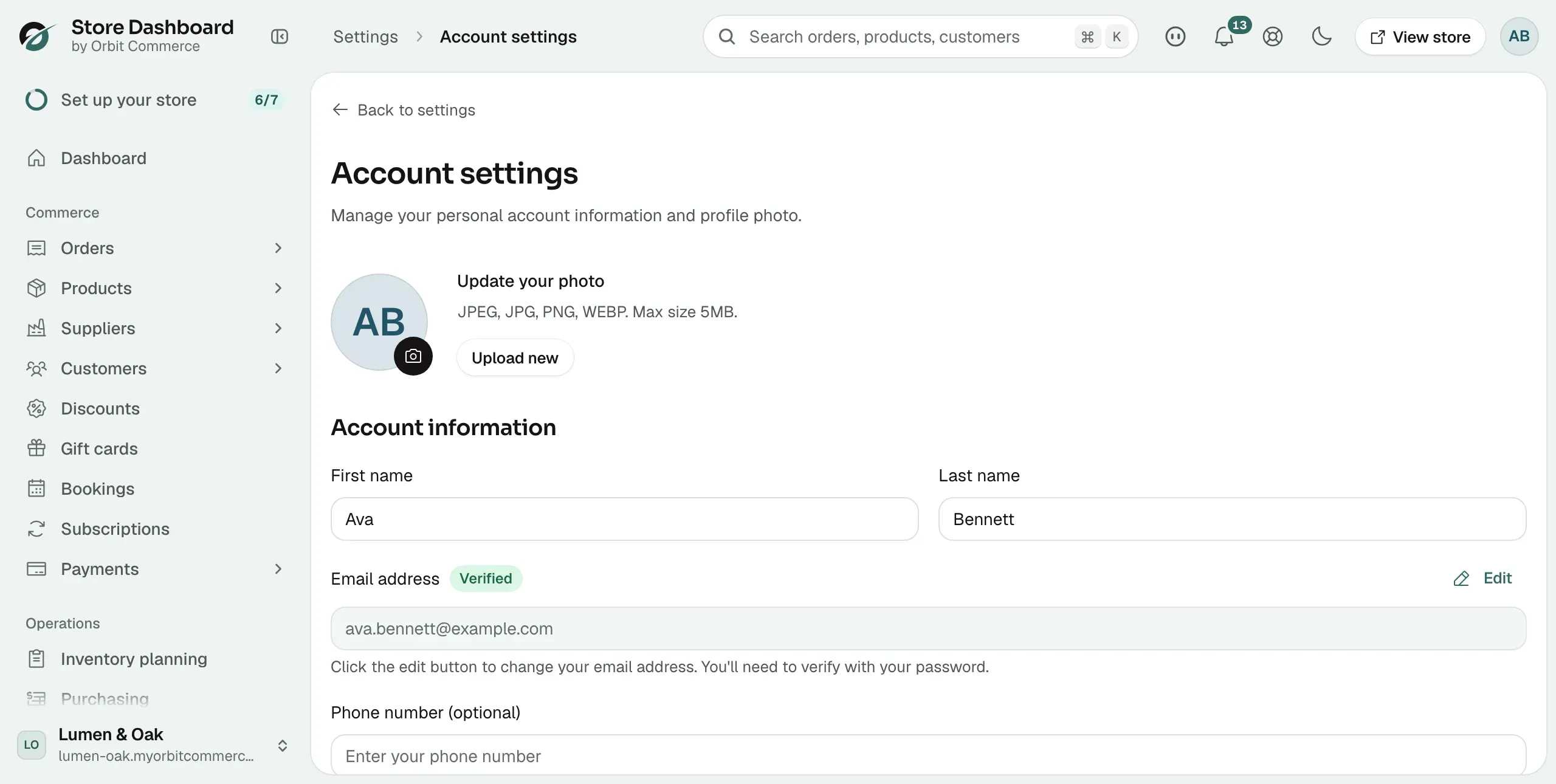
- The Account settings page opens, with your photo at the top and Account information below it.
Change your profile photo
- On the Account settings page, find Update your photo.
- Click Upload new and pick an image from your device. The file can be a JPEG, JPG, PNG or WEBP, up to 5MB.
- The new photo appears straight away. To go back to your initials, click Remove.
Update your details
- Under Account information, edit the fields you need:
- First name and Last name: your name as it appears in Orbit.
- Email address: the address you sign in with. A Verified badge sits beside it once it is confirmed.
- Phone number (optional): a contact number for your account.
- Click Save in the Unsaved changes bar that appears once you change something. Discard in the same bar drops your edits.
Change your email address
- Under Account information, click Edit next to Email address.
- In the Update email address window, type the address in New email address.
- Type your password in Current password.
- Click Update email.
- Orbit sends a verification link to the new address. Until you click it, the field shows a Verification pending badge and a note saying where the email went.
Note: The change only takes effect once you open the link in that email. Check your junk folder if it does not arrive.
Set your preferences
- From your Orbit dashboard, go to Settings.
- Under Team & access, click My preferences.
- Set the options you want:
- Language: the language the dashboard is shown in.
- Theme: Light or Dark.
- Start page after login: the page you land on when you sign in. Choose Dashboard, Products, Orders, Customers, Blog posts or Analytics.
- Help tips: tick Show help tips next to fields to keep the small help icons that explain each setting. Untick it once you know your way around.
- Click Save in the Unsaved changes bar.
Two other buttons help. Discard in the same bar drops the edits you have not saved. Reset to defaults, at the bottom of the page, puts every preference back to how it started.
Related guides
Was this helpful?
0 people found this helpful