Setting up two-factor authentication and passkeys
Add a passkey, turn on an authenticator app or SMS codes, save your backup codes, and manage the browsers you have trusted on the Security Settings page.
Your dashboard holds your money and your customers' details, so a password on its own is not enough. On the Security Settings page you can add a passkey, turn on two-factor authentication with an authenticator app or SMS, and manage the browsers you trust. Find it under Settings, then Security.
Considerations
- These settings protect your own login. Every team member sets up their own. Shared logins defeat the point.
- Backup codes are shown once, the first time you add any second factor. Save them then. Adding a second method later does not show them again.
- You can have one code method at a time: an authenticator app or SMS, not both. Passkeys sit alongside either.
- A passkey lives on one device or in your password manager. Add one on each device you use.
- Changing your password removes every trusted device.
Open Security Settings
- From your Orbit dashboard, go to Settings.
- Under Team & Access, click Security.
Add a passkey
A passkey signs you in with your fingerprint, face or device PIN. There is no code to type, so there is nothing for an attacker to steal.
- On the Passkeys card, type a name in Device name (optional), such as MacBook Touch ID. The name only labels the row.
- Click Add passkey. Your browser or password manager asks you to confirm with your fingerprint, face or PIN.
- If this is your first second factor, Save your backup codes appears with ten codes. Click Copy or Download and put them somewhere safe. Then click I've saved them.
- The passkey appears in the list with a Synced badge and the date it was added.
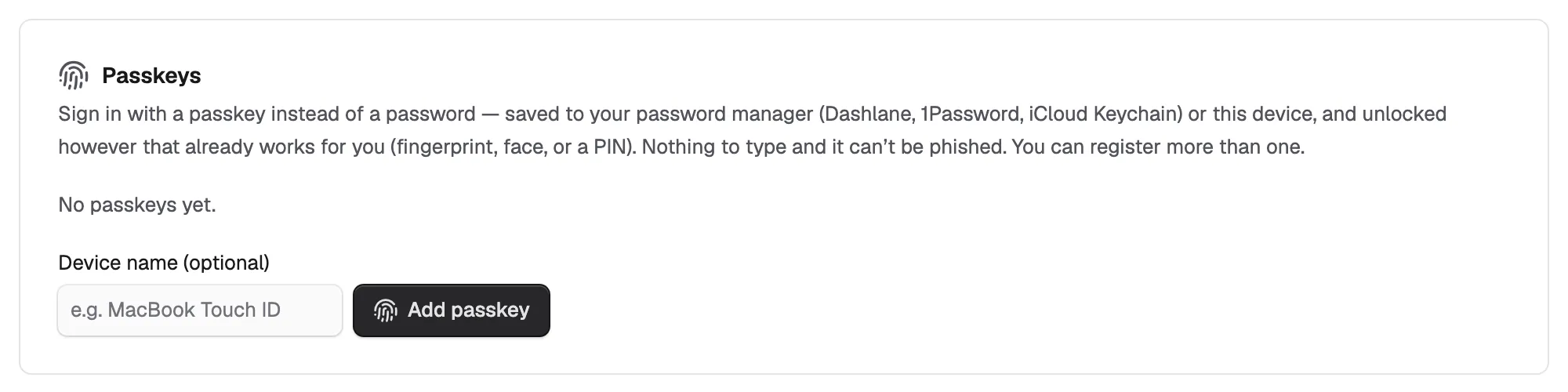
Adding your first passkey turns two-factor authentication on. The Two-Factor Authentication card now reads Add a backup method. To remove a passkey, click Remove passkey on its row.
Add an authenticator app
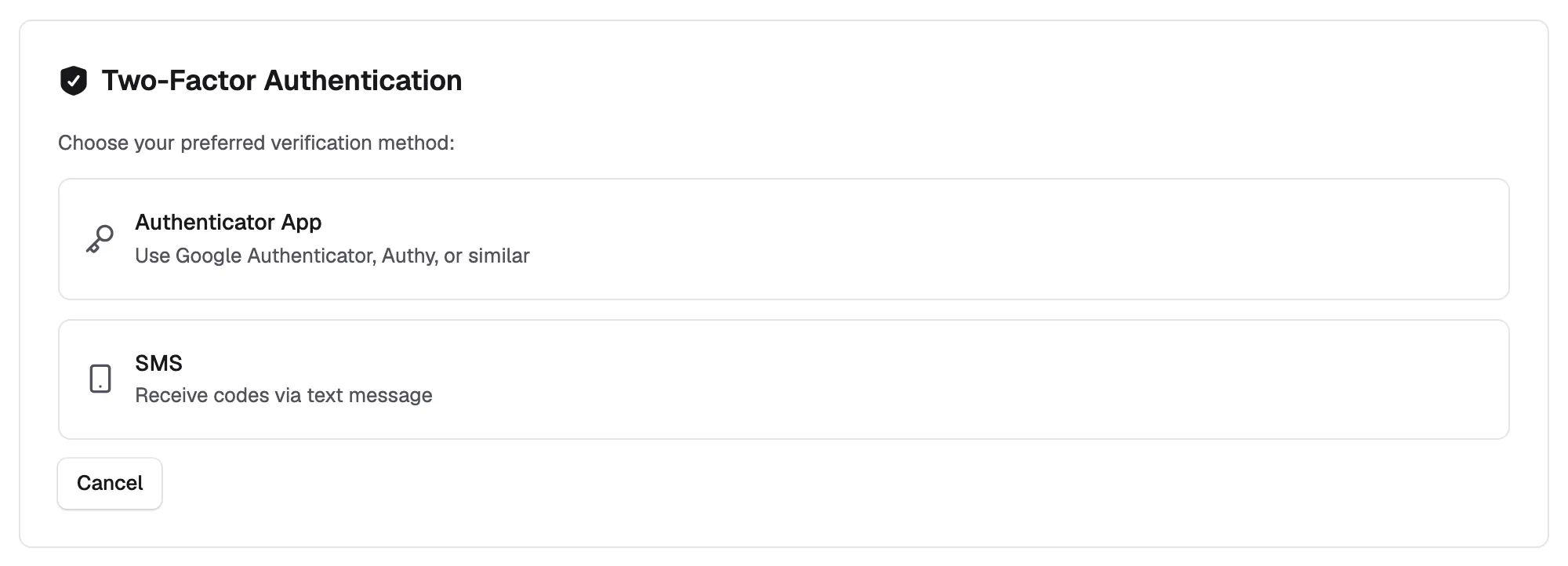
- On the Two-Factor Authentication card, click Enable 2FA. If you already have a passkey, the button reads Add authenticator or SMS.
- Click Authenticator App. It works with Google Authenticator, Authy or any similar app.
- Scan the QR code with your app. If you cannot scan, copy the key under Or enter manually into the app instead.
- In Verification Code, type the six-digit code from your app. Enable 2FA lights up once all six digits are in.
- Click Enable 2FA. The message Authenticator app enabled appears.
- If this is your first second factor, your backup codes appear. Click Copy All or Download, save them, then click Done.
The card now reads Enabled and Using authenticator app, with Regenerate Codes and Disable buttons. From now on you enter a code from the app each time you sign in with your password.
Use SMS instead
SMS codes are better than nothing, but weaker than a passkey or an app, because a SIM swap can capture them. Use SMS as a fallback next to a passkey rather than on its own.
- On the Two-Factor Authentication card, click Enable 2FA or Add authenticator or SMS.
- Click SMS.
- Pick your country Code, such as +44, and type your Phone Number.
- Click Send Code.
- Type the six-digit SMS Code from the text message and confirm.
Note: Choosing SMS replaces the authenticator app, and the other way round. Only one code method is active at a time.
Keep your backup codes safe
Each backup code works once. They are the only way back in on your own if you lose your phone or passkey device. Store them somewhere that is not the phone itself, such as a password manager or a printed sheet.
If you have used most of your codes or think someone else has seen them, click Regenerate Codes on the Two-Factor Authentication card and enter your password. A new set is issued and the old codes stop working.
Warning: If you lose your second factor and your backup codes, you cannot sign in on your own. See Fixing sign-in and two-factor problems.
Manage trusted devices
When you sign in with a second factor, you can choose to trust that browser. A trusted browser skips the code until the trust expires. Each one appears on the Trusted devices card with its browser, operating system and expiry date.
- Click Revoke device on a row to remove one browser you do not recognise.
- Click Revoke all to remove them all. The button only shows when the list is not empty.
Turn two-factor authentication off
- On the Two-Factor Authentication card, click Disable.
- Enter your password and click Disable 2FA.
Related guides
Was this helpful?
0 people found this helpful