Inviting and managing team members
Invite people to your Orbit dashboard, pick their role, resend or cancel an invitation, and remove access when someone leaves.
You can invite people to work in your Orbit dashboard and give each of them a role. You do this under Settings, then Team. Each person gets their own login, so nobody has to share a password.
Considerations
- Your plan sets how many team members you can have. The Team page shows the count, for example 1 / 10 team members. You count as one of them.
- You need to be a Store Owner or Store Administrator to invite someone.
- An invitation expires after 7 days. You can resend it from the member's row.
- You cannot edit or remove your own row. You can only manage members whose role sits below yours.
- The role you pick decides what the person can see and do. See Setting what a team member can do.
Invite a team member
- From your Orbit dashboard, go to Settings, then Team.
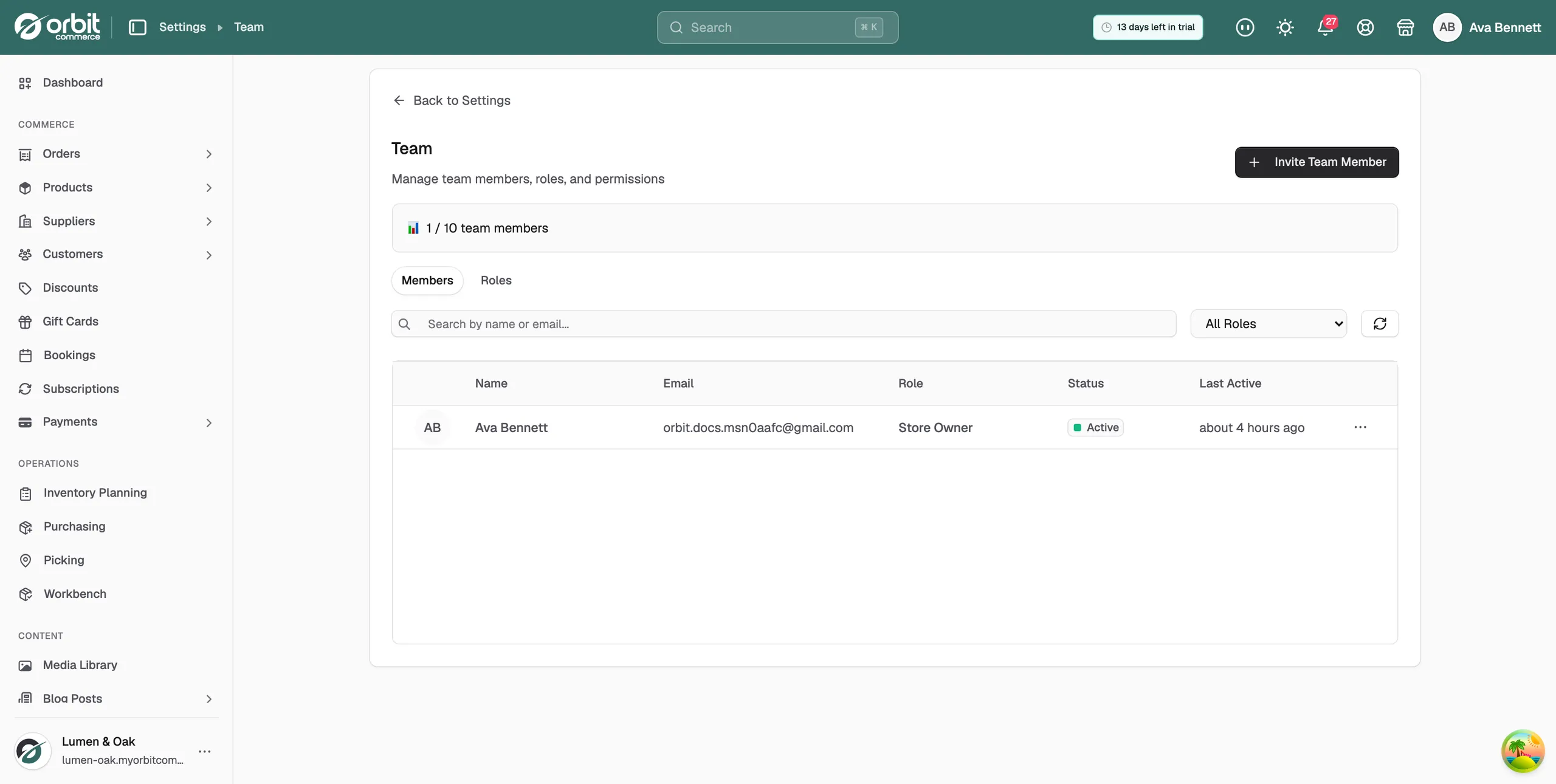
- Click Invite Team Member.
- Enter the person's Email. The invitation goes to this address.
- Enter their First Name and Last Name. These go in the invitation email.
- Under Role, pick a role from the list. A line under the field says what that role covers. If you are unsure, click the question mark on the right of the Role label to read What can each role do?
- Leave Send welcome email with account setup instructions ticked. This is what sends them the link to set up their account.
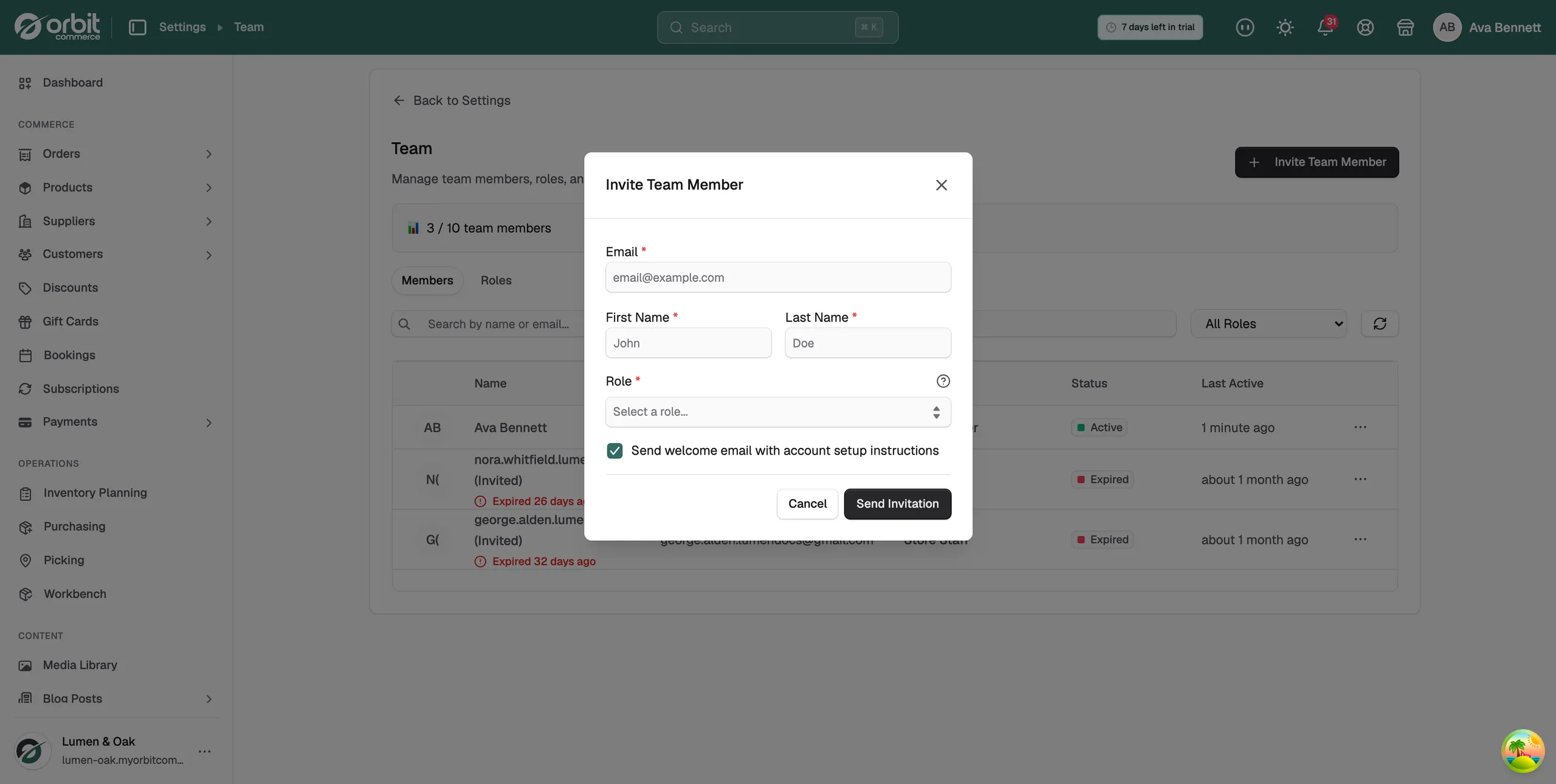
- Click Send Invitation. The form closes and the email is sent.
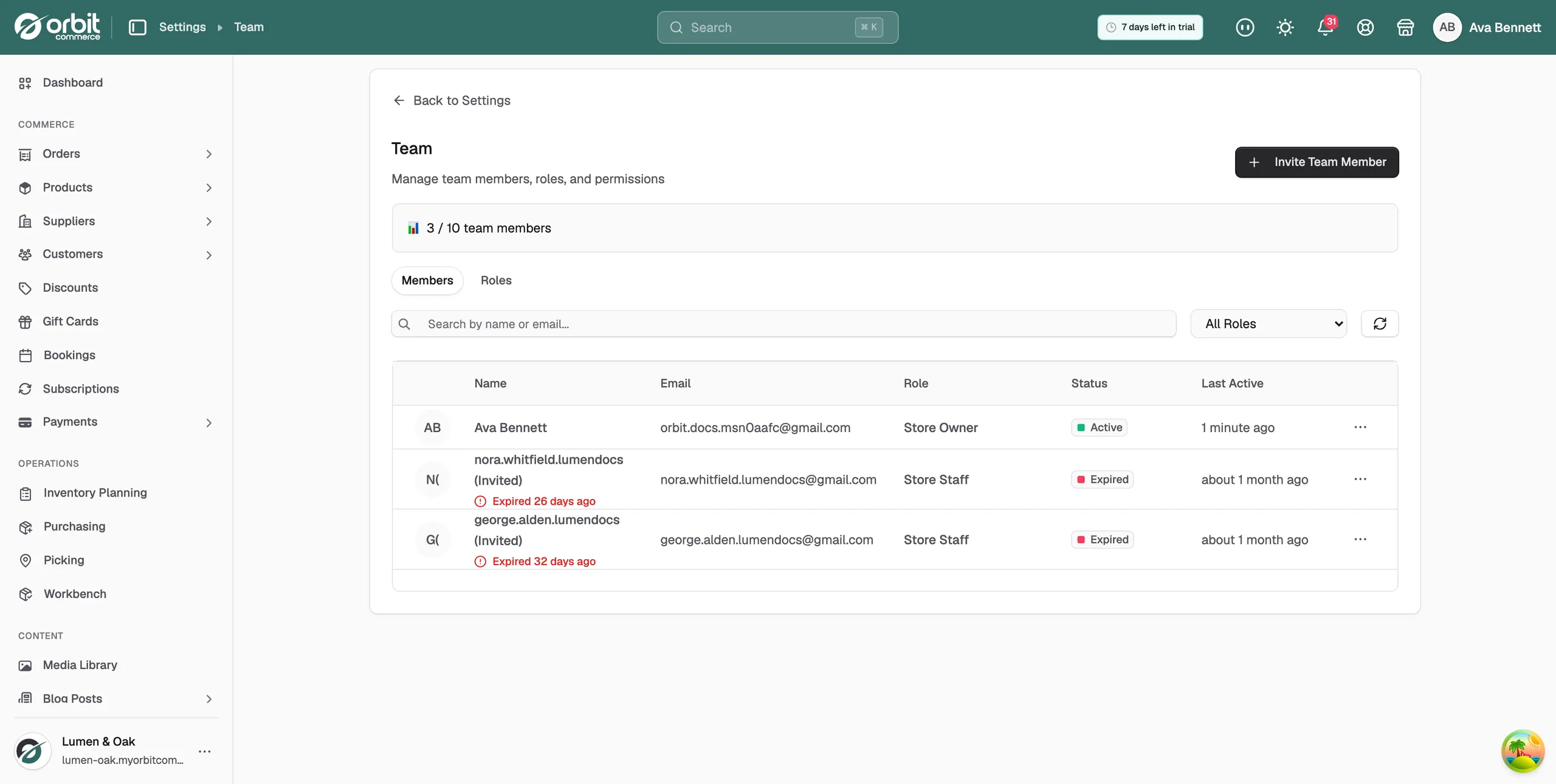
A new row appears on the Members tab with the status Invitation Pending. Until the person accepts, the row shows the first part of their email address followed by (Invited), not the name you typed. The team member count does not go up until they accept.
Note: If your plan has no spare team member seats, the Invite Team Member button is not available. See Understanding and changing your plan.
The Members tab
The Members tab lists everyone who has access to your store, and everyone you have invited. It has these columns:
- Name: the person's name. For an invitation that has not been accepted, the first part of their email address and (Invited).
- Email: the email address of the account or invitation.
- Role: the role they hold, such as Store Owner or Store Staff. The line Has direct permissions appears under the role when a member has extra permissions set on their own account.
- Status: Active, Invitation Pending, Expired, Pending or Suspended.
- Last Active: when the person was last active, or Never.
Use the Search by name or email... box to find a member. Use the All Roles list to show only members with one role.
Resend or cancel an invitation
- On the Members tab, find the row with the status Invitation Pending or Expired.
- Click the ... at the right of the row.
- Click Resend Invitation to send the email again, or Cancel Invitation to withdraw it.
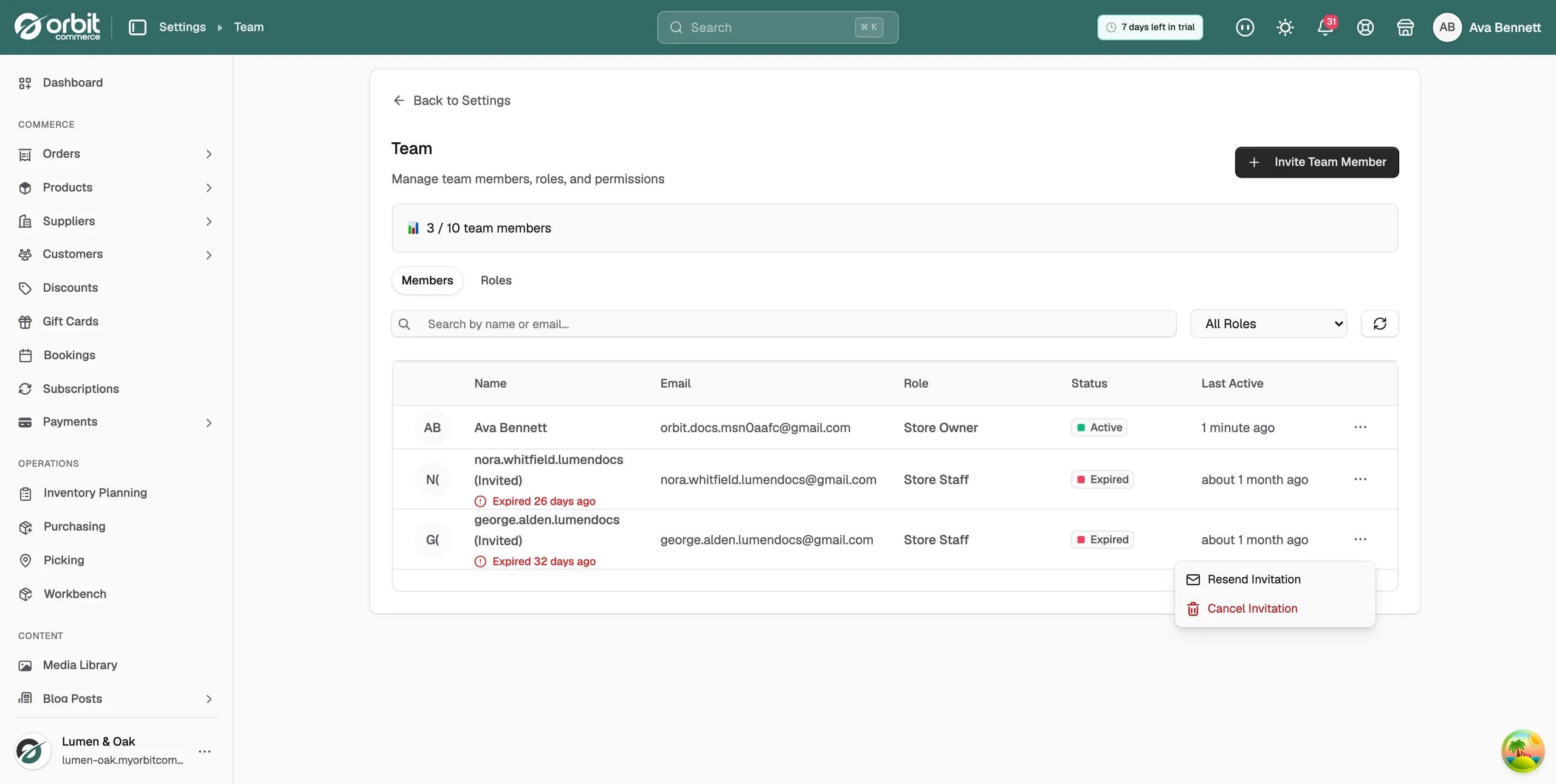
Tip: After you resend, the option reads Invitation Sent for 60 seconds. Ask the person to check their spam folder before you resend again.
Change a member's role or remove them
- On the Members tab, click the ... at the right of the member's row.
- Click Edit to open their page. There you can change their role and tune their permissions. See Setting what a team member can do.
- Click Remove to take away their access. They lose access straight away.
The Roles tab
The Roles tab lists the premade roles and any custom roles you have made. Each role shows its description and how many permissions it holds. Premade roles carry a System badge and cannot be changed. To build a role of your own, click Create role. See Setting what a team member can do.
Related guides
Was this helpful?
0 people found this helpful