Setting up abandoned cart recovery
Set the wait time, subject line and discount code for automatic recovery emails, then turn them on and track what they bring back.
An abandoned cart is a basket a shopper filled and left without paying. Orbit can email those shoppers for you and invite them back to checkout. You set this up in Settings, then Abandoned cart.
Considerations
- There is no Abandoned cart item in the sidebar. Open it from the Settings page.
- Each change shows an Unsaved changes bar. Click Save to apply it.
- Nothing is sent until Enable recovery emails is on. Set the timing, subject and discount first, then turn it on.
- You can also send a recovery email by hand for one cart. See Recovering an abandoned checkout.
Open the Abandoned cart recovery page
- From your Orbit dashboard, go to Settings.
- Under Selling, click Abandoned cart.
- The Abandoned cart recovery page opens. The badge next to the title reads Active or Disabled.
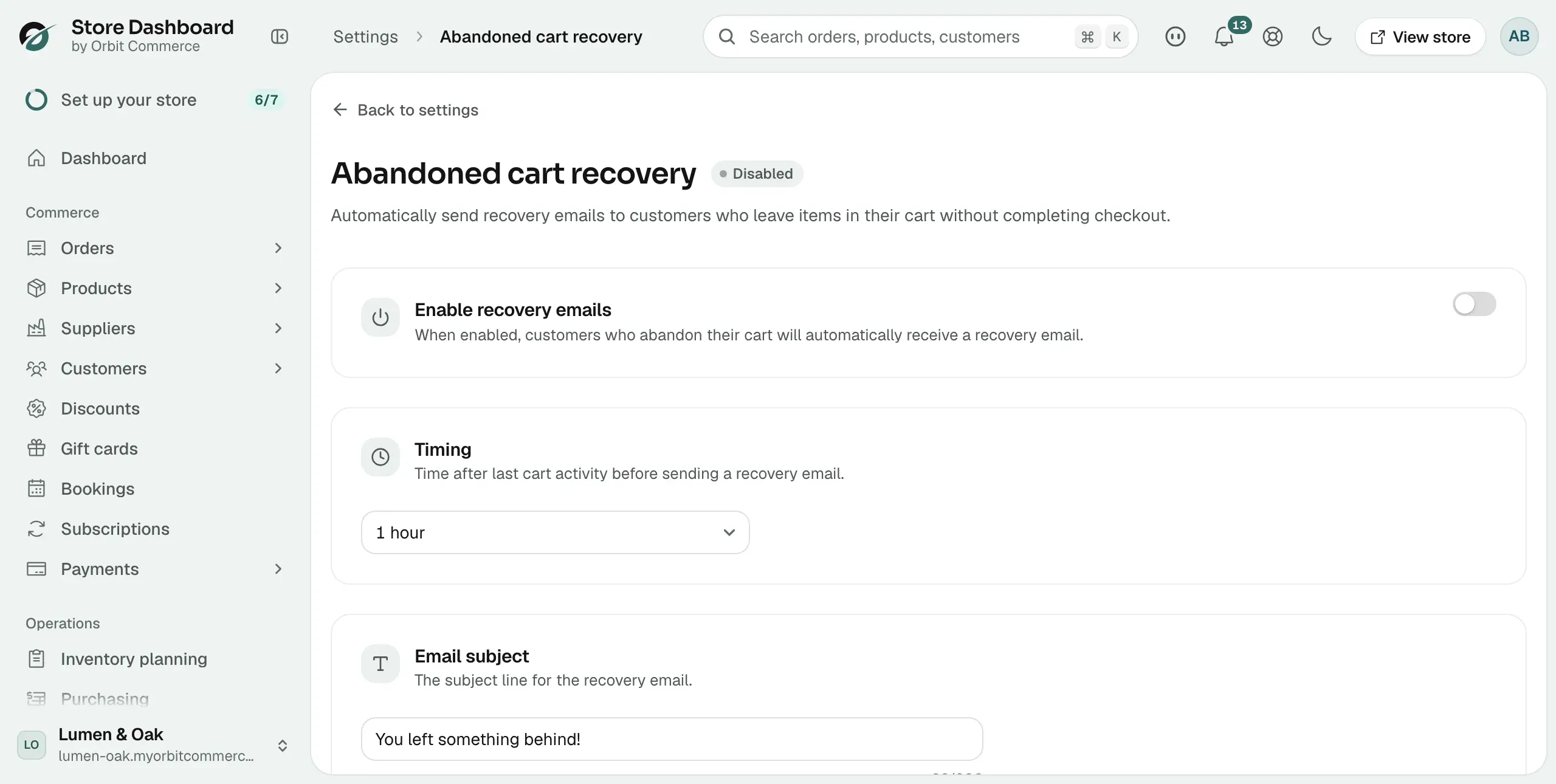
Set the timing
Timing is how long Orbit waits after the shopper last touched their cart before it sends the email.
- Go to the Timing card.
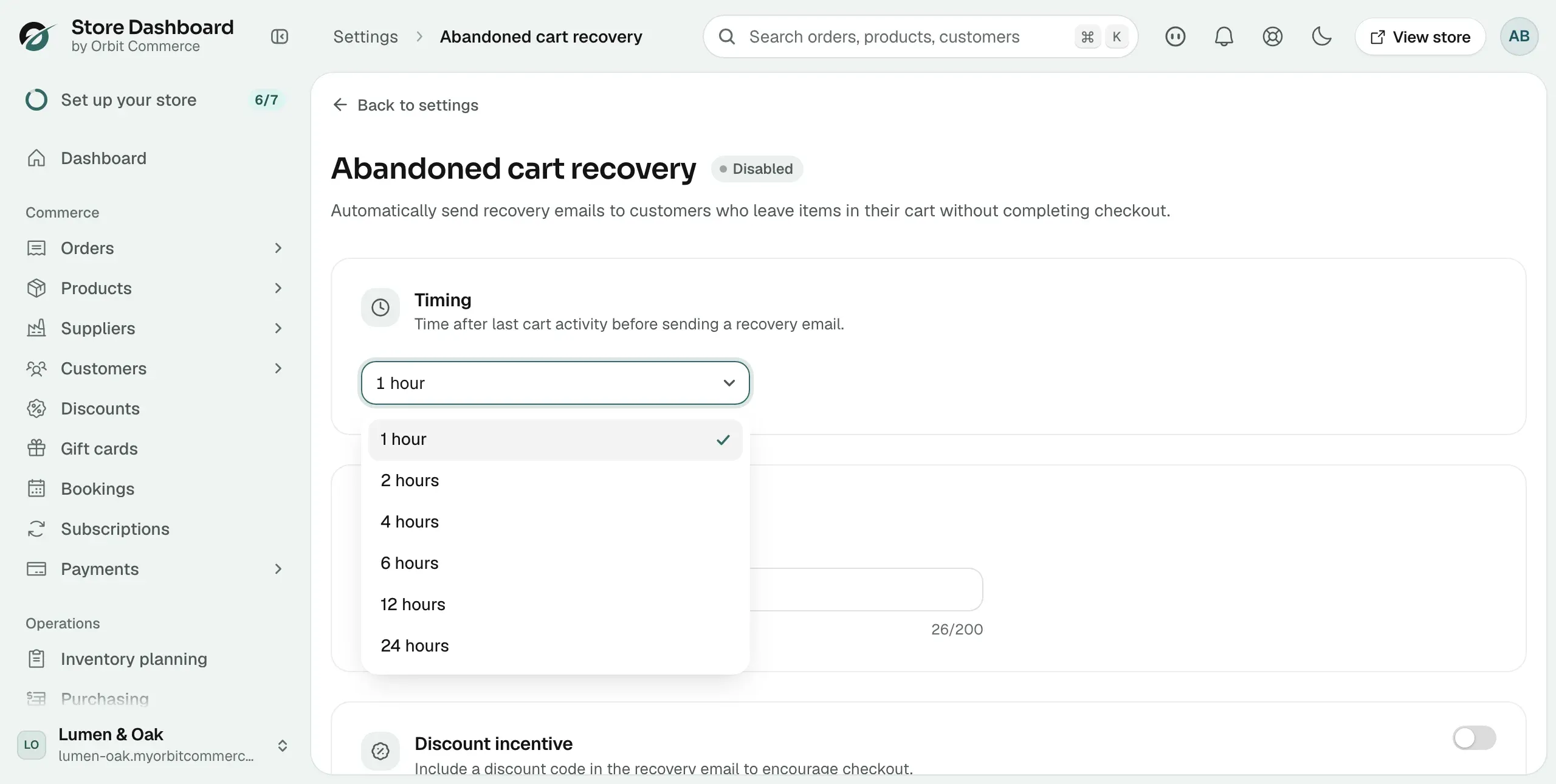
- Open the dropdown.
- Pick a wait: 1 hour, 2 hours, 4 hours, 6 hours, 12 hours or 24 hours. There are no other options.
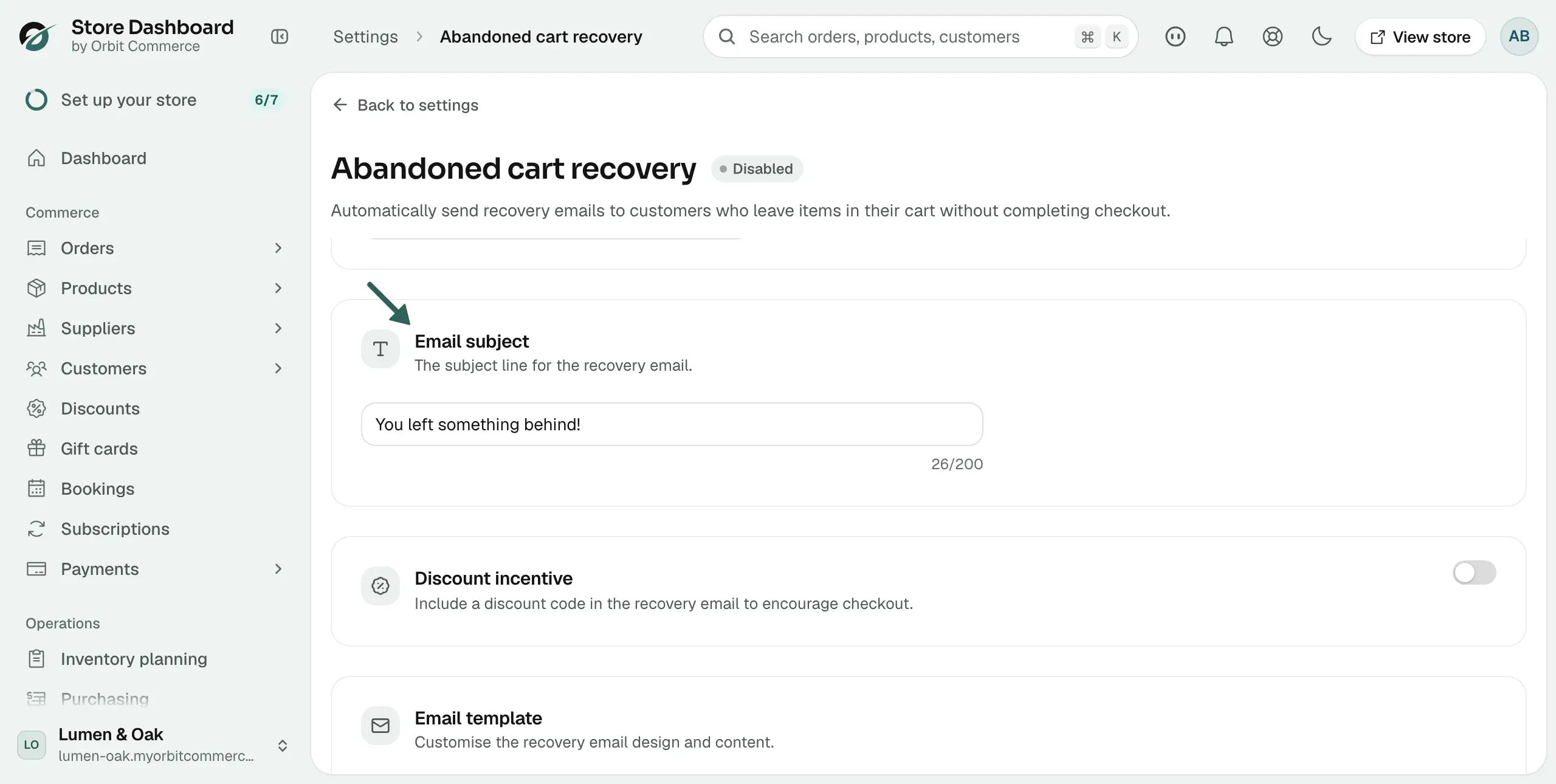
Write the email subject
- Go to the Email subject card.
- Type the subject line shoppers will see. The counter under the field shows how many of the 200 characters you have used.
- If you leave it empty, Orbit uses You left something behind!
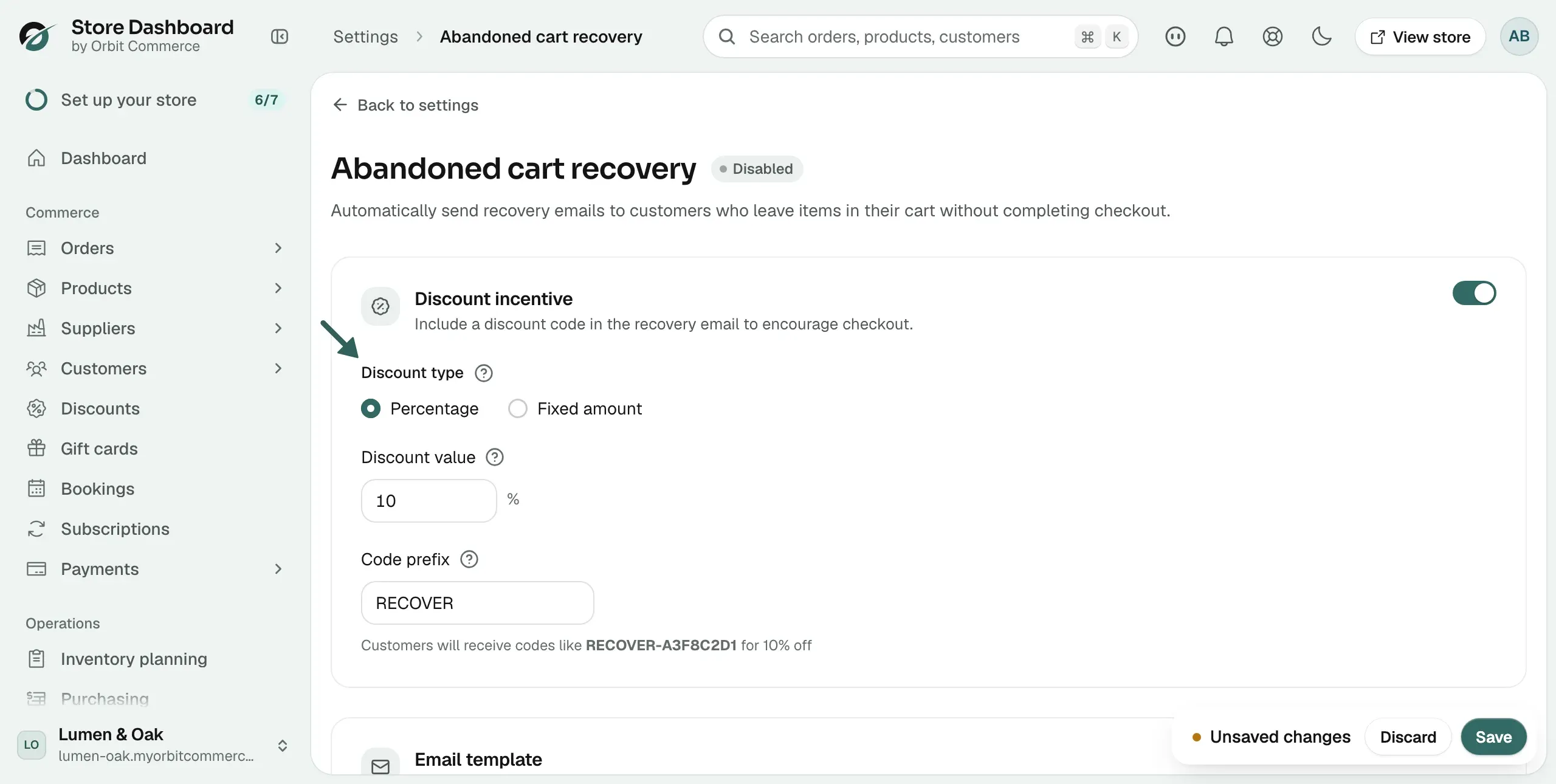
Add a discount code
A discount gives the shopper a reason to come back. Each email carries its own code.
- Turn on the Discount incentive toggle. More fields appear.
- For Discount type, choose Percentage or Fixed amount.
- Enter the Discount value.
- Enter a Code prefix, such as RECOVER. The line below shows an example, such as RECOVER-A3F8C2D1.
Change how the email looks
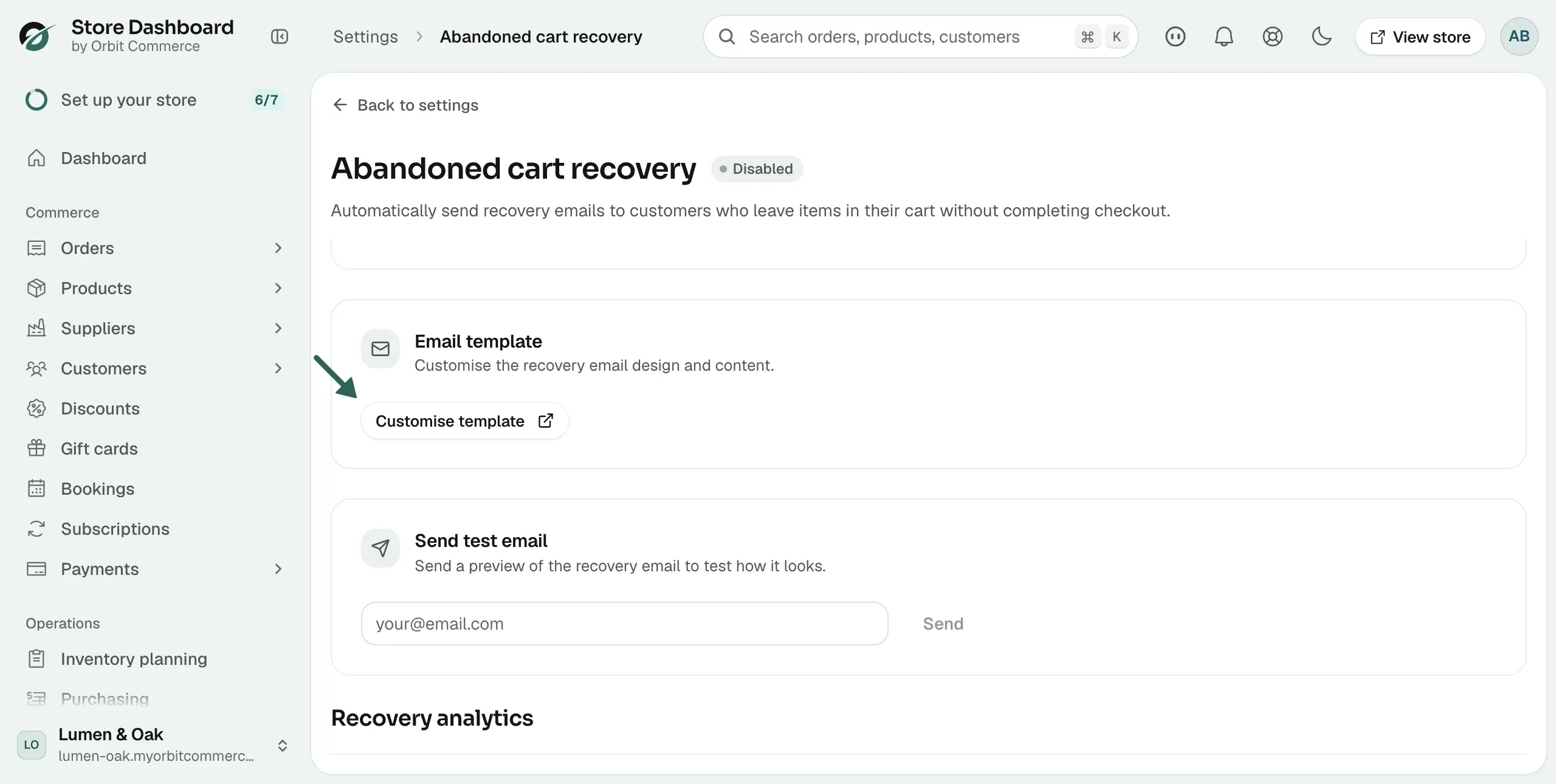
- Go to the Email template card.
- Click Customise template. The Abandoned Cart Recovery email opens in the template editor.
- Edit the wording and design, then save. See Editing your customer email templates.
Send yourself a test email
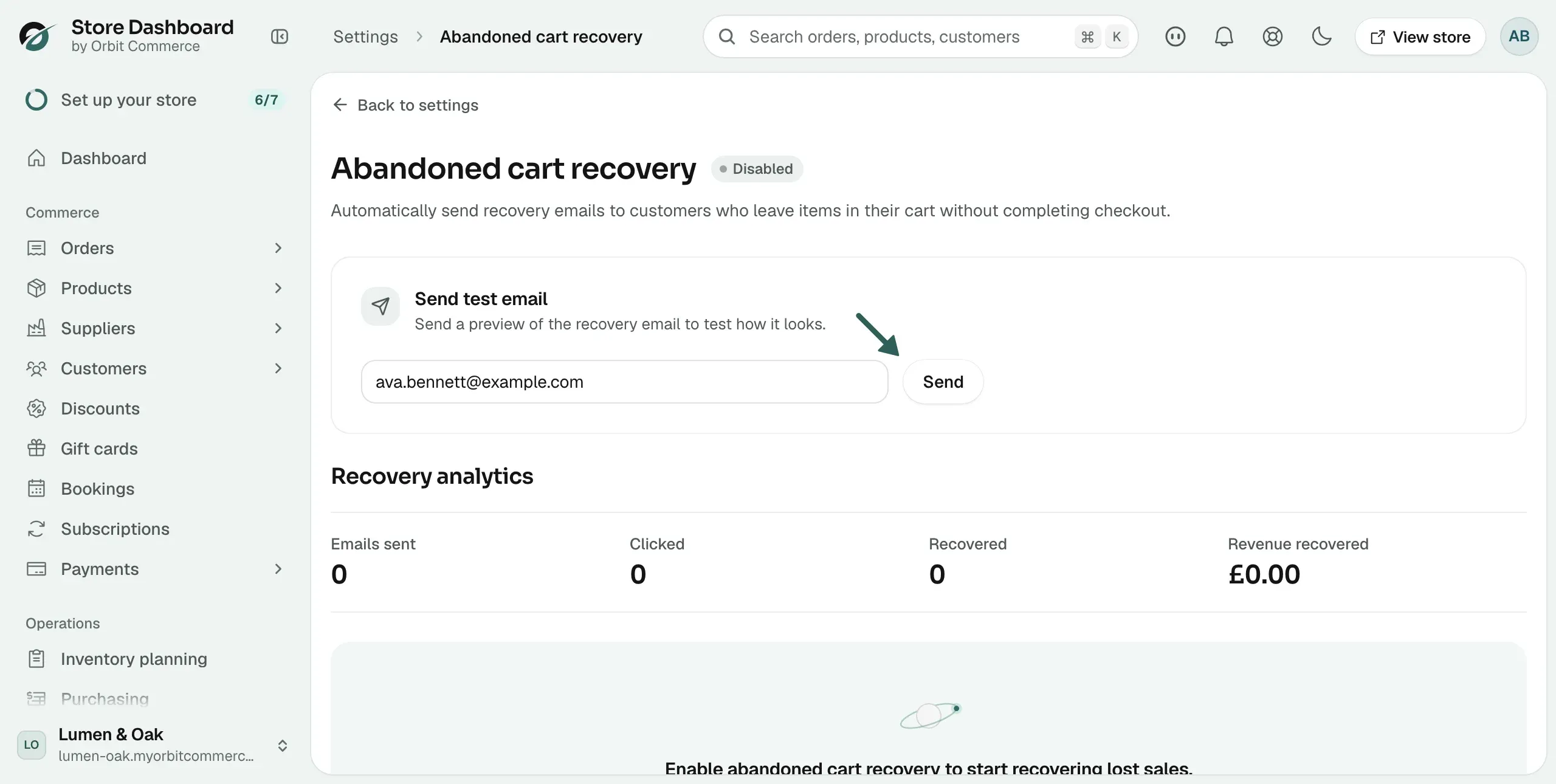
- Go to the Send test email card.
- Type your own email address in the field.
- Click Send. A message confirms the test email was sent.
Turn on recovery emails
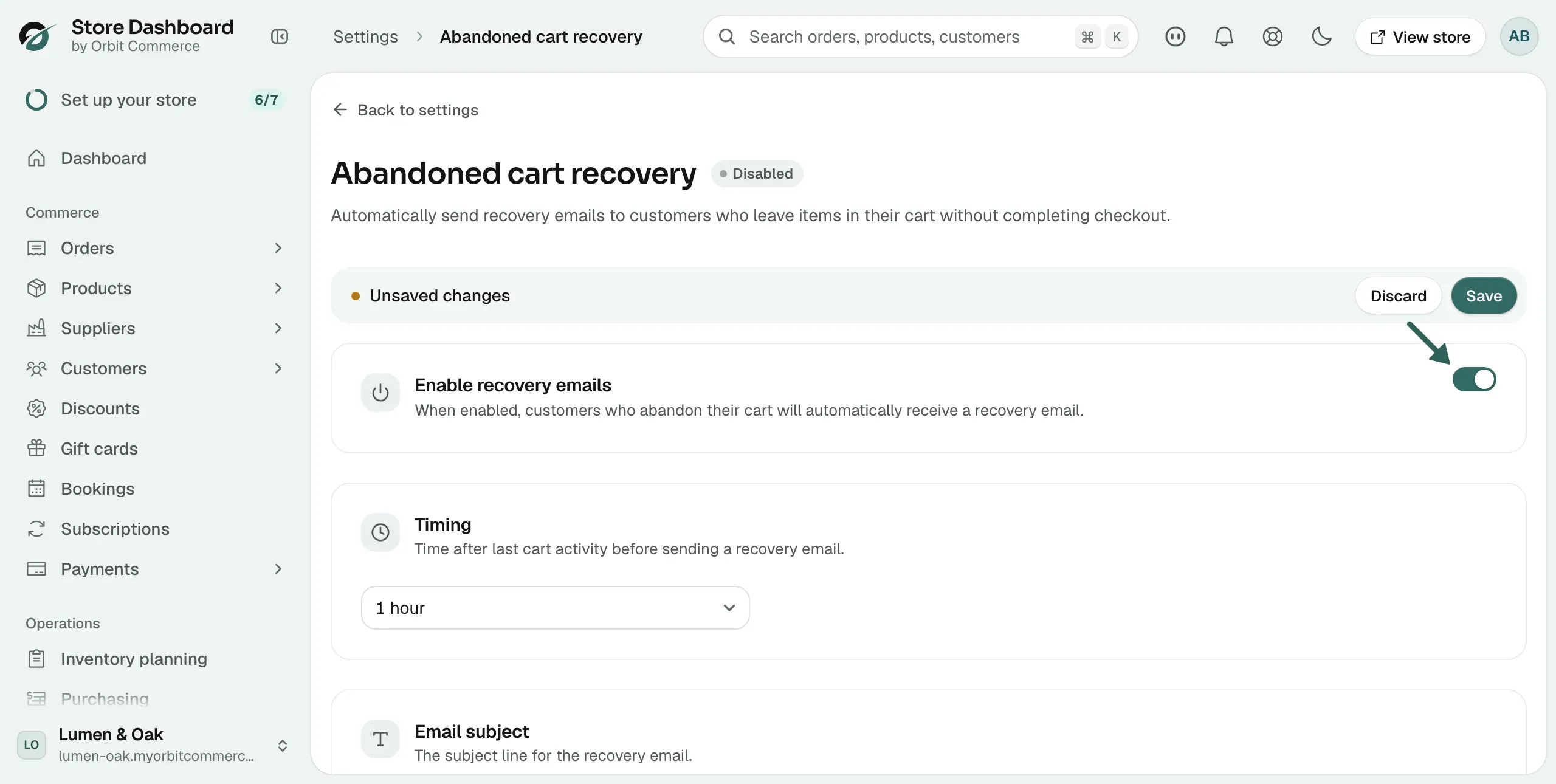
- Go to the Enable recovery emails card at the top of the page.
- Turn the toggle on. An Unsaved changes bar appears.
- Click Save. The badge by the page title changes to Active. Orbit now emails shoppers who leave a cart behind.
Tip: Turn the toggle off at any time. Your timing, subject and discount settings stay as they are.
Check your recovery analytics
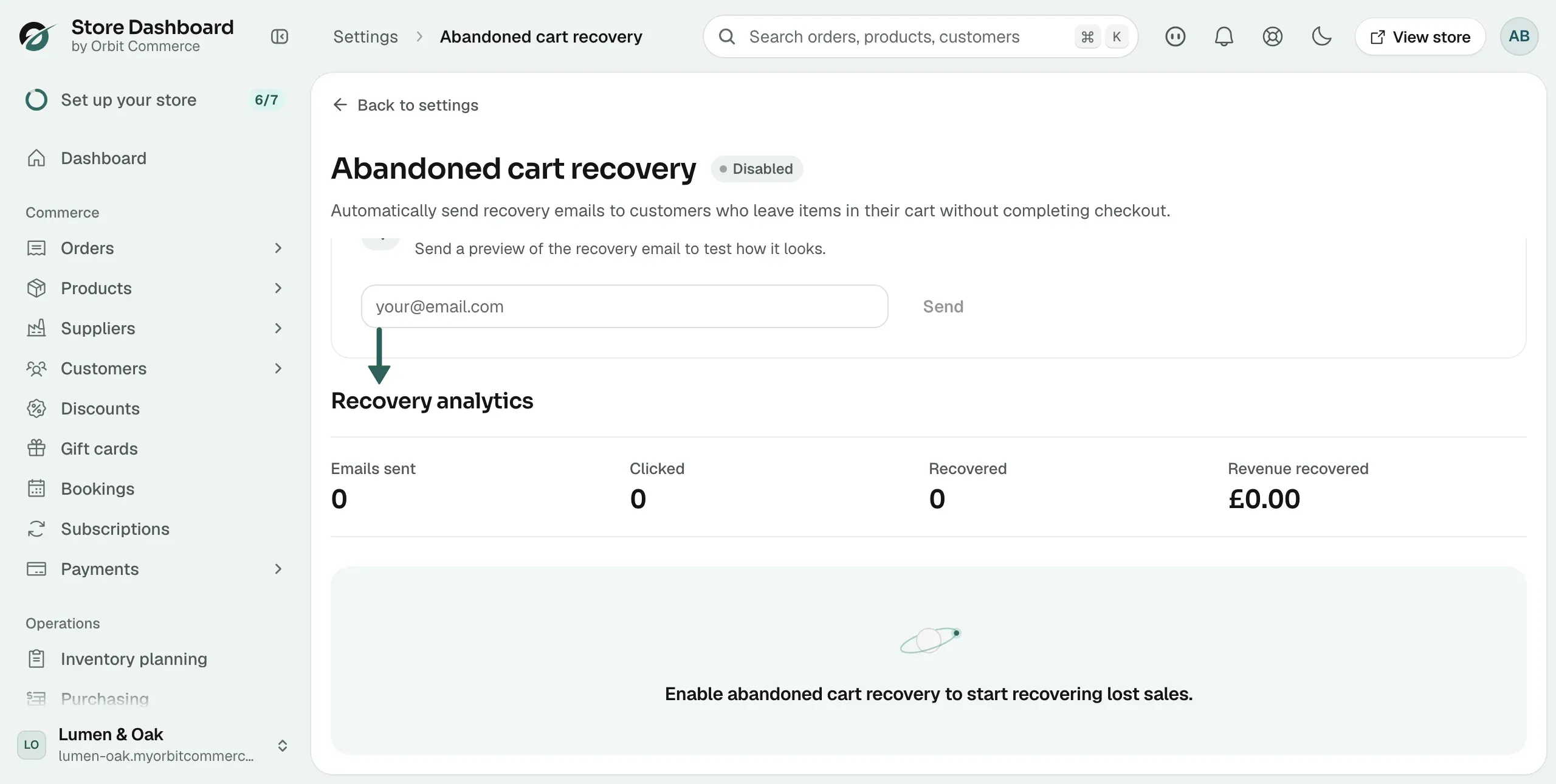
The Recovery analytics row at the foot of the page shows four figures. Until the first recovery email goes out, they read zero with a note below them: No recovery emails sent yet while recovery is on, or a prompt to enable recovery while it is off.
- Emails sent: how many recovery emails have gone out.
- Clicked: how many shoppers clicked through, with the click rate below it.
- Recovered: how many of those carts turned into orders.
- Revenue recovered: the money those orders brought in.
Related guides
Was this helpful?
0 people found this helpful