Tracking stock and allowing backorders
Turn stock tracking on for a product, enter the quantity you hold at each location, and decide whether customers can keep ordering when stock runs out.
You can track stock for each product in the Inventory section of the product editor. Turn tracking on, enter how many you have, and choose whether customers can keep buying after you sell out.
Considerations
- Track inventory is on by default for a physical product.
- Stock is counted per location. Orbit gives you one location to start, called Main Warehouse.
- If a product has variants, you set the quantity on each variant, not on the product.
- To check or correct stock across all your products, use the Inventory page. See Managing inventory.
Turn stock tracking on or off
- From your Orbit dashboard, go to Products.
- Click the product to open it.
- In the list on the left, click Inventory.
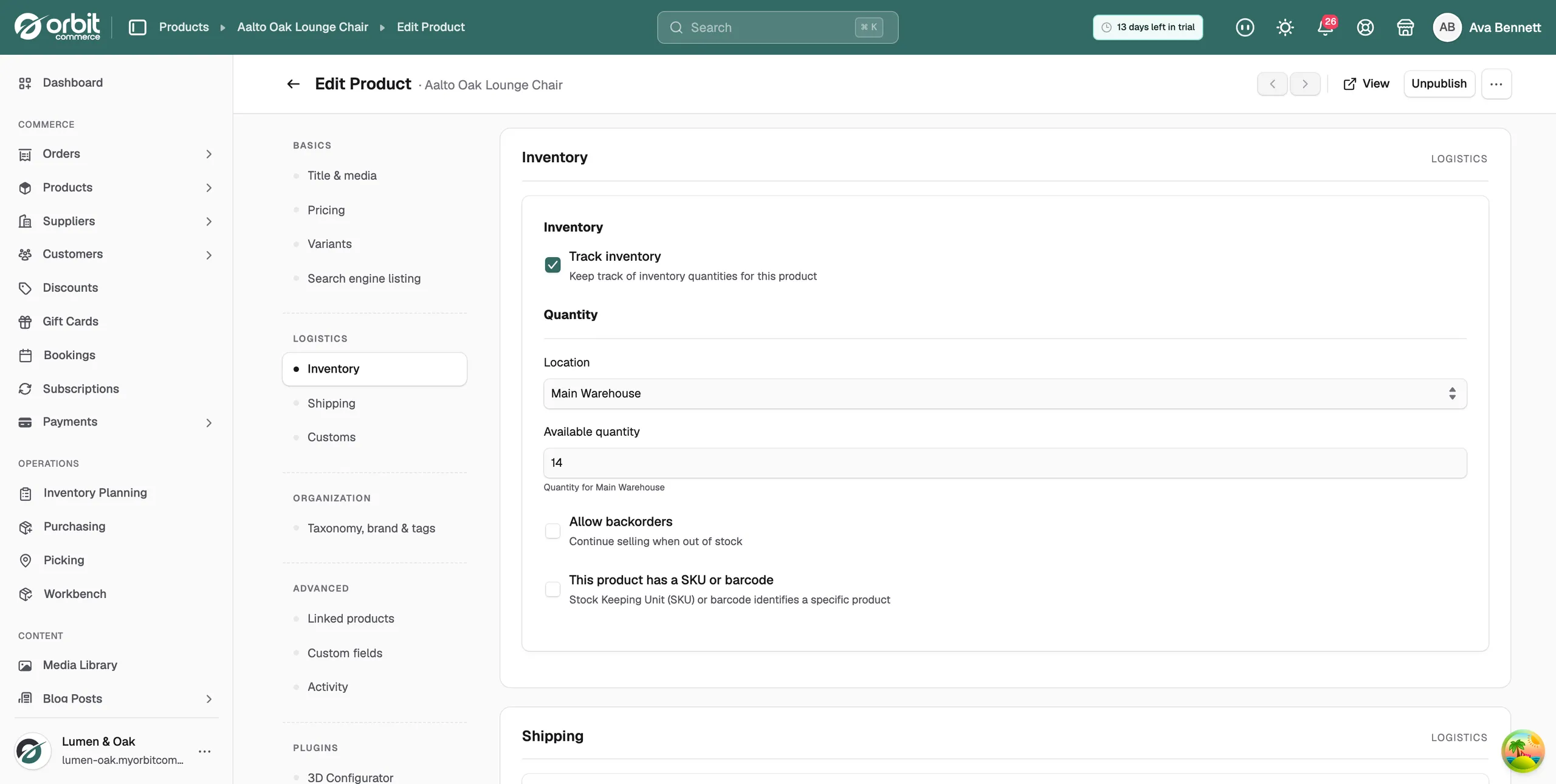
- Tick Track inventory to count stock for this product. Orbit takes one off for each order and stops sales at zero.
- Untick it for anything you never run out of, such as made-to-order items or lines a supplier ships for you.
- Click Save.
Set the quantity
- In the Inventory section, choose the Location that holds the stock.
- In Available quantity, type how many you have.
- Click Save.
If the product has variants, these fields are not shown. Set the quantity for each variant in the Variants section instead. See Adding variants.
Allow backorders
This setting decides what happens when the stock reaches zero.
- In the Inventory section, tick Allow backorders.
- Click Save.
- Off: at zero stock, the product shows as out of stock and cannot be ordered.
- On: customers can keep ordering at zero stock. The order is a backorder, and you fulfil it when new stock arrives.
Made-to-order products work well with backorders on. Customers can buy while you make the item, and nobody sees an out of stock message.
Note: If an order fails with an insufficient stock error, check this section. Either the quantity is wrong or backorders are off.
Related guides
Was this helpful?
0 people found this helpful