Tracking cost price and margin
Enter what a product costs you and see the profit and margin Orbit works out from it, so you know whether your price is right.
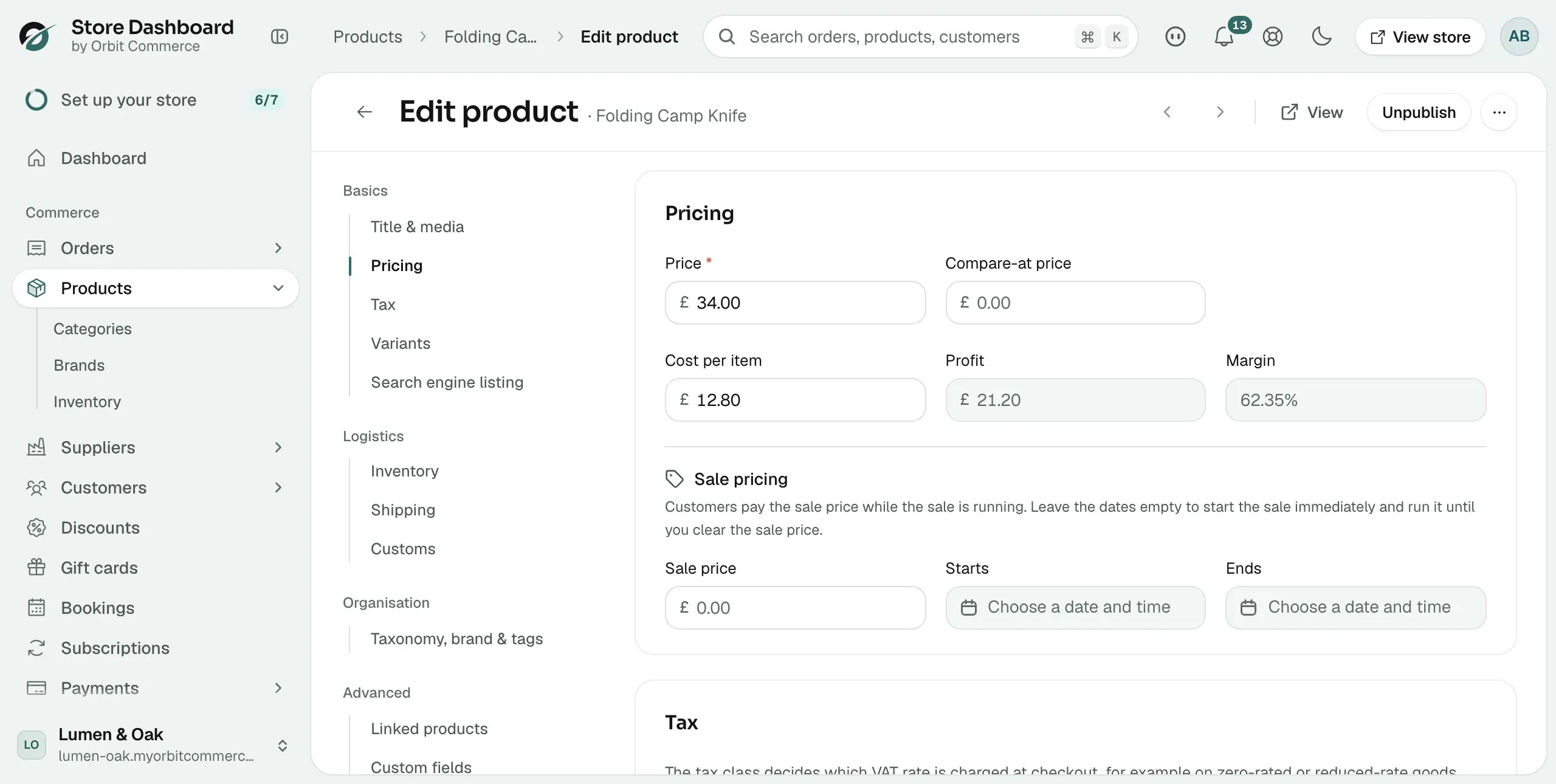
You can record what each product costs you in the Pricing section of the product editor. Orbit then works out your profit and margin for you. Customers never see the cost.
Considerations
- The Pricing section only shows for a product with no variants. For a product with variants, set Cost per item on each variant instead. See Adding variants.
- Profit and margin use the Price and Cost per item only. A compare-at price or sale price does not change them.
- Profit and margin fill in when both the price and the cost are above zero.
Set the cost per item
- From your Orbit dashboard, go to Products.
- Click the product you want to price.
- Click Pricing in the menu on the left. The page scrolls to the Pricing section.
- Under Price, enter the price customers pay.
- Under Cost per item, enter what the product costs you to buy or make.
- Click anywhere outside the field. Profit and Margin fill in.
- Click Save on the Unsaved changes bar at the bottom right. The message Product updated shows.
Tip: If inbound shipping adds a lot to what you pay, include it in the cost per item. The margin is only as honest as the cost you enter.
How profit and margin are worked out
- Profit: the price minus the cost per item, in your store currency.
- Margin: the profit as a percentage of the price, to two decimal places.
For example, a product with a price of £522.00 and a cost per item of £298.00 has a profit of £224.00. The margin is £224.00 divided by £522.00, which is 42.91%.
Profit and margin do not change when you enter a sale price. Work out the sale margin yourself before you run a sale. A 20% sale on a product with a 25% margin leaves you almost nothing.
Where margin shows
- Profit and Margin sit next to Cost per item in the Pricing section. Both are greyed out. You cannot type into them.
- Orbit works them out again each time you open the product. Update the cost when your supplier price changes and they update too.
- The cost per item also appears as the Cost column in the bulk editor, so you can update costs for many products at once. See Bulk editing products.
Related guides
Was this helpful?
0 people found this helpful