Letting customers ask for a back-in-stock alert
Out-of-stock product pages show a Notify me form. Orbit emails everyone who asked as soon as you put the item back in stock.
When a product sells out, your customer can ask to be told when it is back. Orbit shows a short form on the product page, takes their email address, and sends them one email as soon as you put the item back in stock. You do not need to switch this on. The form appears on its own whenever an item is out of stock.
Considerations
- The form only shows while the product page says Out of Stock. It is not there when the item can still be bought.
- Orbit sends the alert when stock goes from none to one or more. Adding stock to an item that is already in stock sends nothing.
- Each customer gets one email per request. Once it is sent, the request is closed. If the item sells out again, your customer has to ask again.
- A product with variants keeps a separate list for each variant. Restocking one size does not email the people waiting for another size.
- There is no page in your dashboard that lists who is waiting. You find out how many people asked when the emails go out.
What your customer sees
On a product page for an item you have run out of, your customer sees:
- An Out of Stock label where In Stock usually sits, and an Add to Cart button they cannot click.
- A box under it asking for an email address, with a Notify me button. Under the form is a line telling them they get one email per restock and can unsubscribe at any time.
- Their own address already filled in, if they are signed in to their account.
When they click Notify me, the form is replaced by a green message: "You'll get an email when this is back in stock." A Subscribe a different email link under it lets them add another address.
The form shows on normal products and on bundles. Asking twice with the same address does not sign the customer up twice.
When Orbit sends the alert
- You put stock back on the item. See Checking and correcting stock levels.
- Orbit checks whether the quantity has moved from none to one or more for that exact product and variant.
- Everyone with an open request for that item is emailed. The emails go out in the background, so they can land a minute or two after you save.
- Each of those requests is then closed, so nobody is emailed twice for the same request.
Tip: Set the stock in one go rather than in small steps. Only the change that takes the item from zero to one or more sends the emails, so a single correct figure is enough.
What the email says
The email is called Back in Stock. Orbit's default version contains:
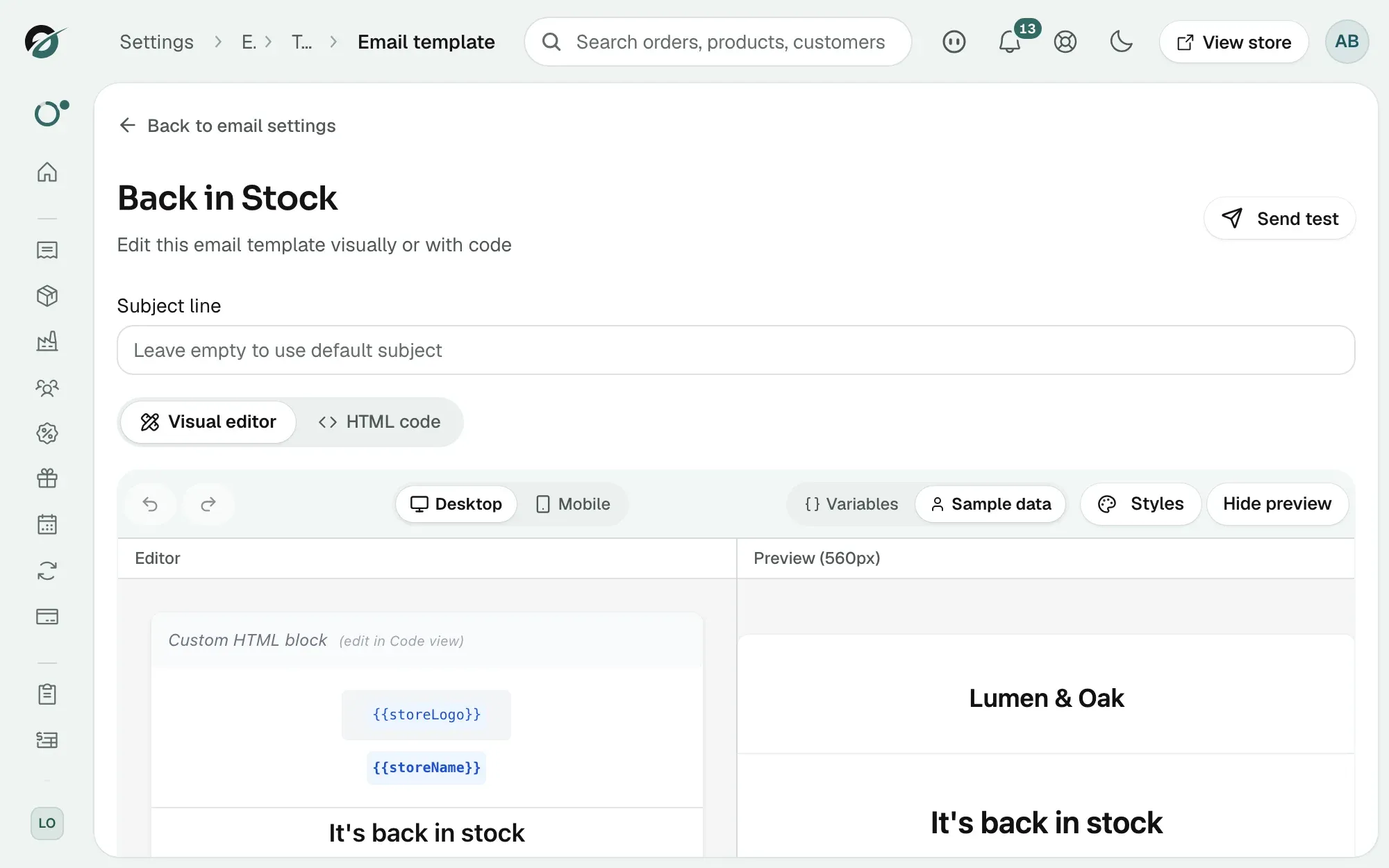
- Your store logo and store name at the top.
- The heading It's back in stock, then a line naming the product, and the variant if the request was for one.
- A Shop now button that opens the product page on your storefront.
- An Unsubscribe from this alert link in the footer. One click stops that alert.
Edit the Back in Stock email
- From your Orbit dashboard, go to Settings.
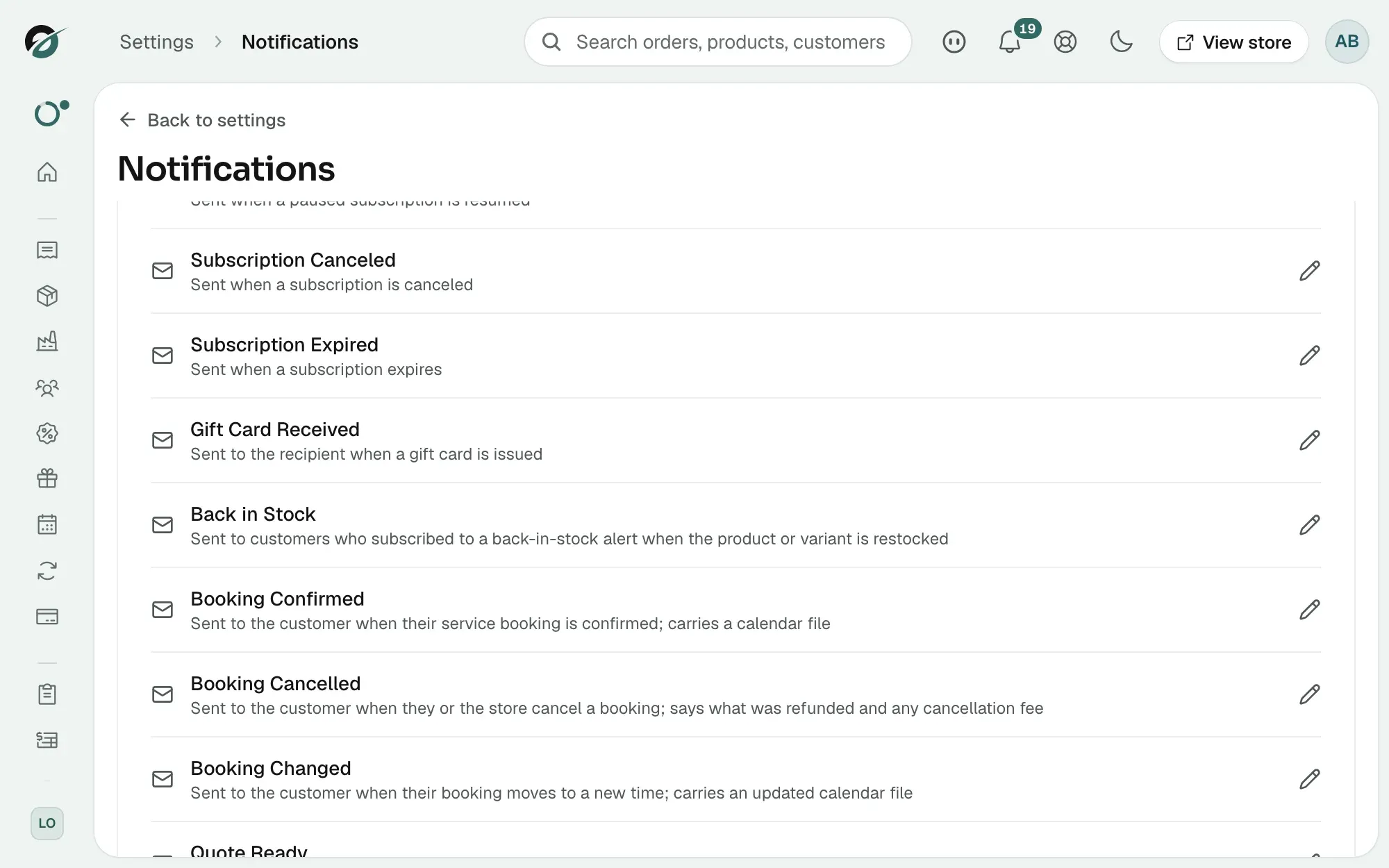
- Under Insights & Tracking, click Notifications.
- Stay on the Email tab, then click Customer email templates.
- Find the Back in Stock row and click it. The editor opens.
- Change the Subject Line, and the wording of the email in the Visual editor or the HTML code tab.
- Click Send test and send yourself a copy to check it.
- Click Save. The row now carries a Customised badge.
For what each part of the editor does, see Editing your customer email templates.
Warning: Keep the unsubscribe link in the footer. It is how your customer stops the alert, and leaving it out can get your emails marked as spam.
Related guides
Was this helpful?
0 people found this helpful