Managing plugin plans and billing
Move a plugin between its free and paid plans, switch between monthly and yearly billing, cancel or resume, and see what each free plan allows.
Most plugins have more than one plan. A free plan gets you started with limits on it, and a paid plan lifts them. You change the plan on the plugin's own page, and everything you pay for shows on the Apps and add-ons card in Plan & billing. For installing and uninstalling, see Installing and managing plugins.
Considerations
- Plugin plans are separate from your Orbit plan. They go on the card saved with Orbit and appear on the same billing page.
- Not every plugin has three plans. Some have Free and Pro only.
- You need a saved card before you can subscribe. You can add one during checkout.
- Plugin plans are billed monthly. A plugin you already pay for yearly can be moved to monthly billing.
- Cancelling does not cut you off on the day. You keep access to the end of the period you have paid for.
Pick a plan when you install
A plugin's details page lists its plans under Pricing. The button at the bottom says what you are signing up for: Install free plan when the plugin has a free plan (you pick a paid plan inside the plugin afterwards), Start 14-day free trial when the plugin comes with a trial, or Install and authorise when the plugin is free.
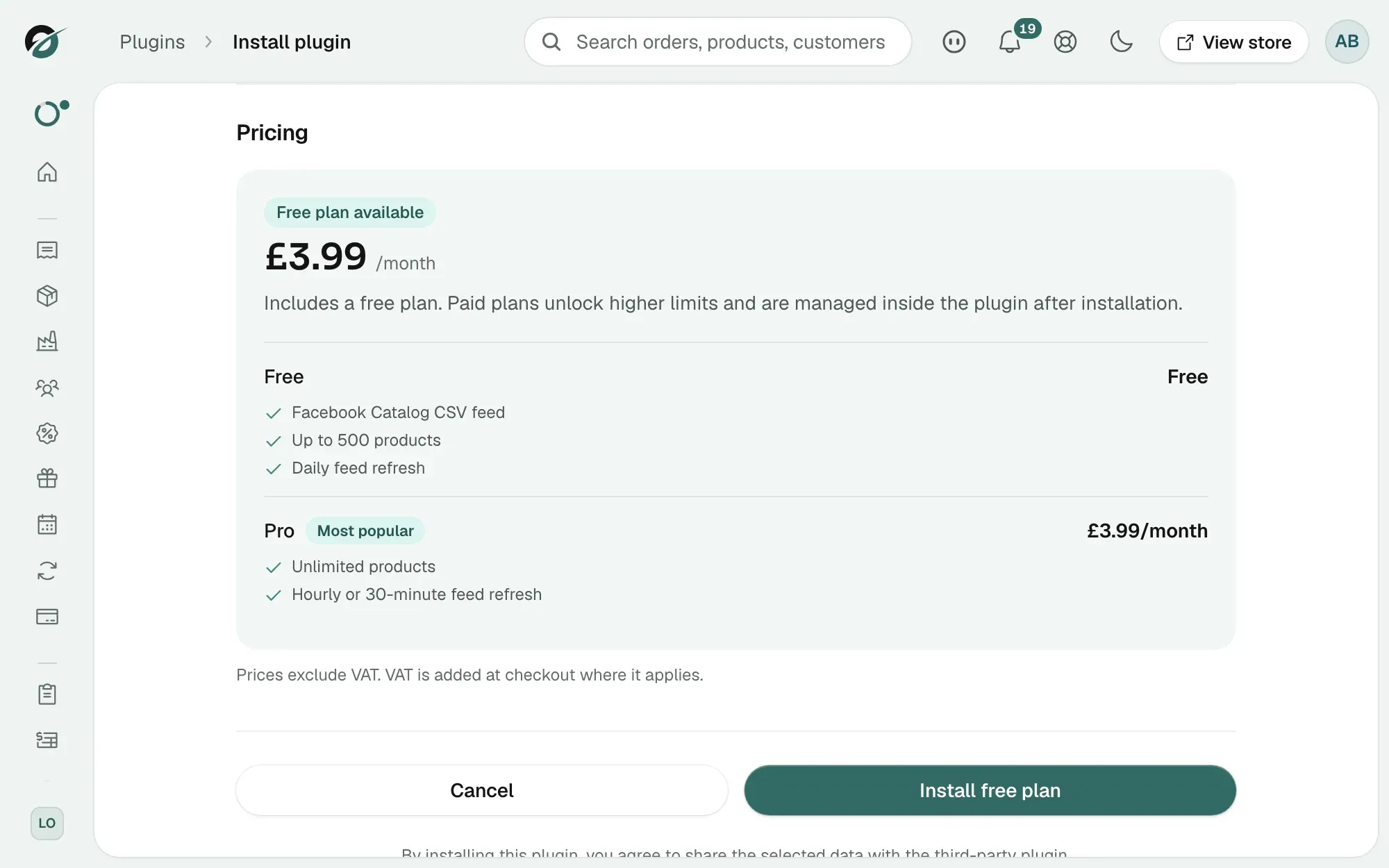
Note: A free trial started at install has no card behind it, so it never turns into a paid subscription on its own. When it ends, a plugin with a free plan moves to that plan. Any other plugin stops until you subscribe.
Subscribe to a paid plan
You can subscribe from the plan panel on the plugin's page, or from inside the plugin when you reach a limit and it offers the upgrade. Both open the same checkout window.
- From your Orbit dashboard, go to Plugins.
- Under My plugins, click Open on the plugin's row.
- Find the plan panel on the page. During a trial it carries a Free trial badge and the date the trial ends.
- Click Subscribe. On a plugin whose access has run out, the button reads Renew.
- The Complete purchase window opens with the plan name and the price.
- Under Payment method, click the card you want. The card marked Default is picked for you. For a new card, click Add payment method.
- Click Purchase. The button shows the amount, for example Purchase £14.99.
- The message Purchase successful! appears. The panel now shows the plan name, an Active badge, the price and Renews on with the next billing date.
If the window asks for extra authentication, your bank wants a check it cannot run. Pay with another card.
Switch from yearly to monthly billing
If you pay for a plugin yearly, you can move it to monthly billing. It keeps you on the plan you are already on.
- Open the plugin and find the plan panel.
- Click Switch to monthly. The button shows the new price.
- A window repeats the new price. Click Switch, or Keep current to leave things alone.
You are not charged twice for the same days. The difference between the two prices is worked out for you and lands on your next invoice.
Cancel or resume a subscription
- Open the plugin and find the plan panel.
- Click Cancel.
- A window titled Cancel [plugin name]? gives you the date your access ends. Click Cancel subscription to confirm, or Keep subscription to stop.
- The panel reads Ends on with that date, and the button changes to Resume subscription.
To undo a cancellation, click Resume subscription, then confirm. The window tells you the price it goes back to renewing at. You can also cancel and resume from the dots menu under My plugins and from the Apps and add-ons card.
Approve new permissions after an update
An updated plugin can ask for permissions you have not granted. Until you approve them, parts of the plugin stop working. Orbit shows an orange banner on the Plugins page, above the plugin's row, and at the top of the plugin's page. It reads Update available: this update to [plugin name] needs 3 new permissions. (the number depends on the update).
- Click Review permissions. To deal with it another time, click Later. The banner comes back on your next visit.
- The window New permissions requested lists only the new permissions. Read each one.
- Click Approve, or Cancel to leave the plugin as it is.
- The message Permissions updated appears.
Approving adds only the permissions on that list. Your settings and data are untouched, and uninstalling takes every permission back.
Find your plugin charges
- From your Orbit dashboard, go to Settings.
- Under Plan, click Plan & billing.
- Go to the Apps and add-ons card, below Current plan.
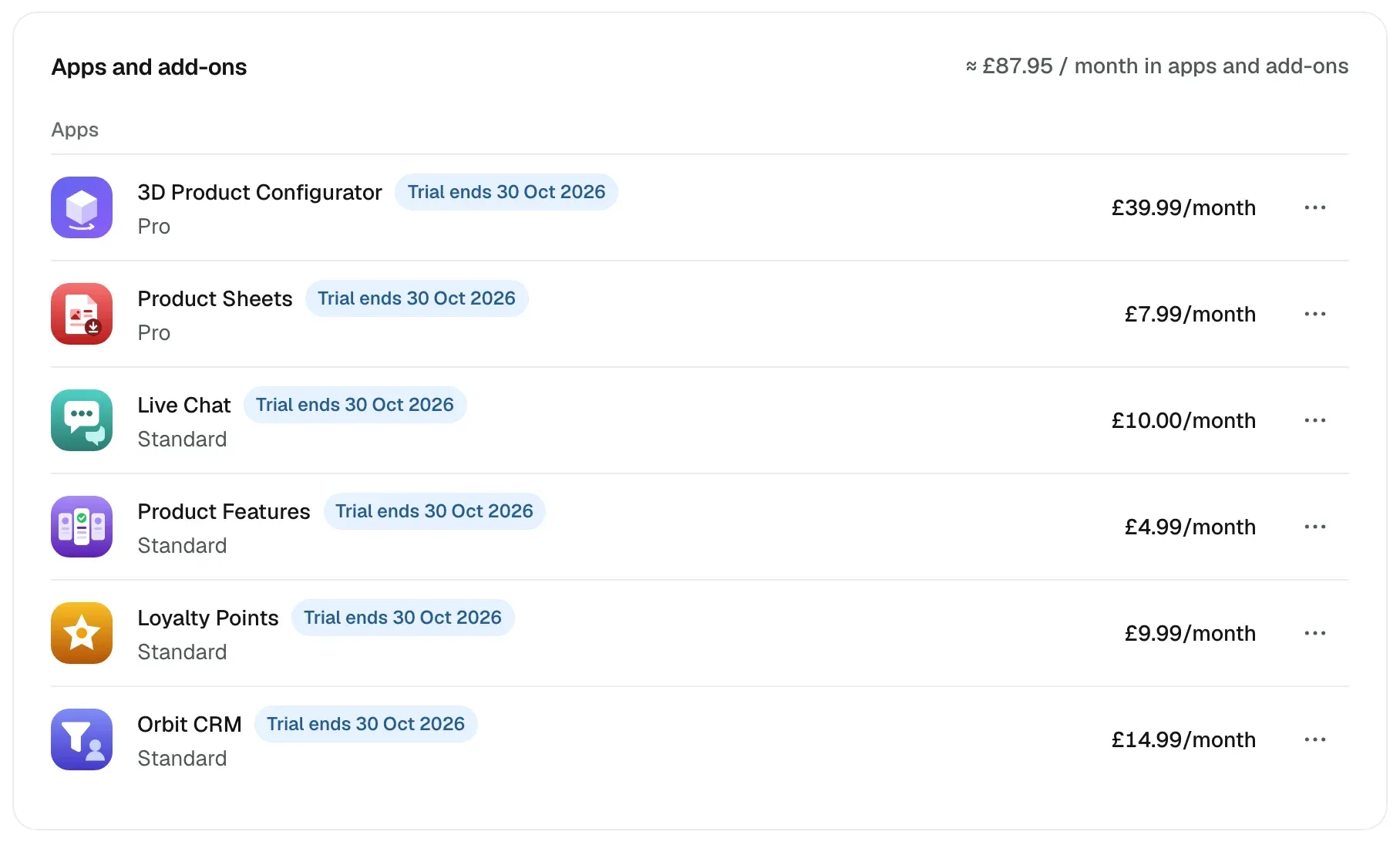
The card groups what you pay for into Add-ons, Apps and One-off purchases, with a rough monthly total at the top right. Your Orbit plan is not here. It has the Current plan card to itself. Each row gives the name, the plan, the price and a badge:
- Active: running, with nothing to report.
- Renews and a date: the next charge date.
- Trial ends and a date: you are in a free trial.
- Cancels and a date: cancelled, running until then.
- Past due: a payment failed. Check your card under Payment methods.
- Gifted until and a date: given to you at no cost until then.
- Not installed: you pay for it, but it is not installed here.
- Refunded: the charge was paid back.
The dots menu at the end of a row holds Manage, Cancel subscription, Resume subscription and Uninstall. You see the ones that apply.
Free plan limits
Each free plan comes with limits. A paid plan lifts them.
- Import/Export: manual imports and exports, plus one scheduled feed run daily, weekly or monthly, up to 1,000 rows per run.
- Google Shopping: up to 500 products, daily refresh.
- Facebook Catalog Feed: up to 500 products, daily refresh.
- Pinterest Catalog Feed: up to 500 products, daily refresh.
- Microsoft Merchant Feed: up to 500 products, daily refresh.
- Snapchat Catalog Feed: up to 500 products, daily refresh.
- eBay Integration: 100 listings and 30 synced orders per month.
- Amazon Integration: 100 listings and 30 synced orders per month.
- Product Sheets: unlimited spec sheets and one whole-store catalogue of up to 25 products, with a small Created with OrbitCommerce footer.
- Calculator Builder: 1 calculator, no lead capture.
- Form Builder: unlimited forms, 100 submissions a month, no file uploads.
- Live Chat: 1 agent seat for the store owner, up to 50 live chats a month.
- Loyalty Points: points earned on up to 200 orders a month.
- Orbit CRM: 1 pipeline, up to 25 open deals, for the store owner.
- Product Features: up to 5 feature sets.
- Workflows: unlimited workflows, 1,000 runs a month.
Related guides
Was this helpful?
0 people found this helpful