Understanding and changing your plan
See what your Orbit plan costs and covers, watch your usage against its limits, move to another plan, keep your card up to date, and cancel or uncancel.
Your Orbit plan, your saved cards and your invoices all sit on one page. Go to Settings, then Plan & billing. From there you can see what you are paying, check how much of your plan you are using, move to another plan, and cancel or carry on.
Considerations
- Prices on the plan cards are per month and exclude VAT, which is added at checkout where it applies. Yearly billing is a tick box at checkout, and a year costs the same as nine months.
- You need a saved card before you can check out.
- Cancel subscription only shows while your subscription is active. During a free trial the card shows Change plan but not Cancel subscription.
- If an agency manages your store and pays for its plan, the billing cards are hidden and your agency handles plans and payments.
Open Plan & billing
- From your Orbit dashboard, go to Settings.
- Under Plan, click Plan & billing.
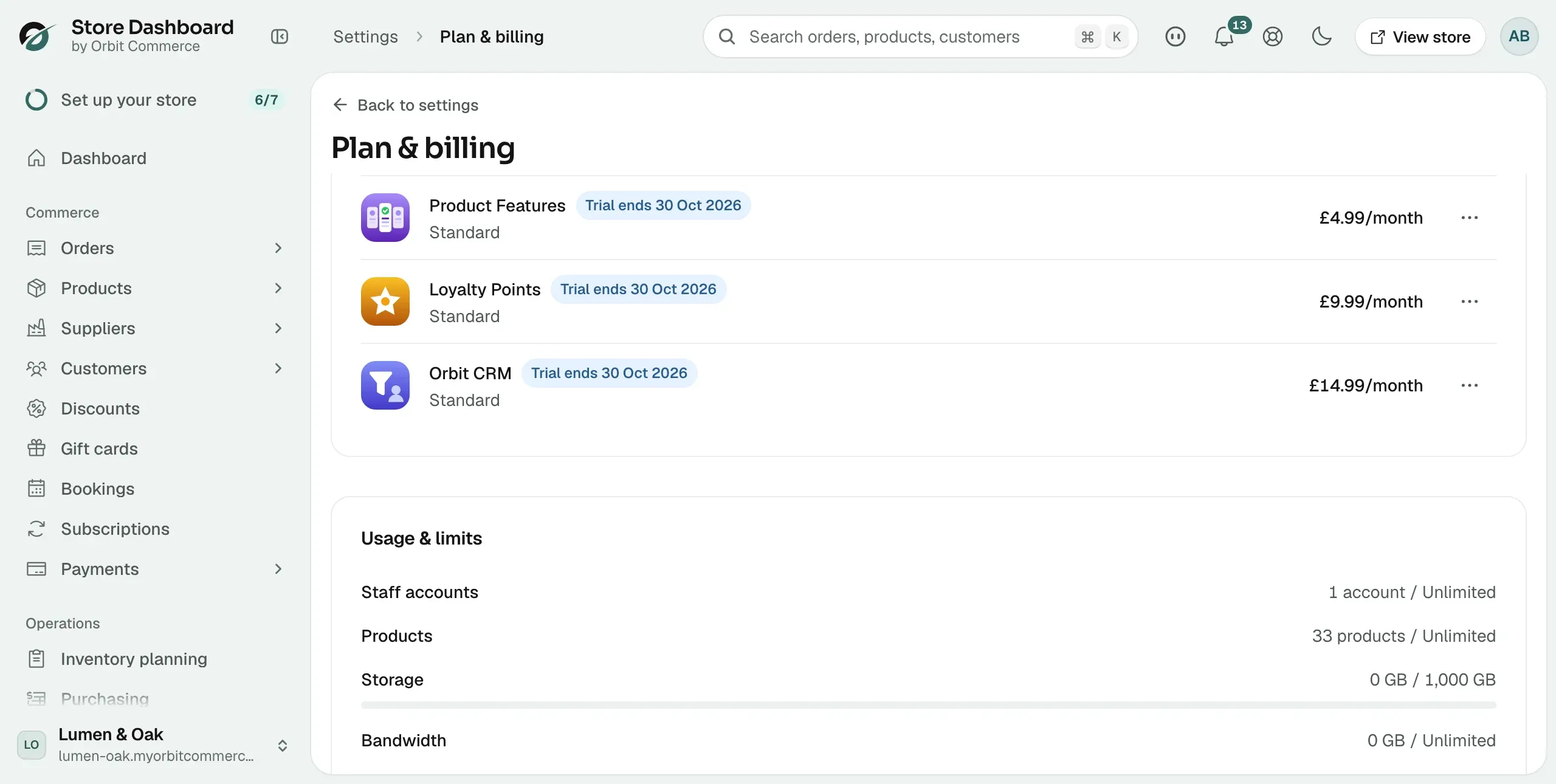
- The page opens with the Current plan, Apps and add-ons, Usage & limits and Billing history cards. A Payment methods card joins them once you have saved a card.
Read the Current plan card
The badge beside Current plan is the state of your subscription: Active, Trial, Past due, Cancelled, Expired or Frozen. Below it are four columns.
- Plan name: the plan you are on, with its one-line description.
- Price: what you pay each billing period. On a trial it also reads Free until your trial end date.
- Current billing period: the start and end dates of this period. During a trial the label reads Trial period instead.
- Payment method: the card your subscription is charged to. If there is none, you get an Add payment method button here.
On a trial, a box under the columns tells you how many days the trial runs and the date it ends.
Check your usage
The Usage & limits card shows how much of your plan you have used. Rows with no cap read Unlimited and have no bar.
- Staff accounts: people with access to the store, including invitations you have sent but nobody has accepted.
- Products: how many products you have.
- Storage: the space your images and files take up.
- Bandwidth: traffic served this month.
At 80 per cent of any limit the card gains an Approaching limit badge, and at 100 per cent a red Limit reached badge. Either way an Upgrade plan button appears, which goes to the same place as Change plan.
Change your plan
- On the Current plan card, click Change plan.
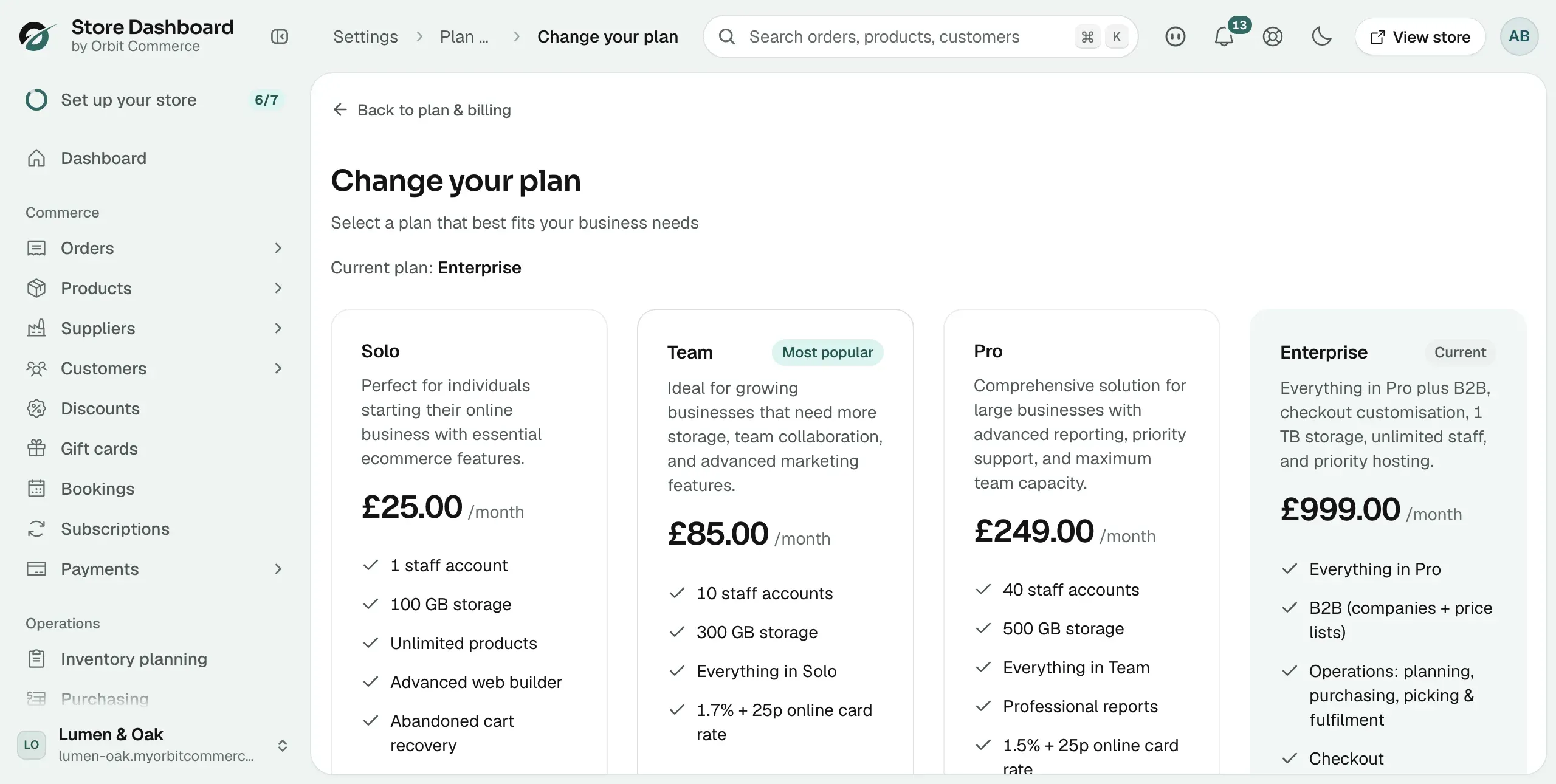
- The Change your plan page opens. Your plan is named at the top and its card is marked Current.
- Compare the cards. Scroll down to Compare plans for the full table, where a tick means the plan includes that feature.
- Click Select on the plan you want, for example Select Team. If that plan has fewer features than yours, a Confirm plan downgrade window first lists what you would lose: tick the box to agree, then click Continue to checkout. Checkout opens on monthly billing.
- To pay for a year instead, tick Save with yearly billing. The summary updates to the yearly price and shows what it works out at per month.
- If you have a code, type it under Promo code.
- Choose the card you want to pay with, or click Add payment method.
- Check the Order summary, then click the button at the bottom of it. A message confirms the change.
The button at the bottom of the summary is named for what you are doing:
- Pay now: you are on a free trial. Paying ends your trial today.
- Upgrade plan or Downgrade plan: you are on a paid plan and moving up or down.
- Reactivate subscription: your subscription had ended or was cancelled.
- Subscribe now: you have no subscription yet.
Note: An upgrade starts as soon as the payment goes through, and you pay only for the rest of the period. A downgrade waits until your current period ends.
The plans
- Solo, £25.00 a month: 1 staff account, 100GB storage, unlimited products, advanced web builder, abandoned cart recovery, a 2% + 25p online card rate and live chat support.
- Team, £85.00 a month: everything in Solo, 10 staff accounts, 300GB storage and a 1.7% + 25p online card rate. It carries the Most popular badge.
- Pro, £249.00 a month: everything in Team, 40 staff accounts, 500GB storage, professional reports, a 1.5% + 25p online card rate and priority support.
- Enterprise, £999.00 a month: everything in Pro, B2B (companies and price lists), operations (planning, purchasing, picking and fulfilment), checkout customisation, unlimited staff accounts, 1 TB storage and priority hosting.
Add or change your card
The Payment methods card appears once you have saved a card, and lists the cards on file. Each row shows the card, its expiry date, and a Default badge on the one you pay with.
- Click Add payment method to add a card. Before you have saved one, use Add payment method on the Current plan card.
- Click Set as default on another card to pay with that one instead.
- Click Delete to remove a card, then Remove to confirm. While your plan is still billing, you cannot delete your only card: add another one first.
Note: Keep a valid card on file. Without one your subscription cannot renew.
Find your invoices
Billing history lists what you have been charged and when, so you can pass it to your accountant. Until your first payment it reads No invoices yet.
Cancel your subscription
- On the Current plan card, click Cancel subscription.
- Read what happens next, then click Continue. To stop here, click Keep subscription.
- Pick a reason. You cannot go on until you do. The choices are Too expensive, Missing features I need, Switching to another service, Not using it enough, Technical issues, Business closed or paused, and Other reason.
- Add anything you want to tell us under Additional feedback (optional), then click Continue.
- Check the summary of your answers, then click Yes, cancel subscription.
The cancellation is scheduled, not immediate. You keep full access until the last day of the period you have paid for, your data is kept for 90 days, and there is no refund for time you have not used.
Warning: After you confirm, the Current plan card shows a Scheduled for cancellation banner with the end date, and Change plan goes away. To move to another plan you have to keep your subscription first.
Keep a subscription you cancelled
- On the Current plan card, find the Scheduled for cancellation banner.
- Click Keep subscription. There is no confirmation step.
- The banner goes, and Change plan and Cancel subscription come back. Your plan carries on as before.
You can do this at any time up to the date in the banner.
Related guides
Was this helpful?
0 people found this helpful