Connecting your store to eBay
Install the eBay Integration plugin, connect your eBay seller account, choose what to sync, then push listings to eBay and import eBay orders.
The eBay Integration plugin syncs products, stock and orders between your store and your eBay seller account. Both channels sell from the same stock, and eBay orders land in the same Orders list as your storefront orders.
Considerations
- eBay buyers expect fast dispatch. Only sync stock you can send out within your promised handling time.
- Richer item specifics rank better in eBay search. Check the category specifics for your product types before you push listings.
Install the plugin
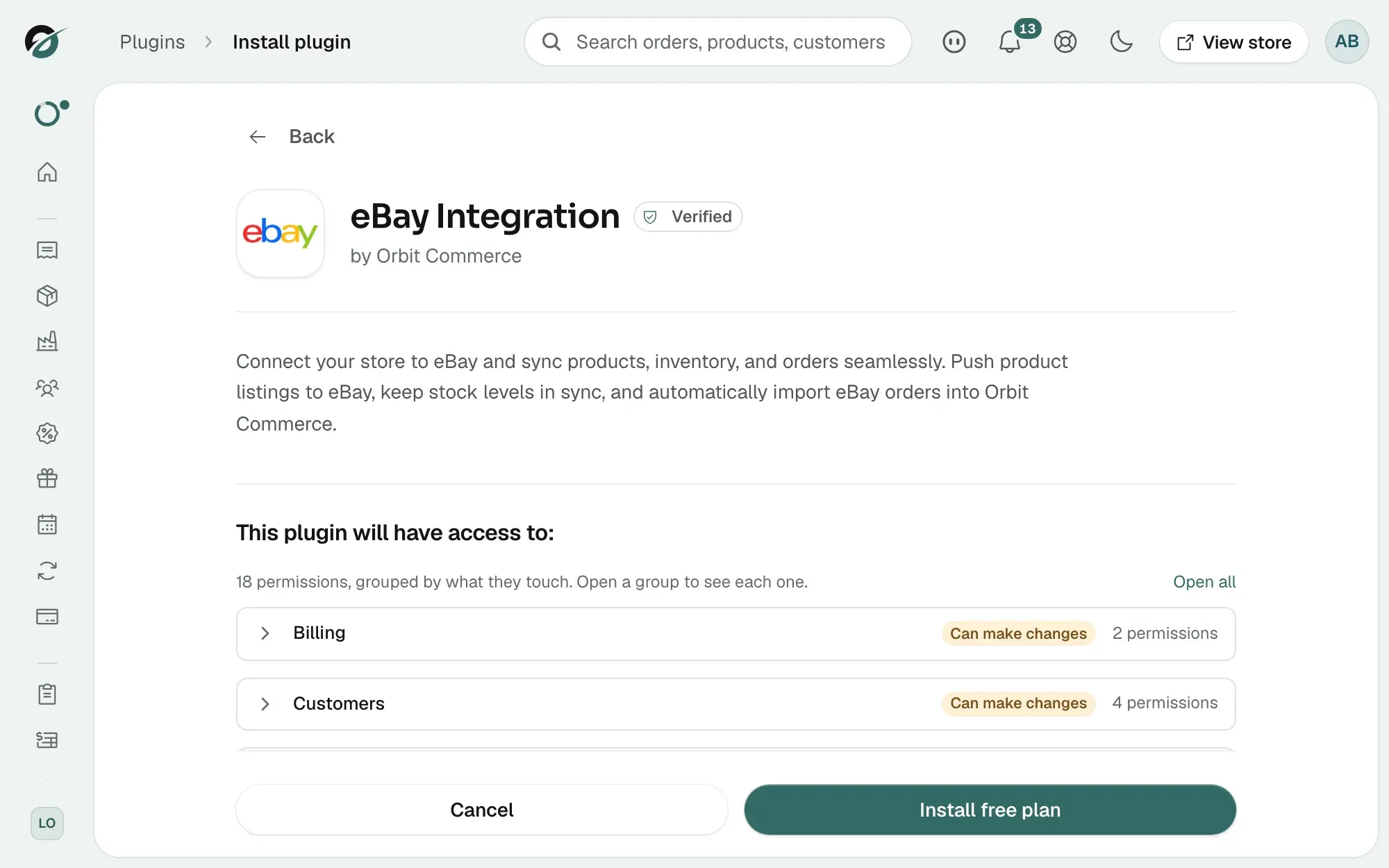
- From your Orbit dashboard, go to Plugins.
- Find eBay Integration and install it. The full steps are in Installing and managing plugins.
- Once installed, the plugin appears in the left menu as eBay.
Connect your eBay account
- Open the plugin. It has four tabs: Connection, Products, Orders and Sync History.
- On the Connection tab, under Connect your eBay Account, click Connect to eBay.
- eBay's sign-in page opens and asks you to approve access. Your eBay password is never typed into Orbit.
- Approve the connection. You return to your dashboard and the tab shows eBay Account Connected, with your seller username and marketplace.
Choose what to sync
Under Sync Settings on the Connection tab, switch on the parts you want, then click Save Settings.
- Product Sync: creates listings on eBay from your catalogue, with images, prices and descriptions.
- Inventory Sync: keeps quantities the same on both channels. A sale on eBay lowers stock in your store, and a sale in your store lowers it on eBay. This is what stops you selling a one-off item twice.
- Order Import: brings eBay orders into your Orders list, marked with their channel, so you fulfil everything in one place.
- Sync Interval: how often the sync runs: Every 30 Minutes, Hourly or Daily.
- Marketplace: the eBay site you sell on, for example eBay UK.
- Default Condition: the condition new listings use: New, Used or Refurbished.
Push products to eBay
- Open the Products tab. Each row shows the product's SKU, eBay Listing ID, eBay Status and Last Synced.
- Click Push to eBay. The push starts in the background.
- Open the Sync History tab to watch its progress. Back on the Products tab, use the Synced, Pending and Error filters to find listings that need attention.
Import eBay orders
- Open the Orders tab. Each row shows the eBay Order ID, Buyer, Total and Import Status.
- Click Import Orders Now to fetch orders straight away, rather than waiting for the next scheduled sync.
- Imported orders appear in your Orders list alongside your storefront orders.
Tip: Start with a small set of products. Once a few orders have gone from eBay to dispatch without a hitch, push the rest of the catalogue.
Related guides
Was this helpful?
0 people found this helpful