Adding subscription, booking, download and quote elements to a product page
Put plan cards, a booking calendar, deposit copy, sample downloads, a billing cycle line and an Add to Quote button on your product page template.
Some product elements only fill in when the product behind them is set up a certain way. Subscription plans, bookings, deposits, sample downloads and quotes each need something on the product first. You add them to your product page template.
Considerations
- These elements sit in the Single Product group of a product page template. See Designing your product page template.
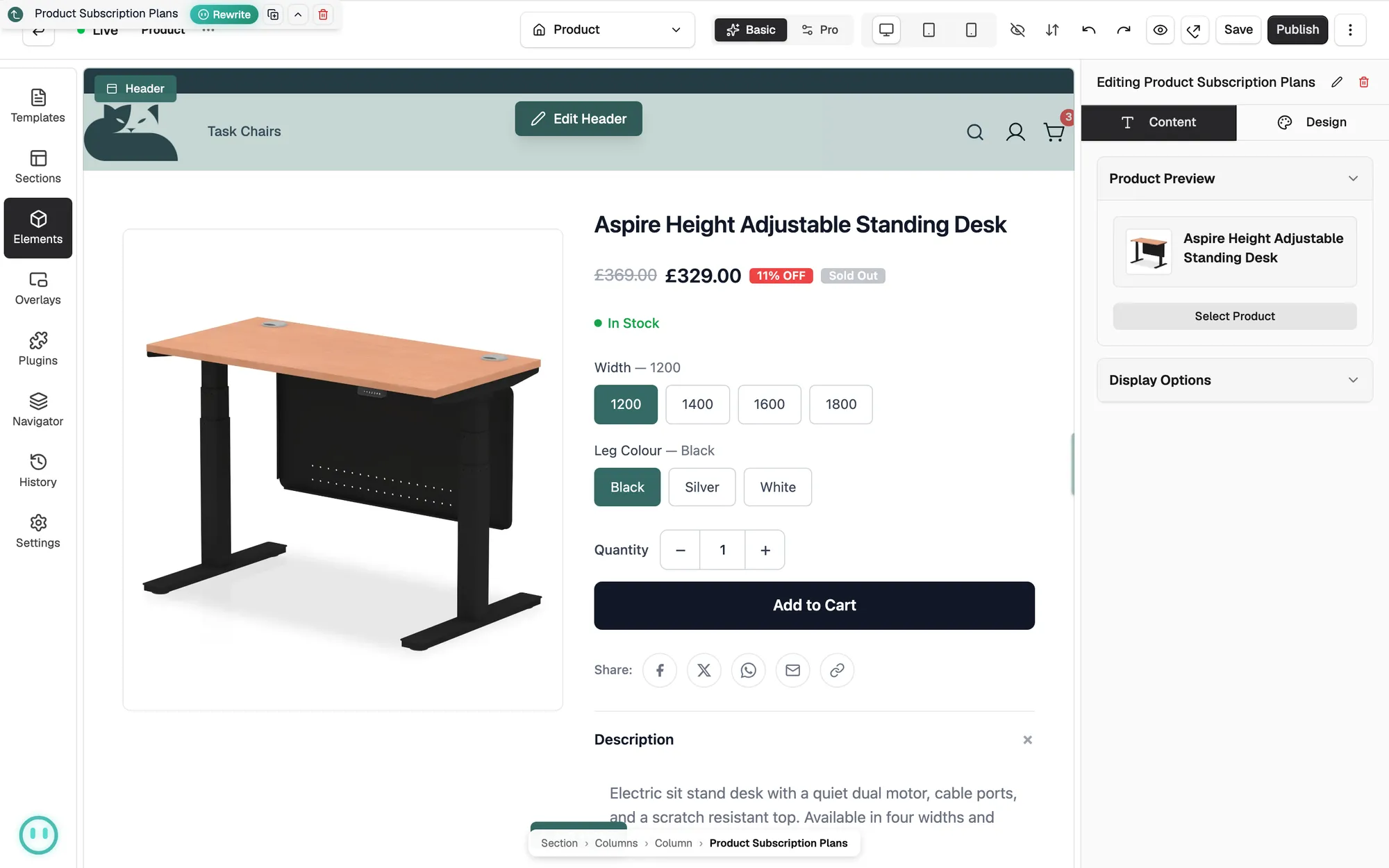
- Pick a product to preview against under Product Preview, then click Select Product.
- Most hide on products that do not fit, so one template can carry them all.
Add one of these elements
- From your Orbit dashboard, go to Storefront, then Page Templates.
- Click the Products tab, then Edit design on your product template.
- In the toolbox, click Elements, then the Single Product tab.
- Drag the element onto the page, then click it to open its settings.
- Click Save, then Publish.
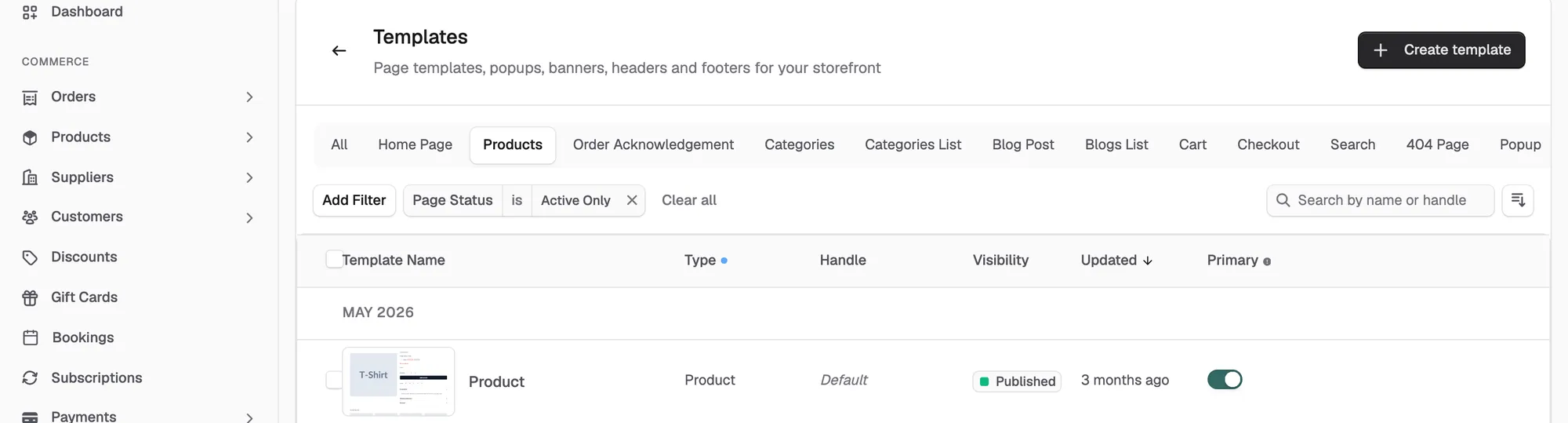
Product Subscription Plans
Your customer sees a card for each plan: its name, a line such as Billed every month, and a Save pill on discounted plans. Plans with a free trial get their own pill. The card they pick sets the plan Add to Cart uses.
Set up at least one active plan on the product first. Under Display Options:
- Heading: an optional line above the cards. It starts as Choose a plan.
- Show Trial Badge and Trial Badge Text: the trial pill and its wording. Use {{days}} for the trial length.
- Show Discount Badge: the Save pill.
- Auto-Select First Plan: picks the first plan so Add to Cart works without a choice.
- Hide When No Plans: hides it when the product has no active plan.
- Layout, on the Design tab: Stacked (vertical) or Grid (responsive columns).
Service Booking Calendar
Your customer sees a row of dates, then the times free on the date they pick. Times come from the length of the service, plus any lead time and gap you set.
Set the product up as a service with a duration first. Without one the calendar has nothing to work with. Under Display Options:
- Days ahead: how many days show on the date strip, from 1 to 60. It starts at 14.
- Date picker heading and Time picker heading: start as Choose a date and Available times.
- No-slots copy: shown when the date has no free times. It starts as No slots available on this date.
- Show capacity hint: shows or hides the capacity hint on the times.
- Hide when not bookable: hides it when the product is not a service or has no duration.
Note: Without availability of its own, the product offers times between 9:00am and 5:00pm.
Product Service Deposit
Your customer sees a line such as 50% deposit (£75) due now, worked out from the price. Set the product up as a service, turn its deposit on and give it a percentage. If the price cannot be read, the amount drops out.
- Copy template: the wording. Use {{percentage}} and {{amount}}. It starts as {{percentage}}% deposit ({{amount}}) due now.
- Show cancellation policy: adds the product's cancellation policy below the line.
- Hide when no deposit: hides it when the product is not a service or has no deposit.
Product Download Link
Your customer sees a download button for each public sample file on a digital product, such as a preview chapter. They do not have to buy first. The files they get after buying are delivered another way.
Add the sample files to the product and mark them as samples. Others are left out.
- Helper Text: a short line above the buttons.
- Button Label: the label on each button. Use {{name}} and {{version}}. It starts as Download {{name}}.
- Max Samples: limits how many buttons show. 0 shows them all.
- Open In New Tab: keeps the product page open.
- Show Icon: a small download icon on each button.
- Hide When No Samples: hides it when the product has no active sample files.
Product Billing Cycle
Your customer sees one short line, such as Renews every month, from the product's first active plan. A free trial adds a badge after it. Nobody picks a plan here, so use it beside the plan cards or on single-plan products.
- Show Trial Badge and Trial Badge Text: the trial pill and its wording. It starts as Includes {{days}}-day free trial.
- Hide When No Plan: hides it when the product has no active plan.
Add to Quote Button
Your customer sees a button that puts the product on a quote request instead of in the basket. It is hidden from signed-out visitors and on stores without quoting turned on.
Turn quoting on for your store first. With more than one variant, the button stays disabled until your customer picks one.
- Button Text, Loading Text, Success Text and Disabled Text: the four labels. They start as Add to Quote, Adding..., Added to quote and Unavailable.
- Show Icon, Icon Type, Icon Position, Icon Size and Icon Gap: the icon, from Document, Plus, Clipboard or Tag.
- Quantity Source: Fixed Value uses the Fixed Quantity you set. From Quantity Element reads the quantity picker on the page.
Related guides
Was this helpful?
0 people found this helpful