Attaching files to a digital product
Add the files customers download after buying a digital product, set download limits and expiry dates, and manage your Digital assets library.
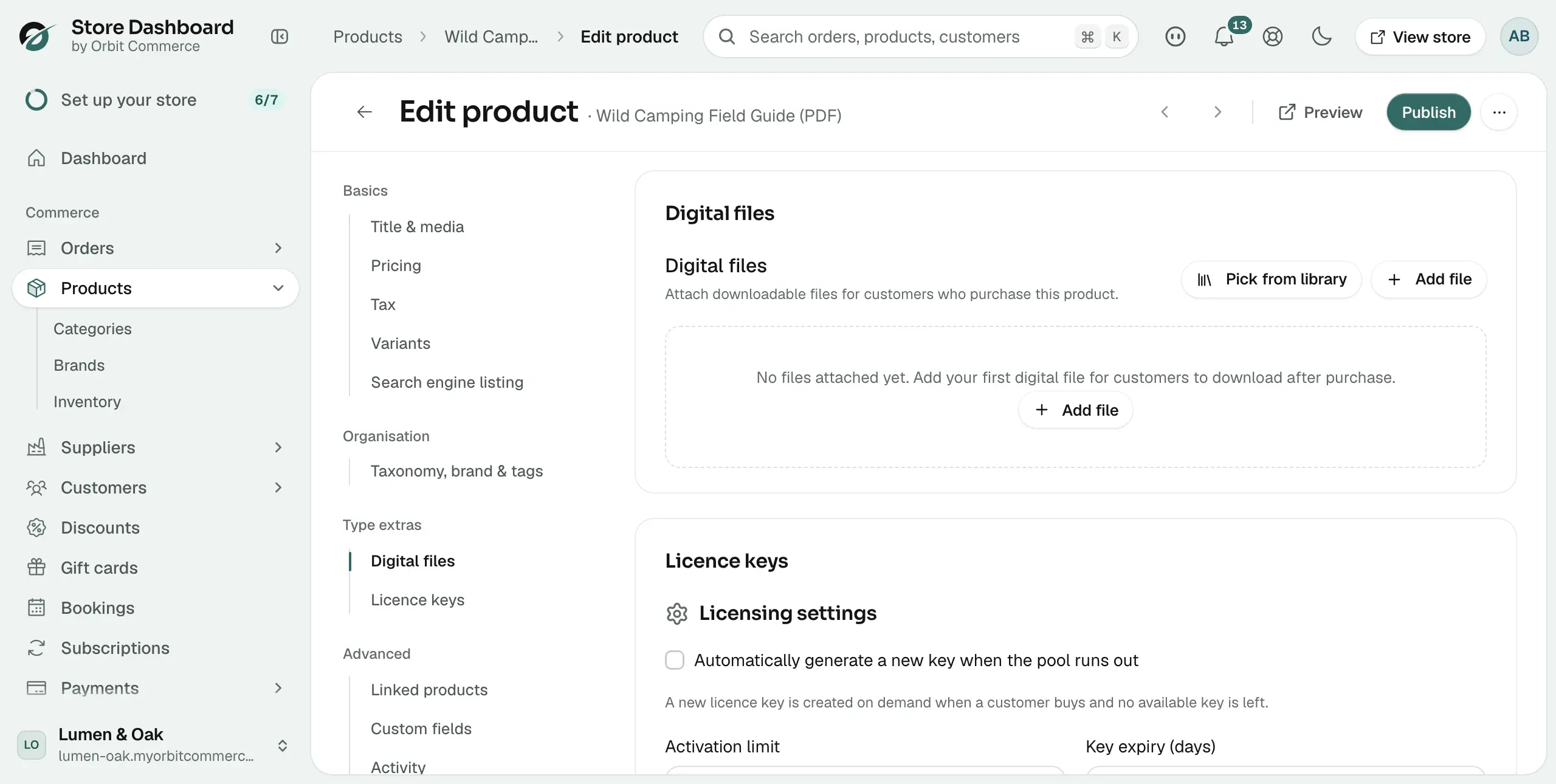
You can attach files to a digital product so customers can download them after they pay. You do this in the Digital files section of the product editor. Every file you attach is kept in your Digital assets library, so you can use the same file on more than one product.
Considerations
- Only products with the type Digital product have a Digital files section. The type is set when you create the product and cannot be changed later. See Choosing a product type.
- On a new product, files are attached when you save or publish it. Until then the list says Files will be attached when you create the product.
- Pick from library only appears on a product that has been saved.
- Download limits and expiry dates are set per file, not per product.
Attach a file to a new digital product
- From your Orbit dashboard, go to Products.
- Click Add product.
- Under Product type, click Digital product. The Inventory and Shipping sections leave the list on the left. A Type extras group appears with Digital files inside it.
- Enter a Title and a Price.
- In the list on the left, click Digital files.
- Click Add file. The Select digital files window opens.
- Upload a file, or find one in your media library. Click the file to select it, then click Add selected media. The file appears in the list.
- Click Publish, or click Save draft to finish later. The files are attached when the product is created.
Note: A newly attached file reads Unlimited downloads · No expiry. To set a limit, see Set a download limit or expiry below.
Attach a file to a saved product
- From your Orbit dashboard, go to Products.
- Open the digital product.
- In the list on the left, under Type extras, click Digital files.
- To upload a new file, click Add file. To reuse a file already in your library, click Pick from library, select one or more assets, then click Attach.
- The file appears in the list under Digital files.
Set a download limit or expiry
- In the Digital files section, find the file in the list.
- Click the pencil icon on the file row. The Edit file settings window opens.
- Fill in the fields you need. Leave a field empty to keep it unlimited.
- Click Save changes. The file row now shows the limit and expiry, for example 5 downloads · 30 day expiry.
The fields in Edit file settings are:
- Display name: the file name customers see.
- Variant assignment: shown only on a product with variants. Choose which variant the file belongs to, or all variants. Save the product first to use this.
- Max downloads: how many times the customer can download the file. Leave empty for unlimited.
- Expiry (days): how many days the download link works for. Leave empty for no expiry.
- Version: a version label, such as 1.0.
- Free sample: tick this to make the file available without purchase, for example a sample chapter.
Manage your Digital assets library
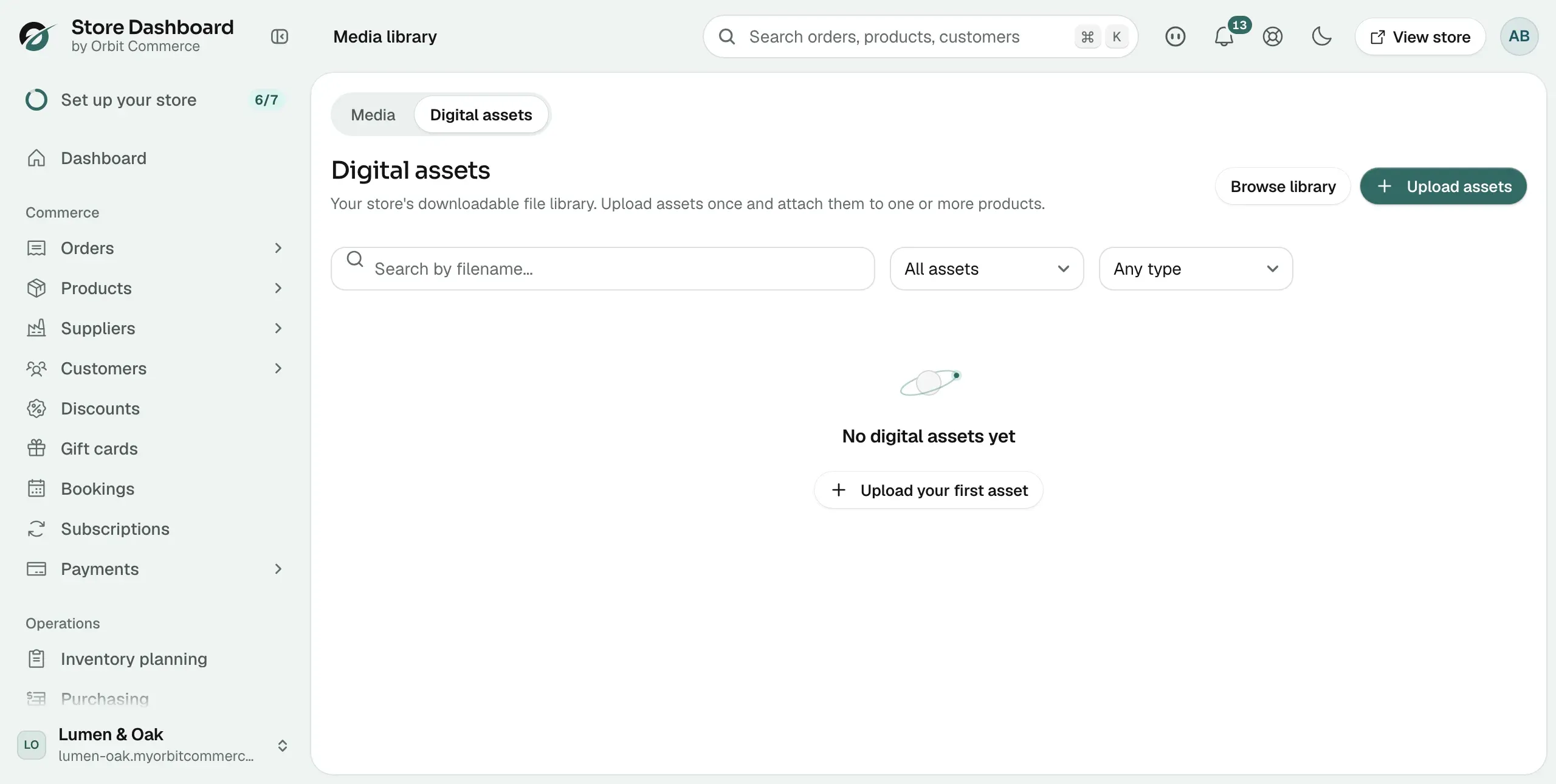
Every file you attach to a product is stored in the Digital assets library. You can also upload files here first and attach them later.
- From your Orbit dashboard, go to Media library.
- Click the Digital assets tab.
- To add files, click Upload assets.
Each file has its own row. The columns are:
- Filename: the name of the file.
- Size: how large the file is.
- Type: the file type, such as a PDF or a zip archive.
- Linked product: the product the file is attached to, or Unlinked.
- Uploaded: the date the file was added.
To find a file, use the Search by filename field. Use the All assets filter to show Linked only or Unlinked only, and the Any type filter to show one file type. Use Previous and Next to move through a long list.
From a file's row you can Download it, Link to product, Unlink from product, Notify buyers of an updated file, or Delete it. Unlinking stops the file being delivered with that product but keeps it in your library.
Warning: Deleting a file cannot be undone. If customers have already downloaded the file, it is archived instead of removed.
How customers receive their files
- Digital products are not shipped. After payment, the customer gets download links for every file attached to the product.
- The Max downloads and Expiry (days) settings on each file limit how many times, and for how long, the customer can download it.
- A file marked as a Free sample can be downloaded without buying the product.
- If you replace a file with a newer version, use Notify buyers to email everyone who bought it.
- If you refund the order, Orbit turns its download links off. After a part refund, the customer keeps the links for what is still paid for.
Related guides
Was this helpful?
0 people found this helpful