Adding testimonials
Add customer quotes to a page. For each one, enter the quote, the name, a title such as Verified Buyer, a photo and a star rating.
The Testimonial element shows customer quotes on a page. Each one can carry a name, a title such as Verified Buyer, a photo and a star rating. You add it in the page builder and type the quotes yourself.
Considerations
- Quotes are entered by hand. They are not pulled from product reviews.
- The element keeps at least one testimonial. Remove is greyed out when only one is left.
Add the element
- Open the page in the page builder.
- In the toolbox on the far left, click Elements.
- Find Testimonial in the Basic group, or search for it.
- Drag it onto the canvas and drop it where you want it. The settings panel opens on Editing Testimonial.
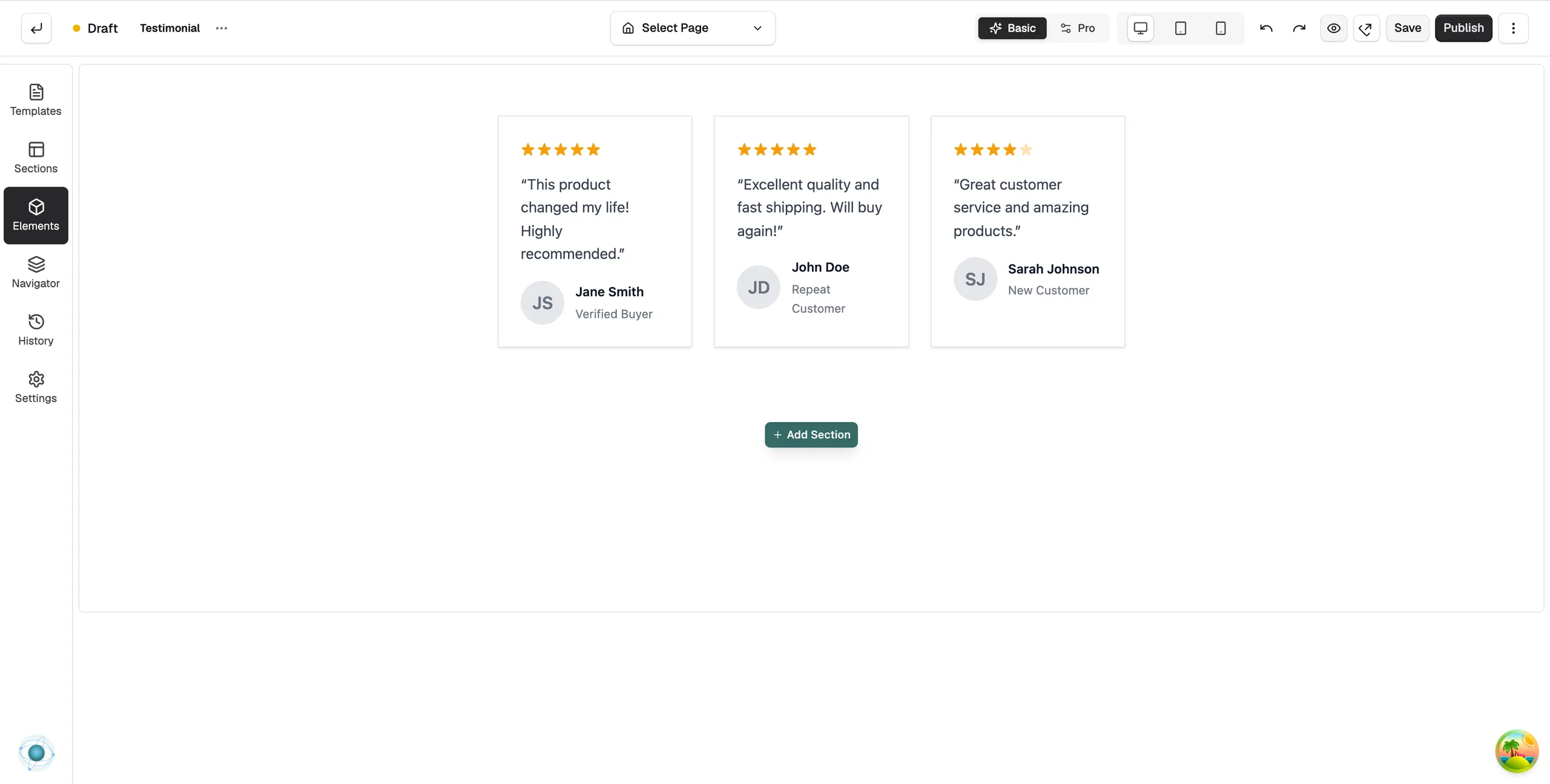
Edit a testimonial
- With the element selected, open the Content tab. Each quote has its own group, named Testimonial 1, Testimonial 2 and so on.
- Open a group and type the Quote, the Name and the Title.
- Drag the Rating slider to set the stars, from 0 to 5.
- Under Image, click the plus button to pick a photo from your media library. The Select Avatar Image dialog opens. Hover over the photo later for Change and Remove.
- Use Move Up, Move Down and Remove at the bottom of the group to reorder or delete it.
Add another testimonial
- Below the last group, click Add Testimonial. A new group appears with placeholder text.
- Fill it in as above.
Content settings
- Quote, Name, Title, Rating and Image: one set per testimonial.
- Display: Show Rating and Show Avatar, each Yes or No, for every testimonial at once.
Design settings
Open the Design tab to change the look. The groups are Layout, Typography, Quote, Appearance, Border and Spacing.
Related guides
Was this helpful?
0 people found this helpful