Adding a star rating
Add a row of stars to show a score on a page. Set the rating and the number of stars, then change their size, colour and alignment.
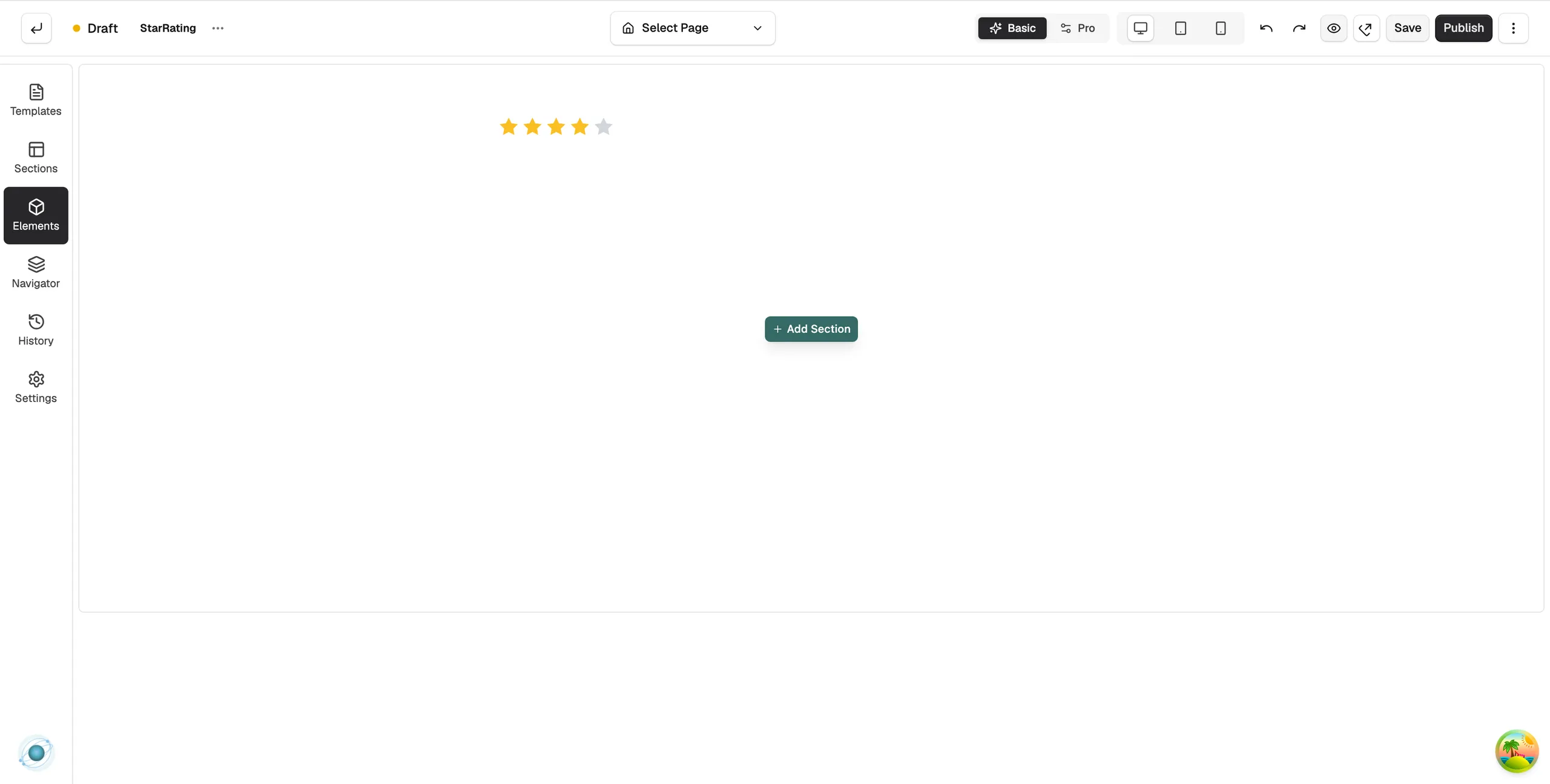
The Star Rating element shows a row of stars with some of them filled in. Use it to show a score, such as an average review rating. You add it in the page builder and type the rating yourself.
Considerations
- The rating is a number you set. It does not update from product reviews.
- The rating cannot be higher than the number of stars. If you lower Max Stars, the rating is reduced to fit.
Add the element
- Open the page in the page builder.
- In the toolbox on the far left, click Elements.
- Find Star Rating in the Basic group, or search for it.
- Drag it onto the canvas and drop it where you want it. The settings panel opens on Editing Star Rating.
Set the rating
- With the element selected, open the Content tab.
- Under Rating, drag the Rating slider. The label shows the current value, such as Rating: 4, and the stars on the canvas fill to match.
- In Max Stars, type the total number of stars to show.
Content settings
- Rating: the score, from 0 up to the number of stars, in half-star steps.
- Max Stars: the number of stars shown, from 1 to 10.
Design settings
Open the Design tab to change the look. The groups are Star Appearance, Alignment and Spacing.
Related guides
Was this helpful?
0 people found this helpful