Adding a content block
Add a heading, body text and up to two buttons in one ready-made block. Covers each setting on the Content tab and the Design tab groups.
The Content Block element puts a heading, body text and up to two buttons in one ready-made block. Use it to introduce your brand, describe a product or point customers to the next step.
Add the element
- From your Orbit dashboard, go to Storefront, then Pages, and open the page you want to edit.
- In the toolbox on the far left, click Elements.
- Open the Basic group and find Content Block, or search for it.
- Drag it onto the canvas and drop it where you want it.
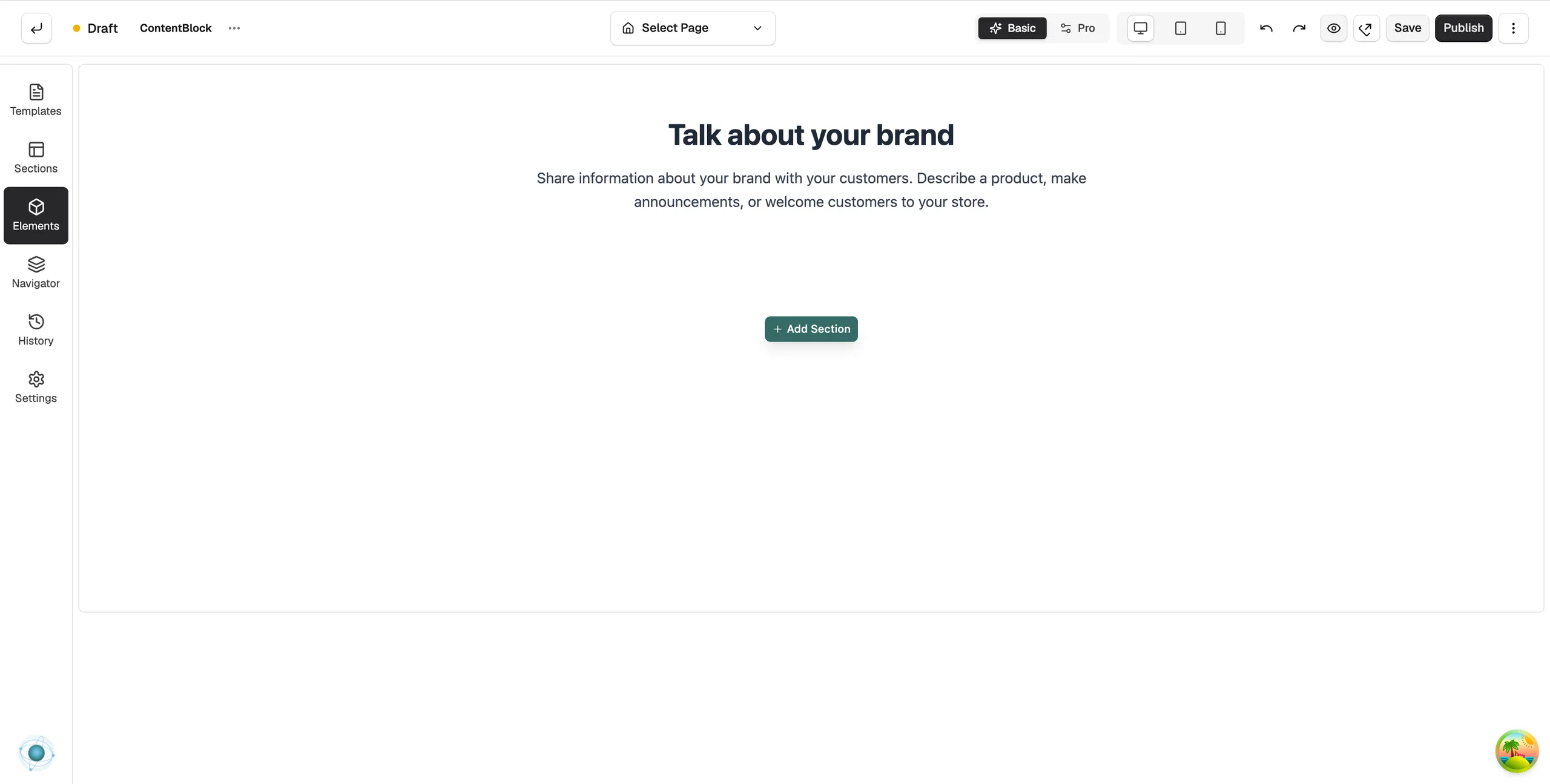
Settings
Click the block on the canvas and open the Content tab. The settings sit in five groups.
Heading
- Show Heading: turn the heading on or off.
- Text: the heading words.
- Tag: the heading level, H1 to H6. This affects the styling and how search engines read the page.
Body Text
- Show Body: turn the body text on or off.
- Text: the main paragraph under the heading.
Button
- Show Button: turn the first button on or off.
- Label: the text on the button.
- Link: the web address the button opens.
- Open in New Tab: open the link in a new browser tab.
Second Button
- Show Second Button, Label, Link, Open in New Tab: the same settings for a second button.
Alignment
- Content Alignment: line the whole block up to the left, centre or right.
The Design tab has Typography for the heading and body, Button Style (use your theme's primary or secondary style, or set a custom one), Layout and Background.
Note: Use one H1 per page. If the page already has an H1, set the heading Tag to H2 or lower.
Related guides
Was this helpful?
0 people found this helpful