Adding a team member
Add a profile card for one person, with a photo, a name, a role, a short bio and links to their social profiles.
The Team Member element is a profile card for one person. It shows a photo, a name, a role, a short bio and icons that link to their social profiles. Use it on an about page or a contact page.
Considerations
- One element holds one person. Add another Team Member element for each extra person.
- If you do not set a photo, the card shows the person's initials in a grey circle.
- Social icons open in a new tab.
Add the element
- Open the page in the page builder.
- In the toolbox on the far left, click Elements.
- Find Team Member in the Basic group, or search for it.
- Drag it onto the canvas and drop it where you want it. The settings panel opens on Editing Team Member.
Fill in the profile
- With the element selected, open the Content tab.
- Under Profile, click the box below Photo and pick an image in Select Photo. To swap it later, point at the photo and click Change, or click Remove.
- In Name, type the person's name over the sample text.
- In Role / Title, type their job title.
- In Bio, type a short description.
- Under Social Links, pick the Platform for each row and paste the address in URL.
- Click + Add Social Link for another icon. Use the up and down arrows to reorder them.
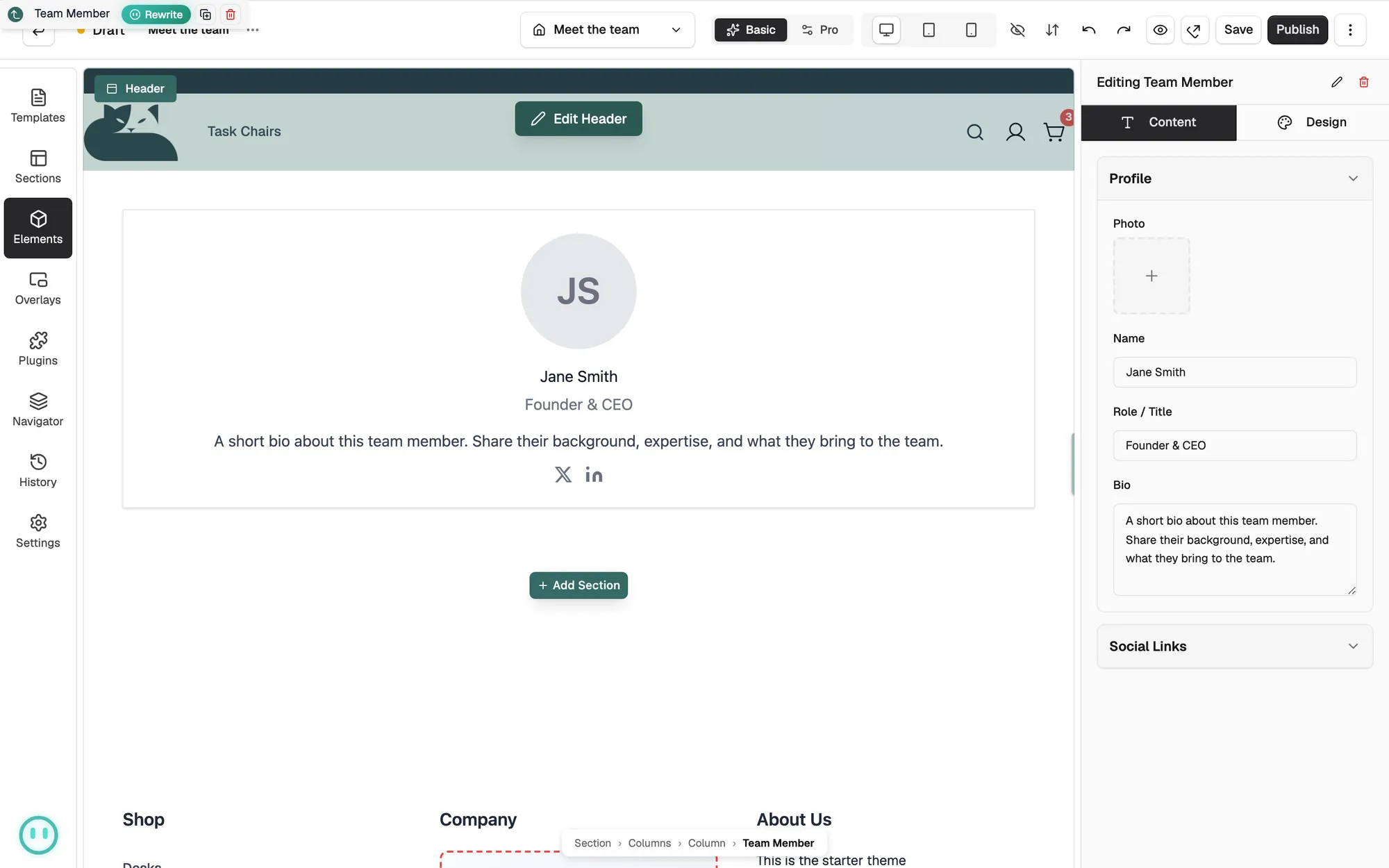
Content settings
- Photo: the person's picture. The card shows their initials when this is empty.
- Name: shown as the heading on the card.
- Role / Title: shown under the name.
- Bio: a short description. Line breaks are kept as you type them.
- Platform: which icon to show. Choose from Facebook, Instagram, Twitter / X, YouTube, TikTok, LinkedIn, Pinterest, Snapchat, Email and Website.
- URL: the address the icon opens.
Design settings
Open the Design tab to change the look. The groups are Layout, Image, Typography, Appearance, Border and Spacing. Layout sets Image Position to top, bottom, left or right, and Image sets the Shape and Image Size of the photo.
Related guides
Was this helpful?
0 people found this helpful