Adding social icons
Add a row of icons that link to your social profiles. Choose the platform for each icon and paste the address of your page.
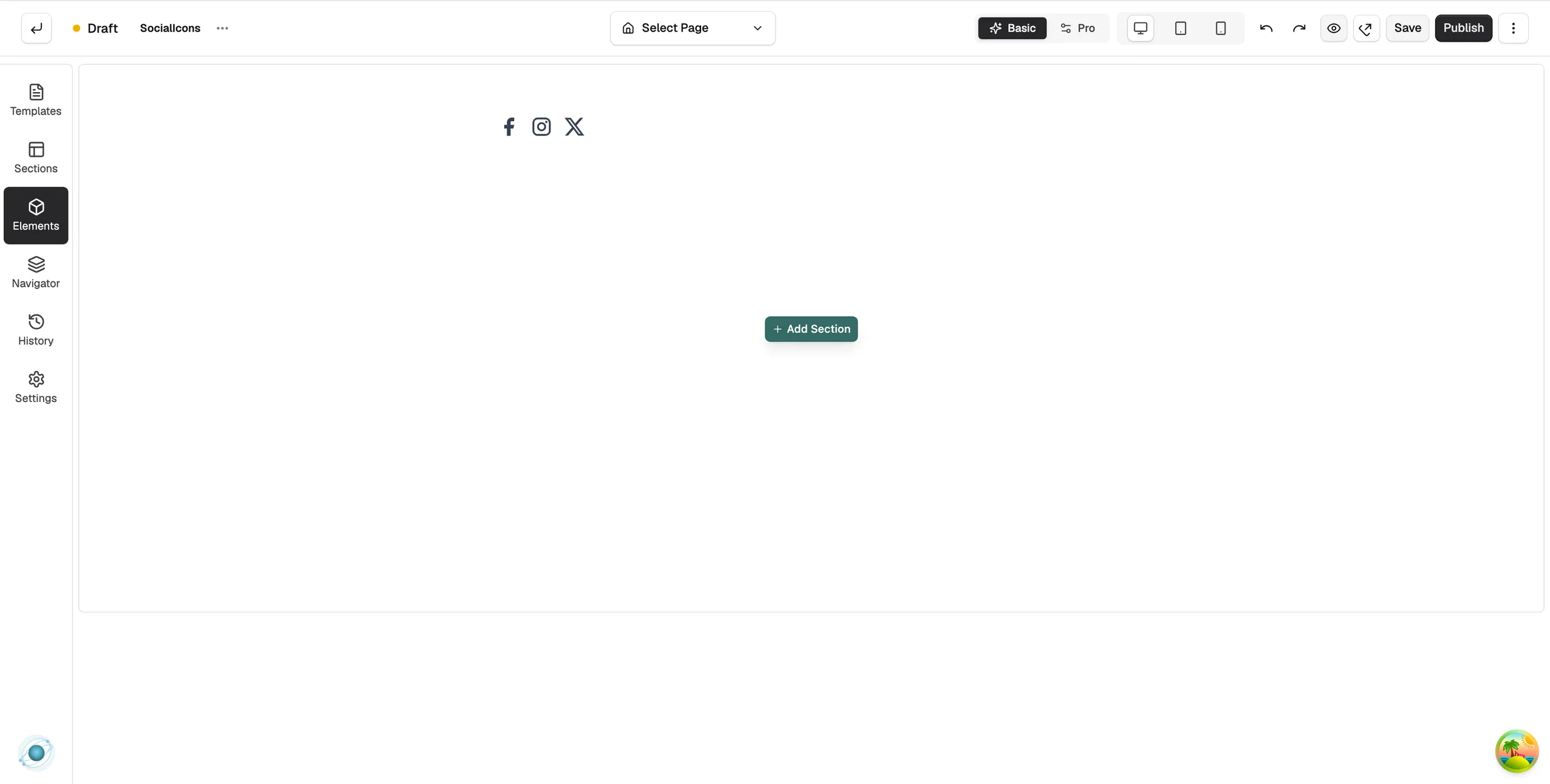
The Social Icons element adds a row of icons that link to your social profiles. Put it in your footer or header so customers can find and follow you. You add it in the page builder.
Add the element
- Open the page in the page builder.
- In the toolbox on the far left, click Elements.
- Find Social Icons in the Basic group, or search for it.
- Drag it onto the canvas and drop it where you want it. The settings panel opens on Editing Social Icons.
Add a link
- With the element selected, open the Content tab. Under Social Links, each icon is a numbered card, such as Link 1.
- Click + Add Social Link to add a card.
- In Platform, choose the network.
- In URL, paste the full web address of your profile, starting with https://.
- Use the ↑ and ↓ buttons on a card to change the order. Click × to remove it.
Note: A new card starts as Facebook with a placeholder link. Change both, or the icon points nowhere.
Content settings
- Platform: Facebook, Instagram, Twitter / X, YouTube, TikTok, LinkedIn, Pinterest, Snapchat, Email or Website.
- URL: the address the icon opens.
Design settings
Open the Design tab to change the look. The groups are Icon Style, Colours, Layout and Spacing.
Related guides
Was this helpful?
0 people found this helpful