Adding tabs
Add a tabbed panel so customers can switch between sets of content in one space. Add and name tabs, then drag elements into each panel.
2 min read18viewsUpdated 25 September 2026Orbit Support Team
The Tabs element puts content into tabbed panels. Customers click a tab to switch panels, so related content shares one space. Use it for product details, specifications and delivery information. You add it in the page builder.
Considerations
- Tabs is in the Advance group. Basic mode hides that group, and search will not find it. Click Pro at the top of the page builder to switch modes.
- Each tab has its own panel. You fill a panel by dragging elements into it on the canvas.
Add the element
- Open the page in the page builder.
- If Basic is selected at the top, click Pro.
- In the toolbox on the far left, click Elements.
- Open the Advance group and find Tabs, or search for it.
- Drag it onto the canvas and drop it where you want it. The settings panel opens on Editing Tabs.
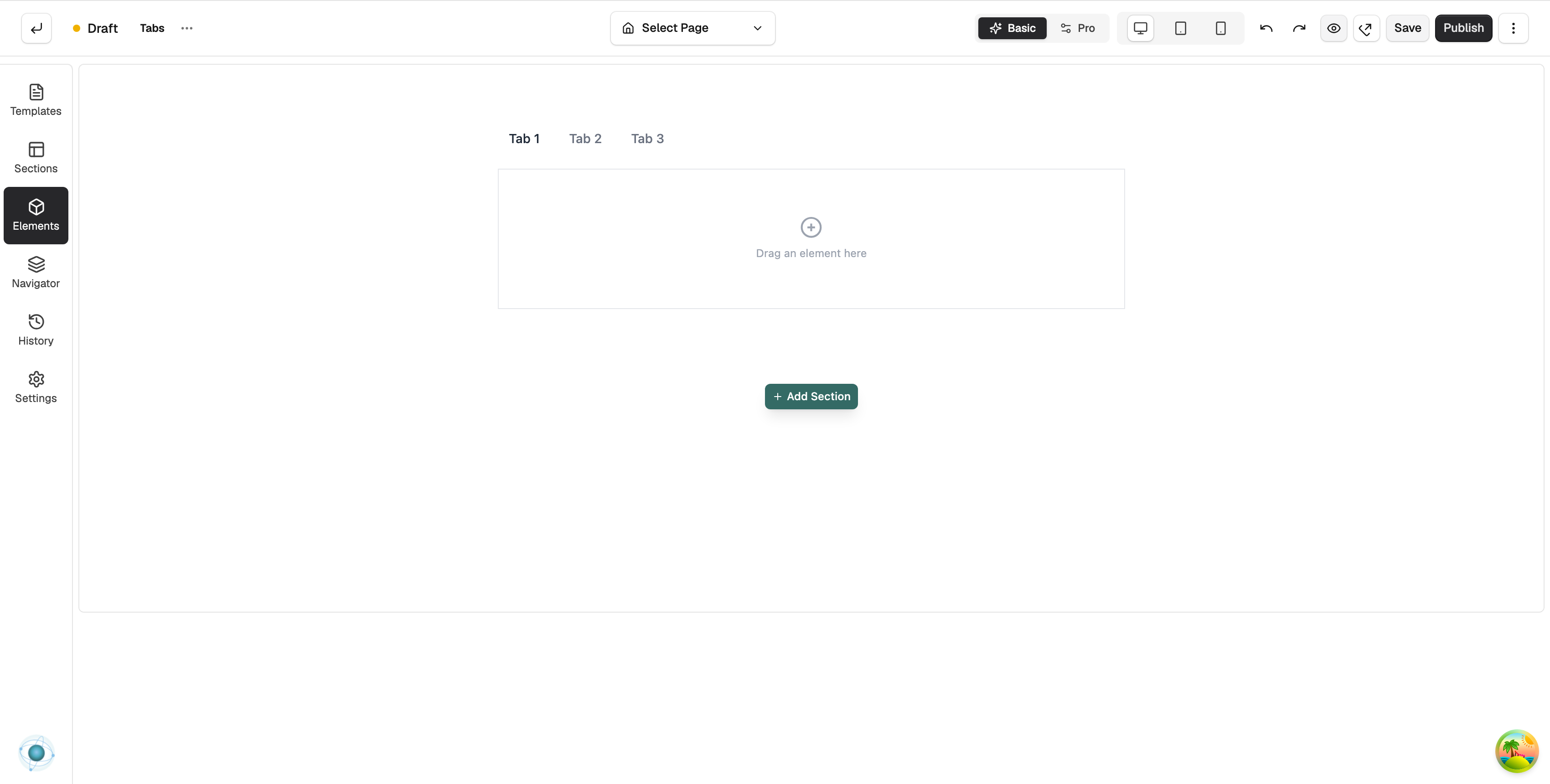
Add and name tabs
- With the element selected, open the Content tab.
- Under Tabs, click Add Tab. A tab named New Tab appears.
- In Label, type the name customers will see on the tab.
- Drag the handle on a row to reorder. Hover over a row for Duplicate tab and Delete tab.
Fill a panel
- On the canvas, click the tab you want to fill. Its panel reads Drag an element here.
- Open Elements and drag an element into the panel.
- Repeat for each tab.
Content settings
- Label: the text on the tab.
- Disabled: greys the tab out so customers cannot open it.
- Default Active Tab (Index): under Behavior, which tab is open when the page loads. 0 is the first tab.
- Animation Duration: how long the switch between panels takes, in milliseconds.
Design settings
Open the Design tab to change the look. Container and Content each set a Background Colour, Padding, Border Colour and Border Width. Layout sets the Variant, Orientation, Alignment and Tab Spacing. Header and Header Title style the tab strip and its text. Spacing sets the space around the element.
Related guides
Was this helpful?
0 people found this helpful