Adding an accordion
Add an accordion to put content into panels customers can open one at a time, then fill each panel with your own elements.
An accordion is a stack of panels. Each panel has a title, and a customer clicks the title to open it. Use it for delivery details, care instructions or anything long you want to keep tidy. Each panel holds its own elements, so you can put text, images or buttons inside.
Considerations
- Accordion is in the Advance group. Basic mode hides that group, and search will not find it. Click Pro at the top of the page builder to switch modes.
- Deleting a panel also deletes everything inside it. Orbit asks you to confirm first.
- For a plain list of questions and answers, use the FAQ element instead. It also sends your questions to search engines.
Add the element
- Open the page in the page builder.
- If Basic is selected at the top, click Pro.
- In the toolbox on the far left, click Elements.
- Open the Advance group and find Accordion, or search for it.
- Drag it onto the canvas and drop it where you want it. The settings panel opens on Editing Accordion.
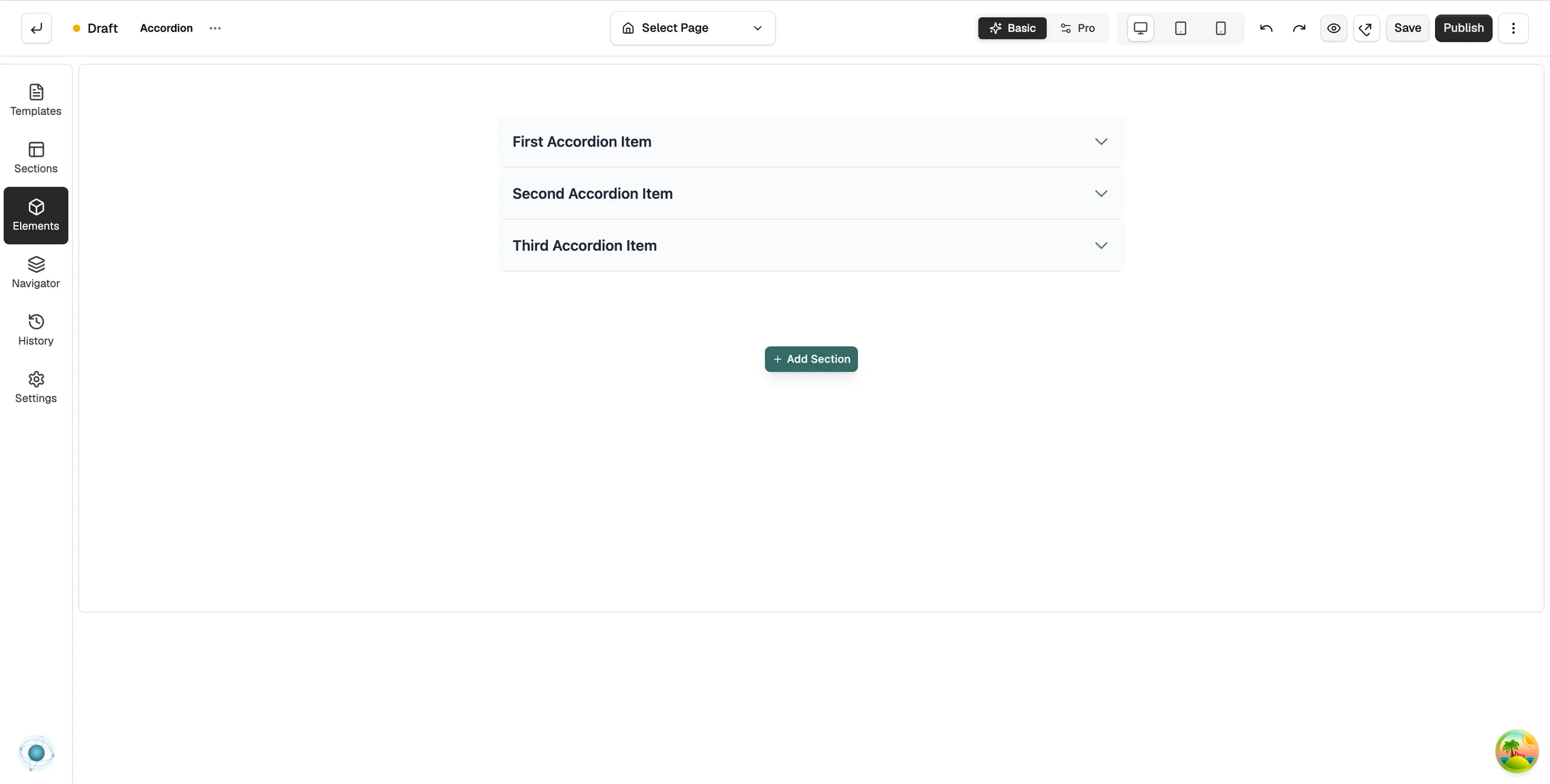
Add and fill panels
- On the Content tab, open Accordion Items.
- Click Add Item. A row appears for the new panel.
- In Title, type the wording customers click.
- Turn on Open by default if you want that panel open when the page loads.
- Drag the handle on a row to reorder. Hover over a row for Duplicate item and Delete item.
- On the canvas, open the panel and drag elements into it to build its content.
Content settings
- Accordion Items: the list of panels.
- Display Mode: Mode is either Accordion (Vertical) or Tabs (Horizontal). Tabs show the same panels side by side.
- Behavior: Allow Multiple Open lets customers keep more than one panel open at a time, and Animation Duration (ms) sets how fast a panel opens.
Design settings
Open the Design tab to style the accordion. The groups are Container, Layout, Header, Header Title, Content and Icon. Content holds the background colour, padding and border of the open panel. Icon controls the arrow, including how far it turns when a panel opens.
Related guides
Was this helpful?
0 people found this helpful