Adding an FAQ
Add an FAQ to answer common questions on a page, write your own questions and answers, and send them to search engines.
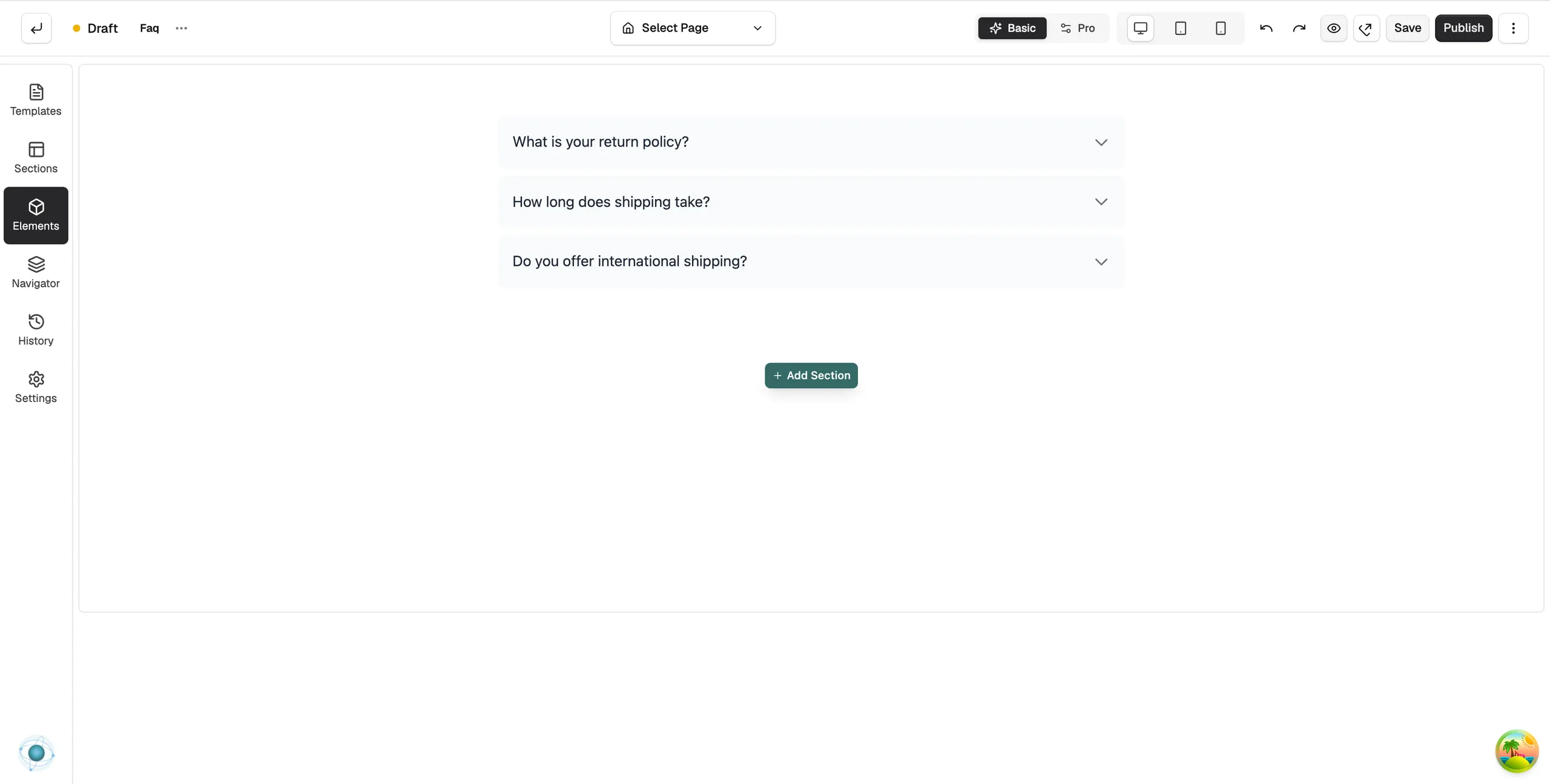
The FAQ element shows a list of questions. A customer clicks a question to open its answer. It also sends your questions and answers to search engines as structured data, so they can show under your listing.
Considerations
- FAQ is in the Advance group. Basic mode hides that group, and search will not find it. Click Pro at the top of the page builder to switch modes.
- Use one FAQ element per page for the structured data. If you need a second, turn Enable SEO Structured Data off on it.
- The answers are plain text. For panels that hold images or buttons, use the Accordion element.
Add the element
- Open the page in the page builder.
- If Basic is selected at the top, click Pro.
- In the toolbox on the far left, click Elements.
- Open the Advance group and find FAQ, or search for it.
- Drag it onto the canvas and drop it where you want it. It arrives with sample questions, all closed.
Write your own questions
- Click the element on the canvas, then open the Content tab.
- Open Questions. The group title counts your questions, so it reads Questions (3) for three.
- Type over Question 1 and its Answer, then work down the list.
- Use Move Up and Move Down to reorder a question, or Remove to delete it.
- Click + Add Question for a new one. It arrives empty, ready for you to type.
Content settings
The Behavior group sits above the questions:
- Allow Multiple Open: lets customers keep more than one answer open at a time.
- First Item Open by Default: shows the first answer as soon as the page loads.
- Enable SEO Structured Data: sends the questions and answers to search engines. This is on to start with.
Design settings
Open the Design tab to style the list. Layout sets the look and the space between questions. Question Typography and Answer Typography set the fonts, sizes and colours.
Tip: Write the questions the way customers ask them, such as "How long does delivery take?". Search engines match real wording.
Related guides
Was this helpful?
0 people found this helpful