Adding an icon
Add an Icon element, pick an icon from the library or supply your own SVG, add a link, and set its size, alignment and colours.
The Icon element adds a small vector icon to a page. Use it to mark a feature or a section, or as a small clickable link. Icons are SVG files, so they stay sharp at any size.
Add the element
- Open the page in the page builder.
- In the toolbox on the far left, click Elements.
- Click the Basic group, or type icon in Search elements....
- Drag Icon onto the canvas and drop it where you want it.
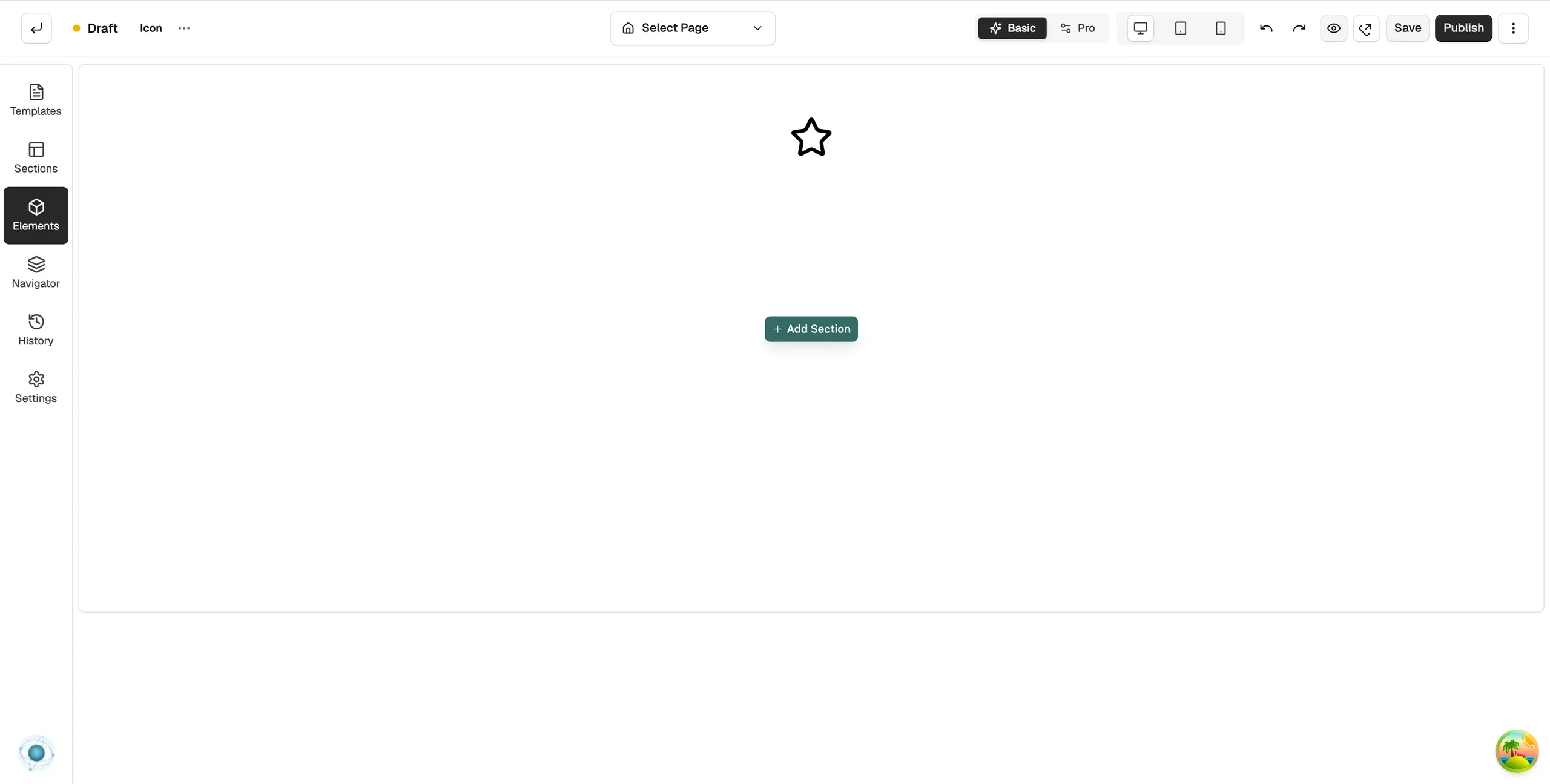
- Click the icon on the canvas. Its settings open on the right, with the Icon group open.
Content settings
Icon
Two tabs sit at the top of the group.
- Library: type in Search icons... and click an icon to use it. A preview shows under the picker.
- Custom SVG: use your own icon. Under SVG Source, click Browse Media to pick an SVG file from your media library or upload one, or paste the code into Or paste SVG code. The code must be a complete <svg> tag, or the panel shows an error and offers Discard.
Link
- Link: click Click to set link. The Edit Icon Link window opens. Enter the address and choose whether it opens in a new tab.
- Link Title: a short description of the link for screen readers.
- Add nofollow attribute: tells search engines not to follow the link.
Design settings
- Size: Icon Size, and Alignment as Left, Centre or Right.
- Colours: Icon Colour and Background Colour.
For the Design and Advance tabs in full, see Using the element settings panel.
Related guides
Was this helpful?
0 people found this helpful