Adding a spacer
Add a spacer to put an empty gap between two elements. Set its height in pixels, with a different height for each device if you need it.
A spacer adds an empty vertical gap between two elements. Use it to open up a layout without changing the elements around it. You add it in the page builder.
Add the element
- Open the page in the page builder.
- In the toolbox on the far left, click Elements.
- Find Spacer in the Basic group, or search for it.
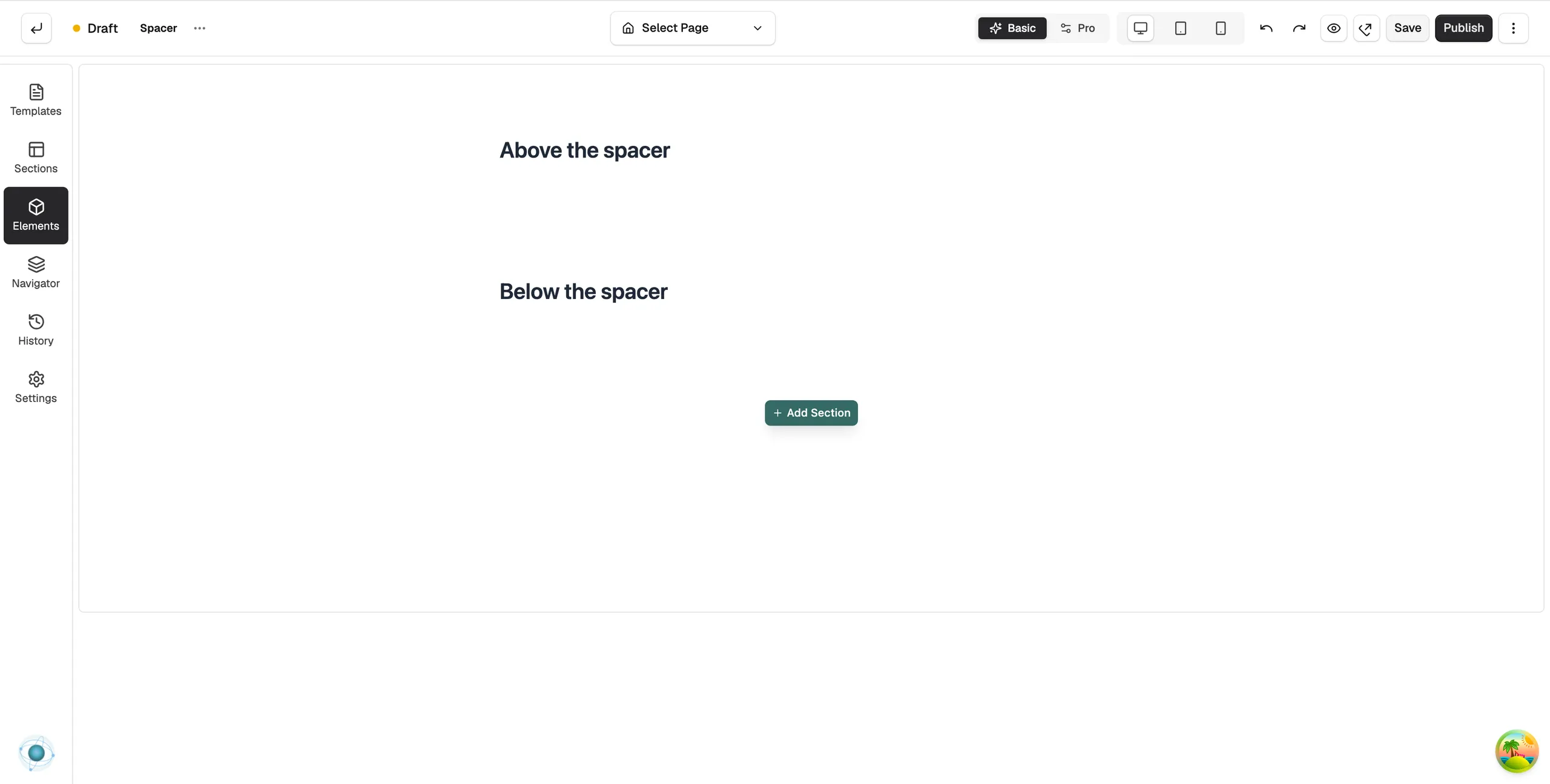
- Drag it onto the canvas and drop it between the two elements you want to separate. The settings panel opens on Editing Spacer.
Set the height
- With the spacer selected, open the Content tab.
- Under Size, drag the Height slider or type a number in the box next to it. The gap on the canvas changes as you do.
- To use a different height on tablet or mobile, switch device with the device toggle on the field and set the value again.
Content settings
- Height: the size of the gap in pixels, from 0 to 500. The number box accepts larger values.
Design settings
The Design tab holds only Spacing, for the space around the spacer itself. Use the desktop, tablet and mobile buttons at the top of the page builder to check the gap on each screen size.
Related guides
Was this helpful?
0 people found this helpful