Adding a newsletter signup form
Add a Newsletter Signup form to a page or popup, set its title, button and messages, and add an optional name field or consent tick box.
The Newsletter Signup element adds a subscription form to a page or a popup. Customers type their email address and click Subscribe. Use it to build a mailing list for news, new products and offers.
Add the element
- Open the page in the page builder. For your homepage, go to Storefront, then Themes, and click Customize. For a popup, go to Storefront, click Manage Popups, then click Edit design on the popup.
- In the toolbox on the left, click Elements.
- Open the Ecommerce group and find Newsletter Signup, or search for it.
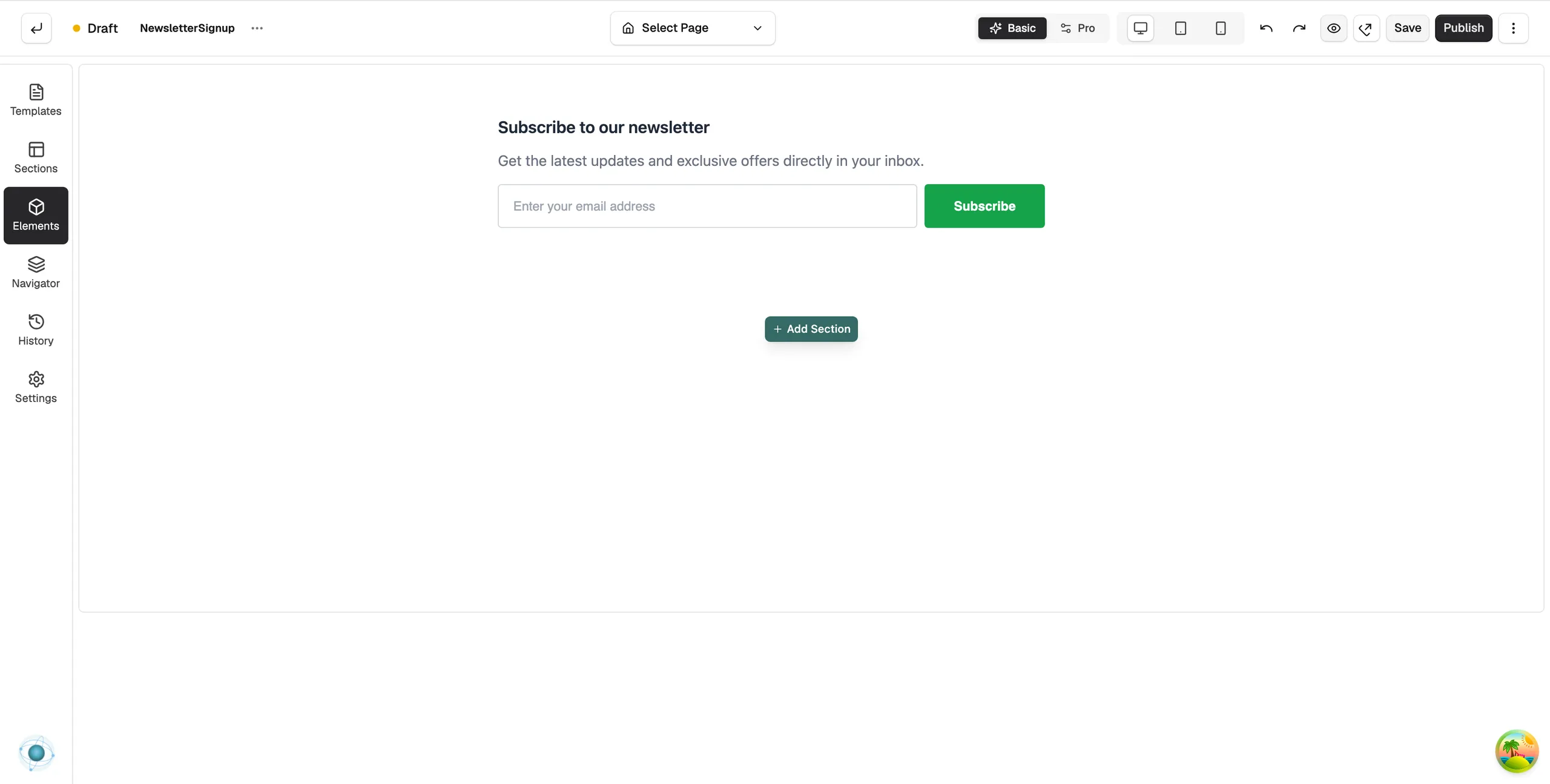
- Drag it onto the canvas and drop it where you want it. The form arrives with its text already written: a title, a short line of text, an email field and a Subscribe button.
Content settings
Click the form to open its settings. The Content tab has three groups.
Under Content:
- Title: the heading above the form, such as Subscribe to our newsletter.
- Description: a short line that says what customers will get.
- Email Placeholder: the hint text inside the email field before the customer types.
- Button Text: the label on the button, such as Subscribe.
Under Form Settings:
- Show Name Field: adds an optional name field. Name Placeholder sets its hint text.
- Show Privacy Checkbox: adds a consent tick box. Privacy Text sets its wording, such as I agree to receive marketing emails.
Under Messages:
- Success Message: shown once a customer has subscribed.
- Error Message: shown if the signup fails and they need to try again.
Design settings
The Design tab has groups for Layout, Container, Title, Description, Input Field and Button. Under Layout, Form Layout sets whether the field and button sit side by side or stacked, Alignment sets the position, and Gap sets the space between the parts. For the Design and Advance tabs in full, see Using the element settings panel.
Tip: A popup is a good home for this form. It can appear after a delay and once a day, so it does not get in the way. See Creating a popup.
Related guides
Was this helpful?
0 people found this helpful