Adding a price list
Add a menu style list of items and prices, joined by a dotted line. Good for food menus, service lists and treatment lists.
The Price List element shows a list of items with a price on the right of each line. A dotted line runs between the name and the price, the way a printed menu does. Use it for menus and service lists.
Considerations
- The price is text you type. It does not come from your products, so it does not change with your store currency or your stock.
- Each item can link to a page, but it cannot add anything to the basket.
Add the element
- Open the page in the page builder.
- In the toolbox on the far left, click Elements.
- Find Price List in the Basic group, or search for it.
- Drag it onto the canvas and drop it where you want it. The settings panel opens on Editing Price List.
Add your items
- With the element selected, open the Content tab. Each item has its own block, named Item 1, Item 2 and so on. Click a block to open it.
- In Title, type the item name over the sample text.
- In Description, type a short line to sit under the name, or leave it empty.
- In Price, type the price, such as £3.50 or From £20.
- To show a picture, click Browse under Image and pick one in Select Item Image.
- To link the row, paste an address in Link and choose Same Window or New Window under Link Target.
- Click Add Item for the next one. Move Up, Move Down and Remove change the order or delete an item.
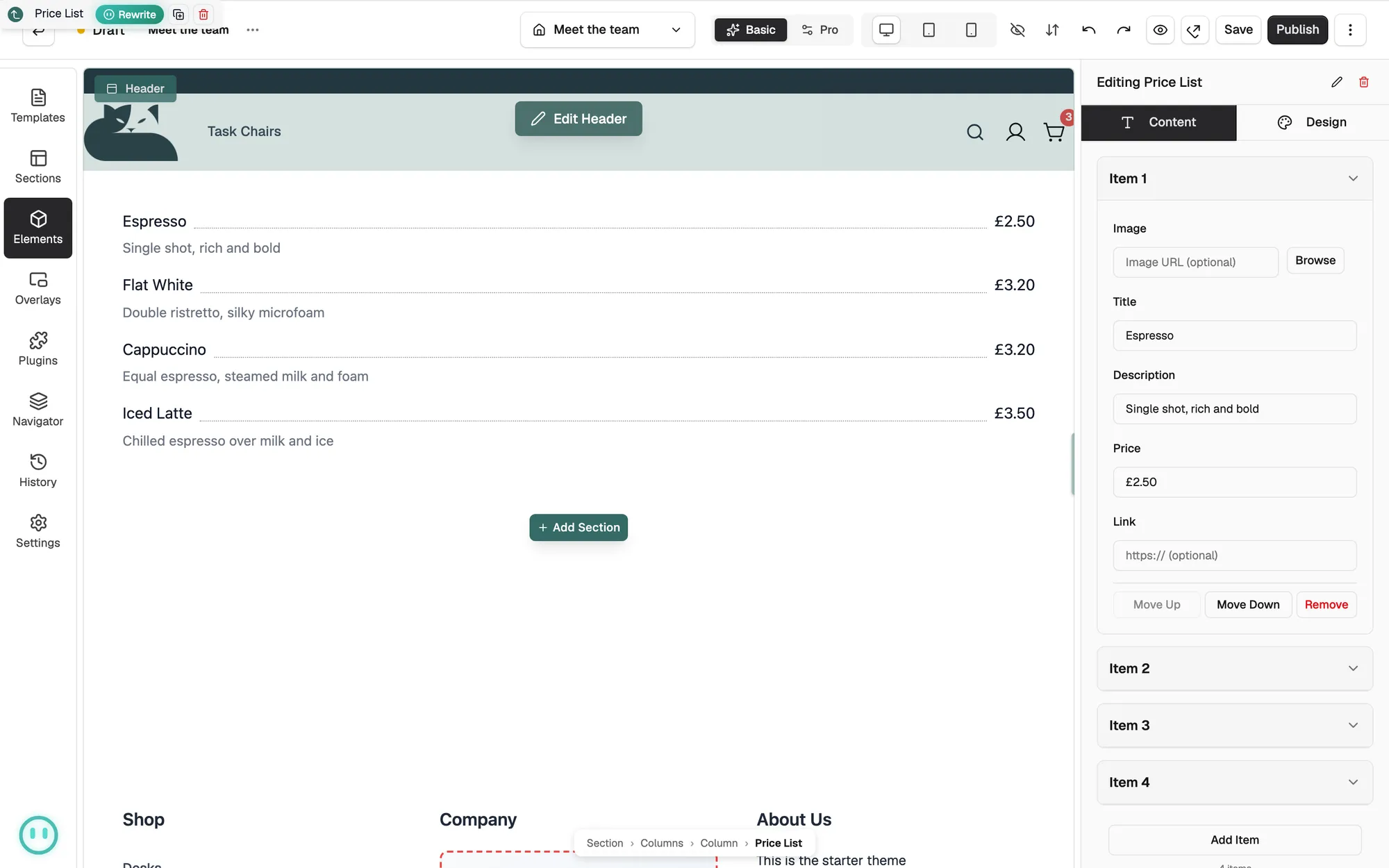
Content settings
- Image: an optional picture shown to the left of the item.
- Title: the item name, on the left.
- Description: an optional line under the title.
- Price: the price as text, on the right.
- Link: an optional address the whole row opens.
- Link Target: whether the link opens in the Same Window or a New Window.
Design settings
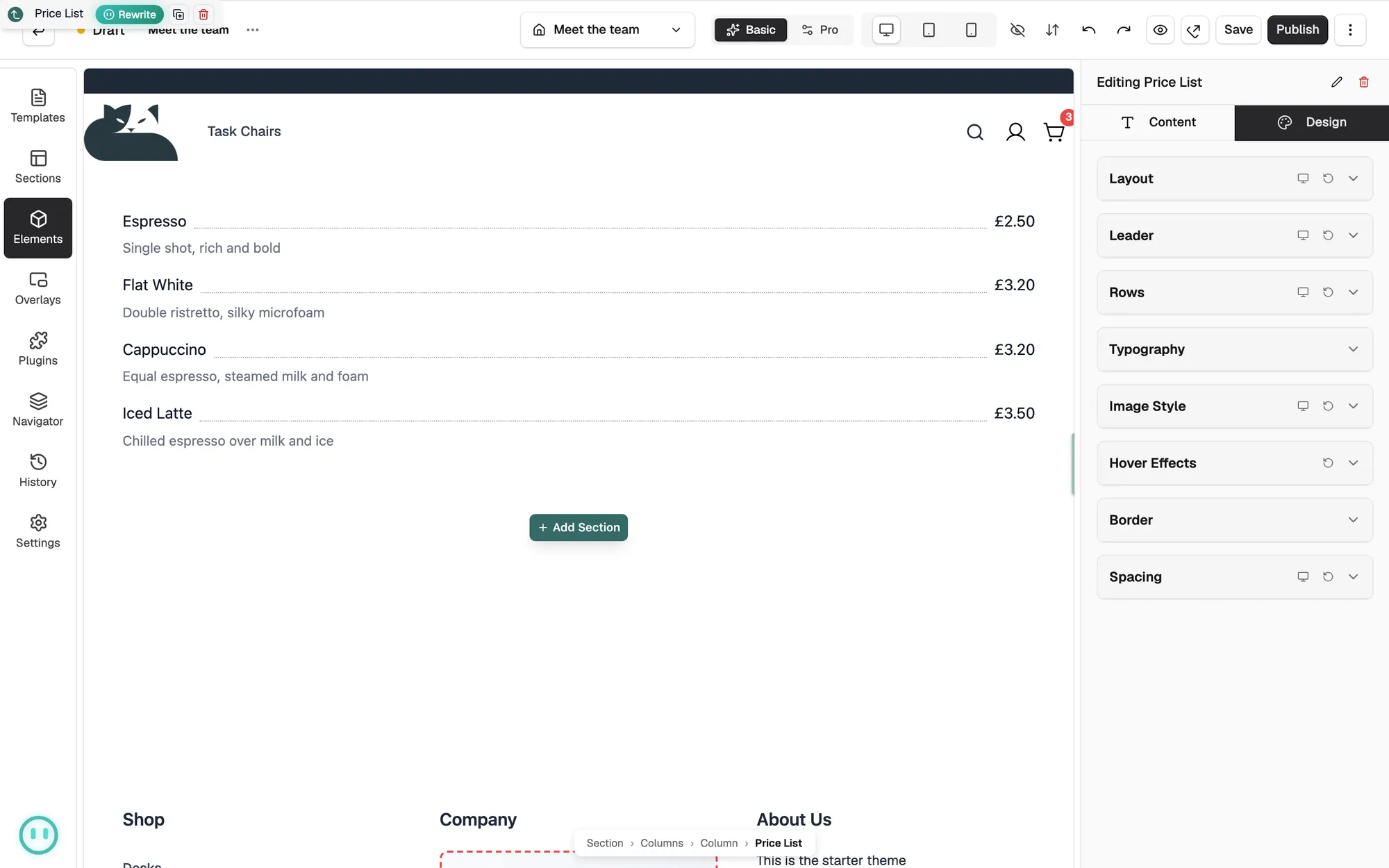
Open the Design tab to change the look. The groups are Layout, Leader, Rows, Typography, Image Style, Hover Effects, Border and Spacing. Leader controls the line between the name and the price, and Leader Style can be dotted, dashed, solid or none.
Related guides
Was this helpful?
0 people found this helpful