Adding a pricing table
Show your plans side by side as cards, each with a price, a feature list and a button. Highlight one plan and choose how many sit in a row.
The Pricing Table element shows your plans side by side, one card each. A card holds a name, a price, a short description, a list of features and a button. You type all of it yourself.
Considerations
- Prices and features are text you type. They do not come from your products.
- Cards sit three to a row to start with. Change that under Plans Per Row in the Design tab. On a phone they stack into one column.
Add the element
- Open the page in the page builder.
- In the toolbox on the far left, click Elements.
- Find Pricing Table in the Basic group, or search for it.
- Drag it onto the canvas and drop it where you want it. The settings panel opens on Editing Pricing Table.
Add and edit a plan
- With the element selected, open the Content tab.
- Click a plan to open it. Each block is named after the plan.
- Fill in Name, Currency, Price and Period.
- Type a Description.
- Under Features, type one feature per row. Click Add Feature for the next one.
- To make one card stand out, turn on Highlight this plan and type the Badge Text.
- Type the Button Text and the Button Link, then set Link Target to Same Window or New Window.
- Click Add Plan for another plan. Use Move Up, Move Down and Remove to reorder or delete one.
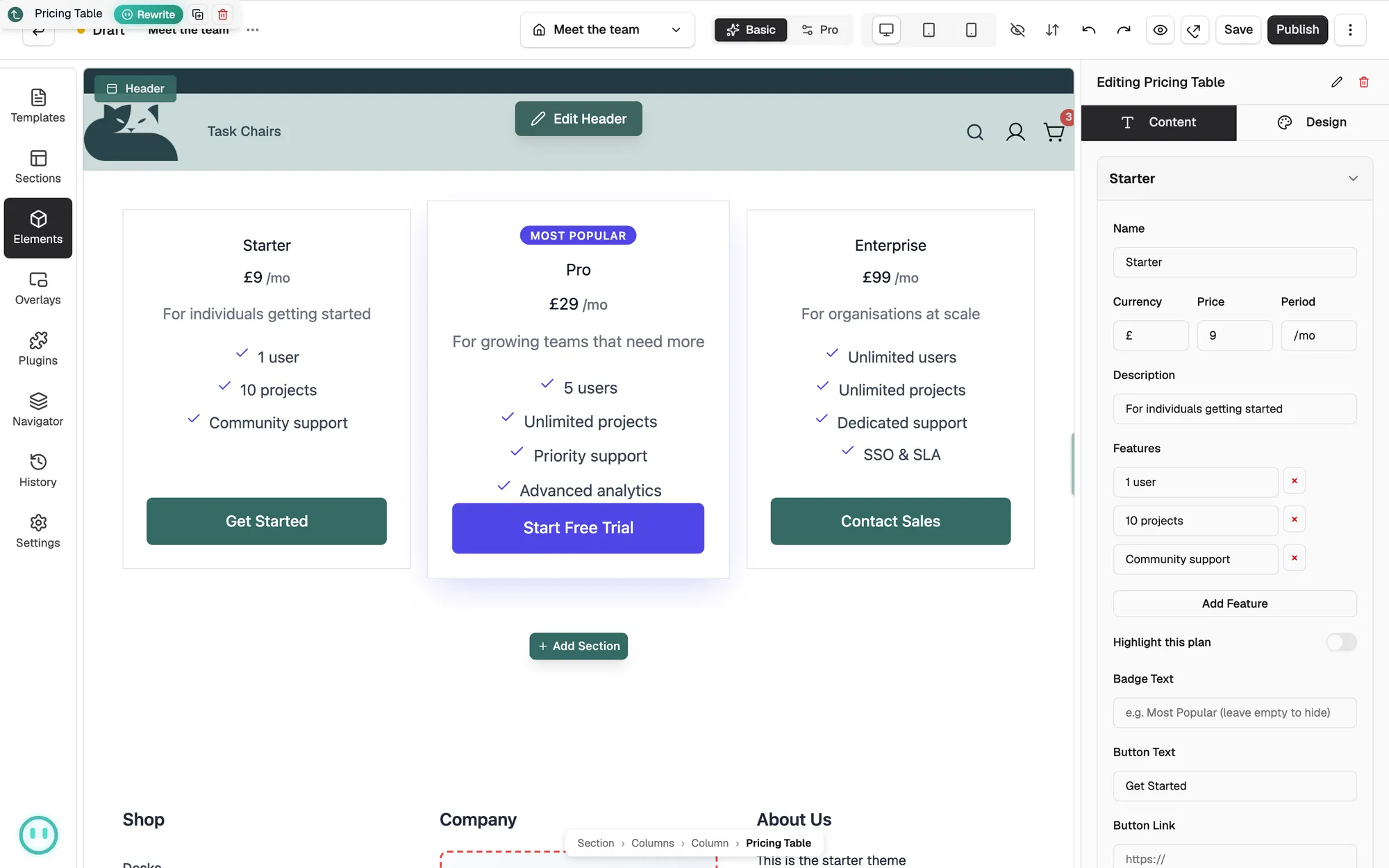
Content settings
- Name: the plan name, shown at the top of the card.
- Currency, Price and Period: the three parts of the price line.
- Description: one short line under the price.
- Features: the list of what the plan includes, one row each.
- Highlight this plan: lifts the card and paints it in the accent colour.
- Badge Text: a small pill on the card, such as Most Popular.
- Display Options: turn Show Description, Show Badge and Show Feature Ticks on or off for every card, and pick the Feature Icon.
Design settings
Open the Design tab to change the look. The groups are Layout, Card Style, Typography, Button Style, Border and Spacing.
Related guides
Was this helpful?
0 people found this helpful