Adding a Marquee element
Add a scrolling strip of short messages such as free delivery or returns. Covers items, separator, direction, speed and pause on hover.
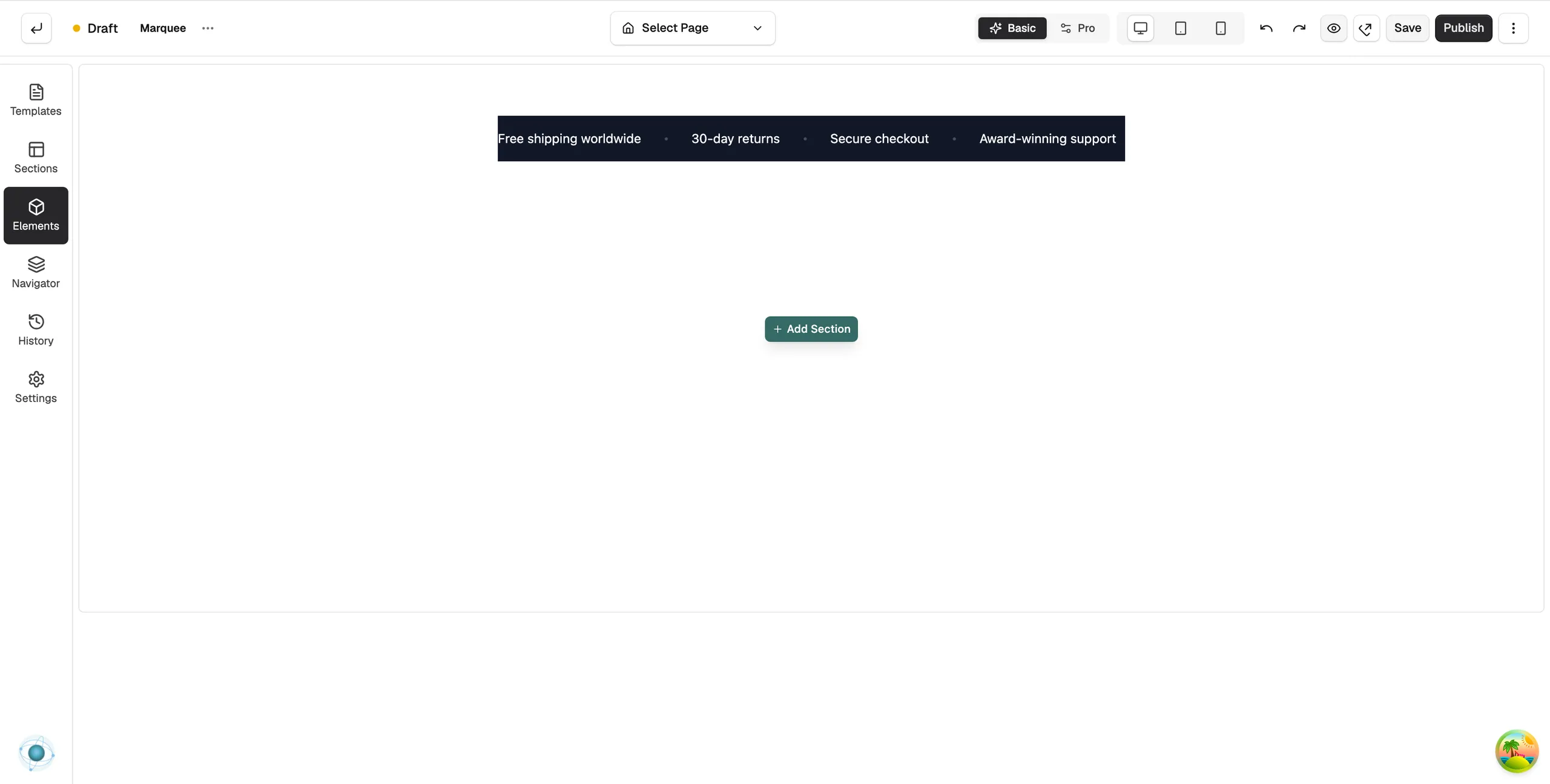
The Marquee element is a strip of short messages that scrolls across the page without stopping. Use it for things like free delivery, returns or a current offer. It takes up very little space and keeps moving, so people notice it.
Add the element
- In the page builder, click Elements in the toolbox on the left.
- Click the Advance group, or type the name in Search elements....
- Drag Marquee onto the canvas and drop it where you want it. The panel closes on its own.
- Click the element on the canvas. Its settings open on the right, with a Content tab and a Design tab.
Note: The Advance group only shows in Pro mode. If you cannot see it, click Pro at the top of the builder.
Content settings
- Items: the messages that scroll past. Type each one in its own box. Click + Add item for another, or the Remove item cross to delete one. The element starts with four sample messages, such as Free shipping worldwide and 30-day returns.
- Style (under Separator): the mark shown between messages: None, Bullet, Dash, Pipe or Star.
- Direction (under Animation): scroll to the Left or to the Right.
- Speed (seconds per loop): how long one full pass takes. A bigger number is slower. The default is 30.
- Pause on hover: stop the strip while the pointer is over it, so people can read it. On by default.
Design settings
Open the Design tab to set the background colour, text colour and separator colour, the font, and the gap between messages. For what the Design and Advance tabs do on every element, see Using the element settings panel.
Related guides
Was this helpful?
0 people found this helpful