Adding an alert banner
Add an Alert Banner element to a page, pick its type and message, and let customers close it.
The Alert Banner element shows a highlighted message on a page. Use it for a delivery update, a notice, a warning or a confirmation. You can colour it by type and let customers close it.
Add the element
- Open the page in the page builder.
- In the toolbox on the far left, click Elements.
- Click the Basic group, or search for Alert Banner.
- Drag Alert Banner onto the canvas and drop it where you want it.
- Click the element on the canvas to open its settings, then click the Content tab.
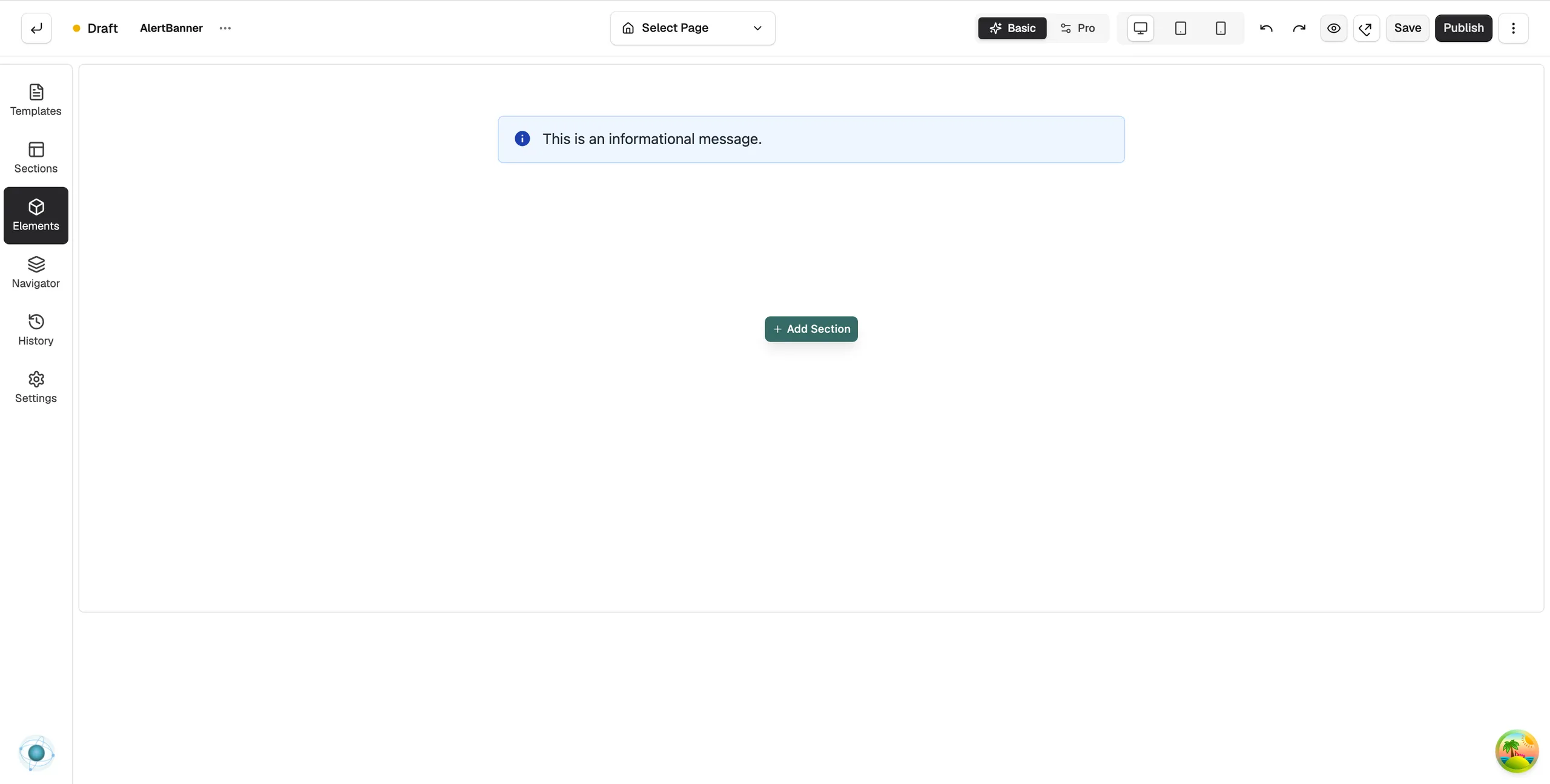
Content settings
These sit under Alert on the Content tab.
- Alert Type: sets the colour and tone. Choose Info, Success, Warning or Error.
- Message: the text shown in the banner.
- Show Icon: shows or hides the icon that matches the alert type.
- Dismissible: adds a close button so customers can hide the banner.
Design settings
The Design tab has Colours, Message, Opacity and Typography groups, plus the spacing settings every element shares. For the Design and Advance tabs in full, see Using the element settings panel.
Tip: For a message that should sit at the very top of every page, such as free delivery, use the Announcement Bar instead.
Related guides
Was this helpful?
0 people found this helpful