Adding an image
Add an Image element, pick a picture from your media library, write alt text, set the aspect ratio and fit, add a link or caption, and style it.
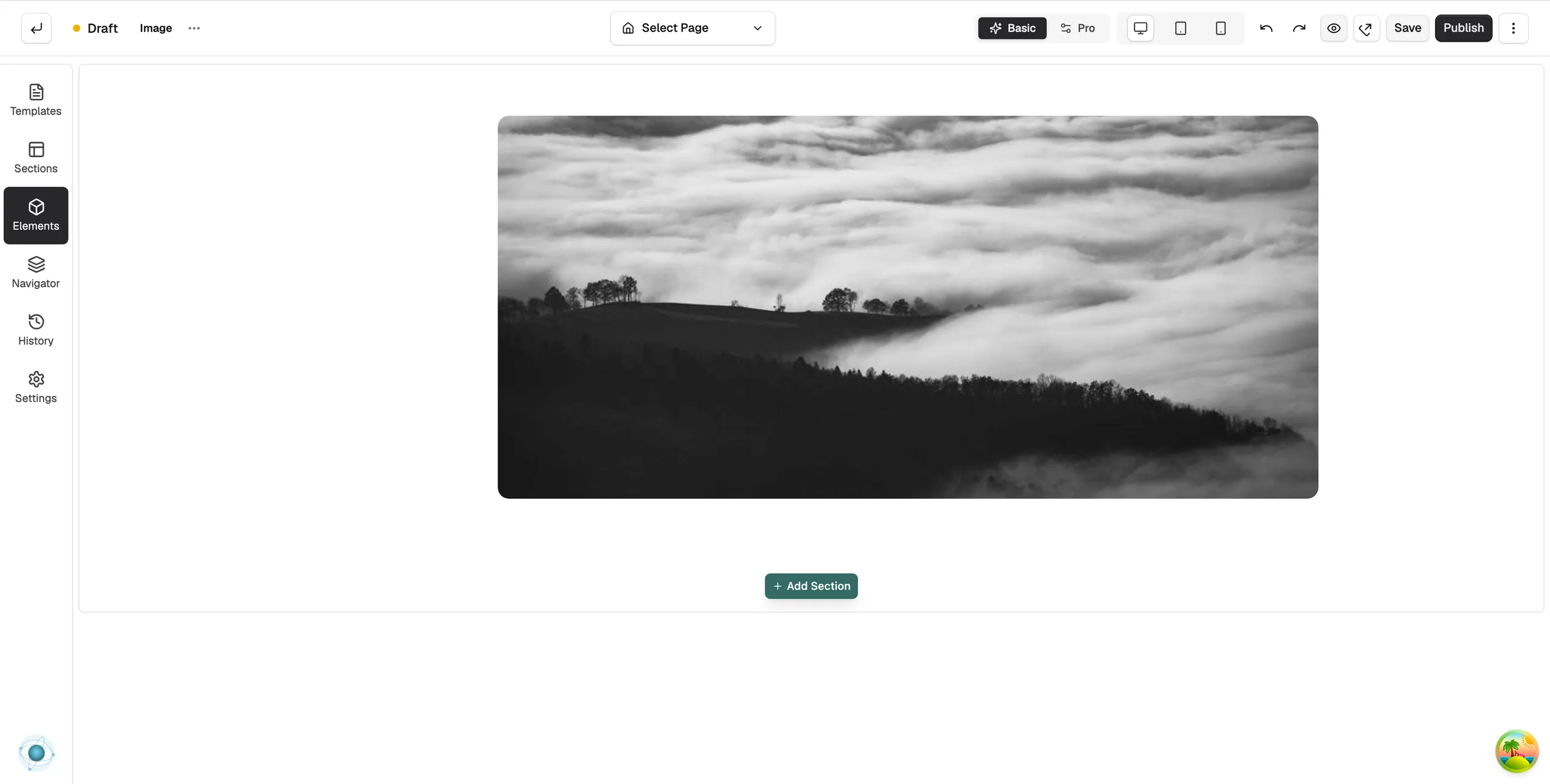
The Image element adds a picture to a page. Use it for product shots, banners and lifestyle photos. The picture resizes to fit desktop, tablet and mobile.
Add the element
- Open the page in the page builder.
- In the toolbox on the far left, click Elements.
- Click the Basic group, or type image in Search elements....
- Drag Image onto the canvas and drop it where you want it.
- Click the image on the canvas. Its settings open on the right, with the Content group open.
- Under Image Source, click Browse to pick a picture from your media library or upload a new one. Or paste an image URL into the field. A preview appears under the field.
Content settings
Content
- Image Source: the picture. Click the × on the preview to clear it.
- Alt Text: a short description of the picture for screen readers and search engines.
Dimensions
- Aspect Ratio: Original, Square (1:1), Standard (4:3), Widescreen (16:9), Photo (3:2), Ultrawide (21:9) or Custom (use width & height).
- Width and Height: sliders with a box for typing a value. Height only works when Aspect Ratio is Custom.
- Object Fit: how the picture fills its box. Cover (crop to fit), Contain (fit within), Fill (stretch), None (original size) or Scale Down.
Link
- Link: click Click to set link. The Edit Image Link window opens. Enter the address and choose whether it opens in a new tab.
- Link Title and Add nofollow attribute: a description for screen readers, and a flag that tells search engines not to follow the link.
Loading
- Prioritise loading: turn on for the main picture at the top of the page so it loads first. Leave it off for pictures further down.
Caption
- Show caption: turn on, then type the Caption Text shown under the picture.
Design settings
- Layout: Alignment as Left, Centre or Right.
- Hover Effect: an Effect and its Duration when a customer's pointer is over the picture.
- Parallax: Off, Drift or Depth, with an Intensity and a Direction, to move the picture as the page scrolls.
For the Design and Advance tabs in full, see Using the element settings panel.
Related guides
Was this helpful?
0 people found this helpful