Adding a flip box
Add a card that turns over on hover or tap. Set the icon or image, the wording on both faces, and the button on the back.
A flip box is a card with two faces. The card turns over to show the back when a customer hovers over it or taps it. Use it for a feature, a service or a short call to action.
Considerations
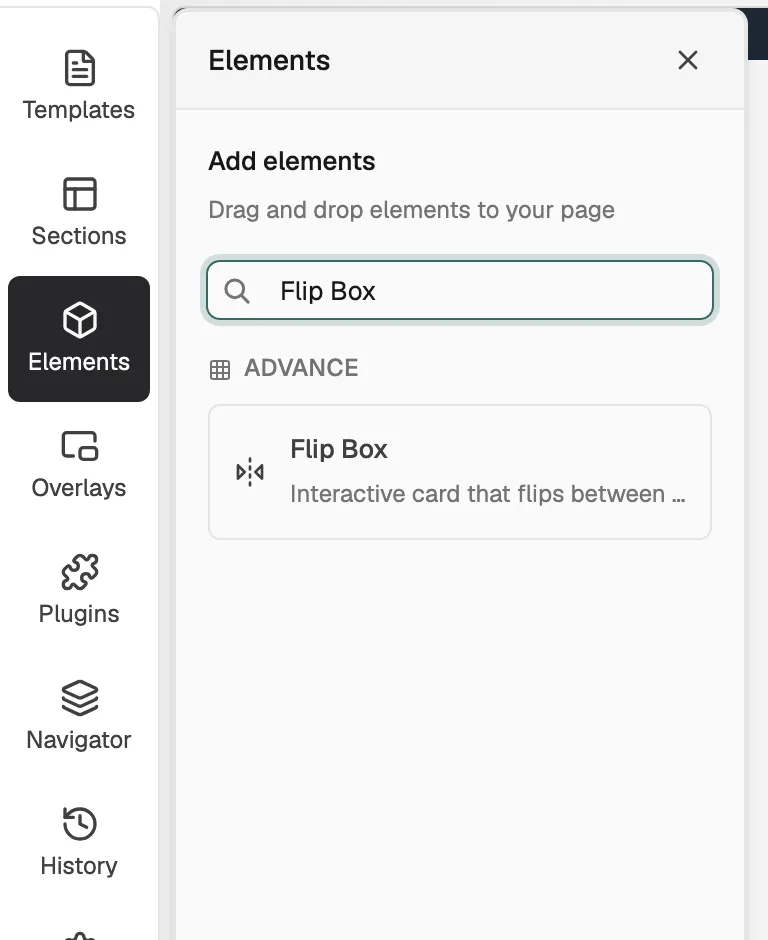
- Flip Box is in the Advance group. Basic mode hides that group, and search will not find it. Click Pro at the top of the page builder to switch modes.
- You fill both faces from the Content tab. You cannot drag other elements onto a face.
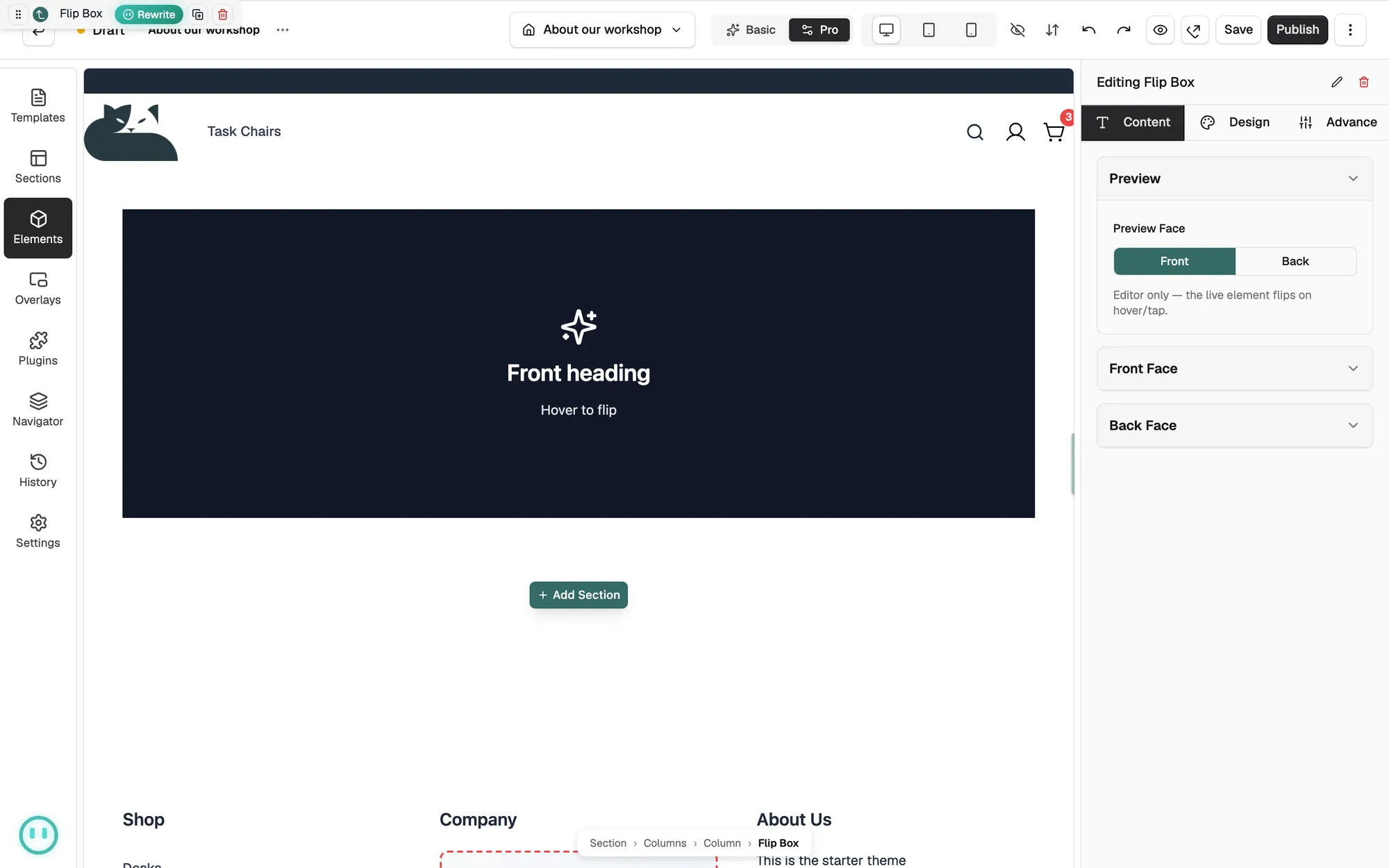
- Preview Face changes only what you see while editing. On the live page the card flips on hover or tap.
Add the element
- Open the page in the page builder.
- In the toolbox on the far left, click Elements.
- Open the Advance group and find Flip Box, or search for it.
- Drag it onto the canvas and drop it where you want it. The settings panel opens on Editing Flip Box.
Fill the front and back
- With the element selected, open the Content tab.
- Under Front Face, set Media Type to Icon, Image or None.
- For Image, paste an address or click Browse to choose from your media library, then fill in Alt Text.
- Type a Heading and Sub-text for the front.
- Under Back Face, type a Heading and Text.
- To add a button, type Button Text. Button Link and Link Target then appear. Leave it empty to hide the button.
- Under Preview, click Front or Back to check each face.
Content settings
- Preview Face: which face shows while you edit.
- Media Type: what sits above the front heading.
- Heading and Sub-text: the wording on the front face.
- Heading and Text: the wording on the back face.
- Button Text, Button Link and Link Target: the button on the back face, set to Same Window or New Window.
Design settings
Open the Design tab to style the card. The groups are Flip, Front Face Style, Back Face Style, Typography, Button Style, Button Custom Style, Border and Spacing. Flip sets Direction, Effect (Flip (3D), Slide or Fade), Duration (ms) and Box Height.
Related guides
Was this helpful?
0 people found this helpful