Adding a content switcher
Put a two-state toggle on a page and fill each panel with your own elements. Covers the labels, the badge and which side opens first.
A content switcher is a two-state toggle with a panel under it. A customer clicks one side or the other, and the panel swaps. Use it for monthly and annual prices, or for any two versions of the same content. Each panel holds its own elements, so you can put text, images or buttons inside.
Considerations
- Content Switcher is in the Advance group. Basic mode hides that group, and search will not find it. Click Pro at the top of the page builder to switch modes.
- There are always two panels. You cannot add a third.
Add the element
- Open the page in the page builder.
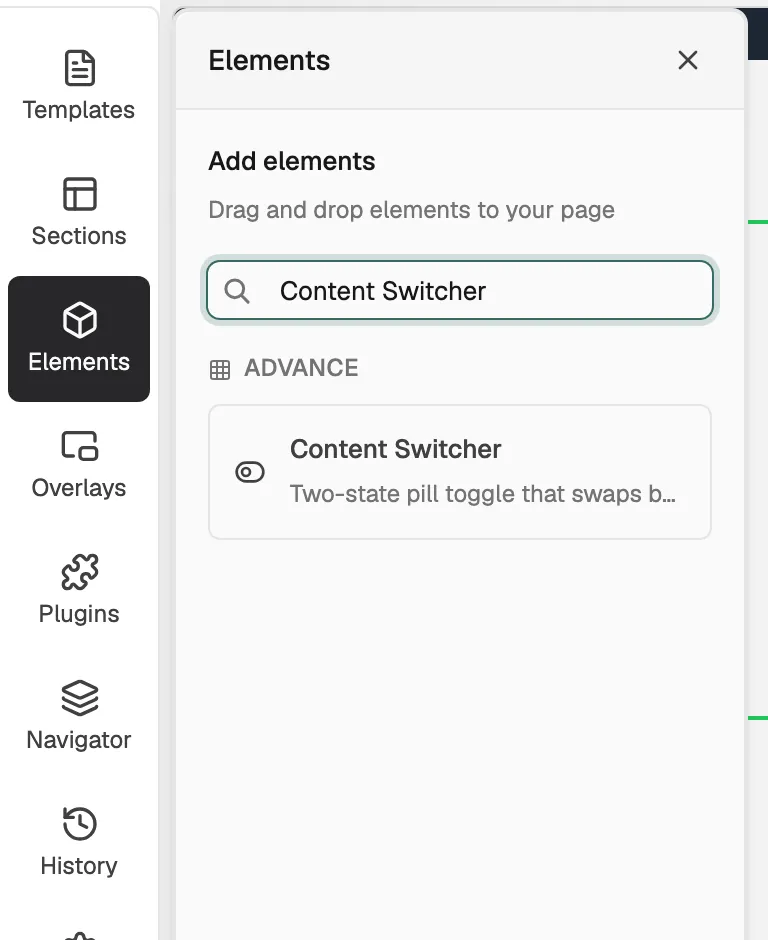
- In the toolbox on the far left, click Elements.
- Open the Advance group and find Content Switcher, or search for it.
- Drag it onto the canvas and drop it where you want it. The settings panel opens on Editing Content Switcher.
Fill the two panels
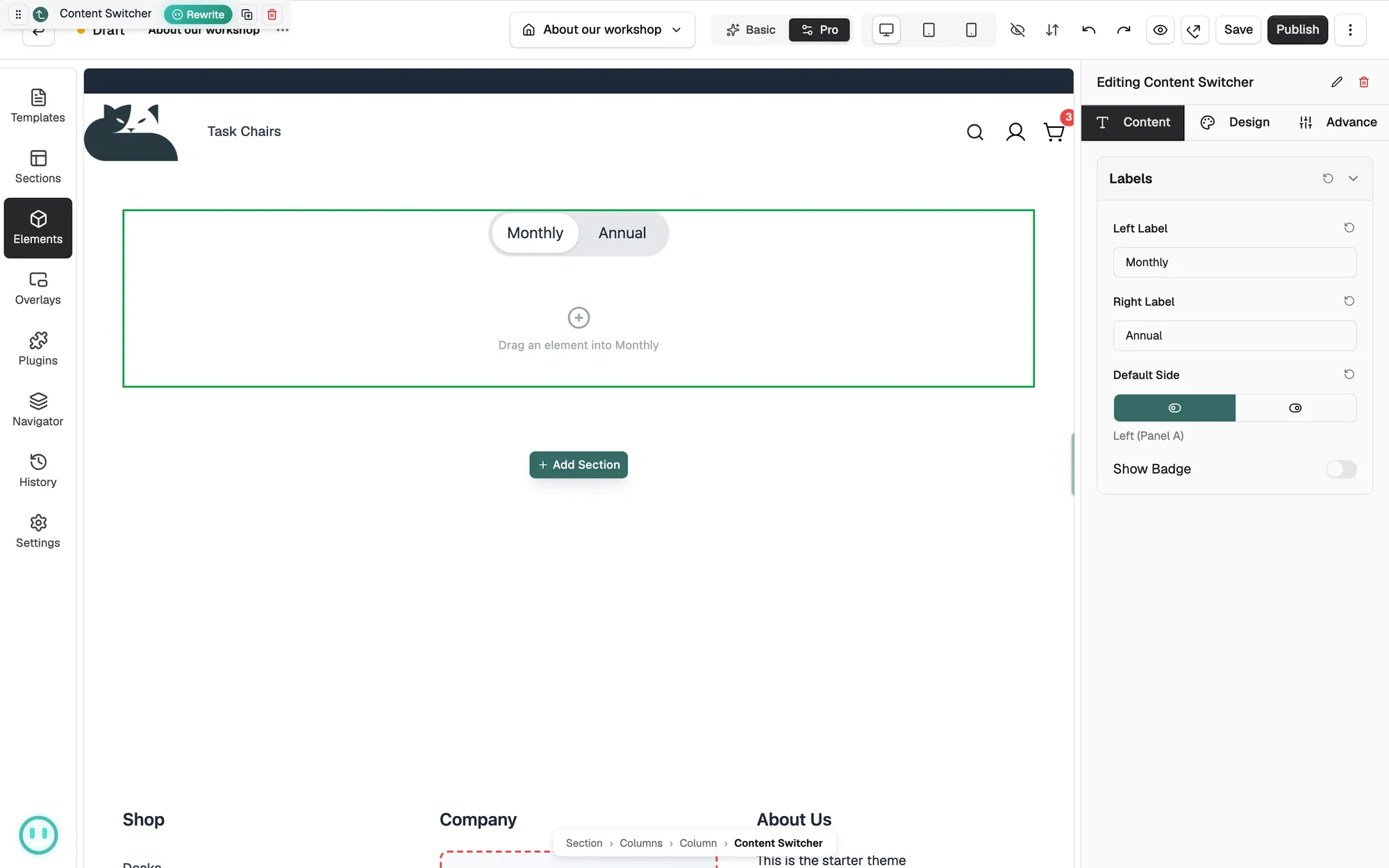
- On the Content tab, open Labels and type your own Left Label and Right Label.
- On the canvas, click the left label. The first panel shows below it.
- Drag elements from the toolbox into the panel. An empty panel reads "Drag an element into" and then your left label.
- Click the right label to show the second panel, then fill it the same way.
- Set Default Side to choose which panel customers see when the page loads.
Content settings
- Left Label: the wording on the left side of the toggle, which shows panel A.
- Right Label: the wording on the right side, which shows panel B.
- Default Side: which panel is active on the live page, Left (Panel A) or Right (Panel B).
- Show Badge: adds a small badge next to the toggle.
- Badge Text: the wording in the badge, such as Save 20%. It appears only when Show Badge is on.
Design settings
Open the Design tab to change the look. The groups are Switch, Badge, Animation, Layout, Typography, Border and Spacing. Animation sets whether the panels Slide or Fade when a customer clicks, and how long that takes.
Related guides
Was this helpful?
0 people found this helpful