Adding a Text element
Drop a Text element onto a page, format the words, choose its HTML tag and decide whether it follows your theme's text styles.
2 min read7viewsUpdated 13 October 2026Orbit Support Team
The Text element adds a block of body text to a page. Use it for paragraphs, descriptions and any copy that is not a heading. You can format the text with bold, italics, lists and links.
Add the element
- Open the page in the page builder.
- In the toolbox on the far left, click Elements.
- Under Basic, find Text, or type Text in the search box.
- Drag the tile onto the canvas and drop it where you want it.
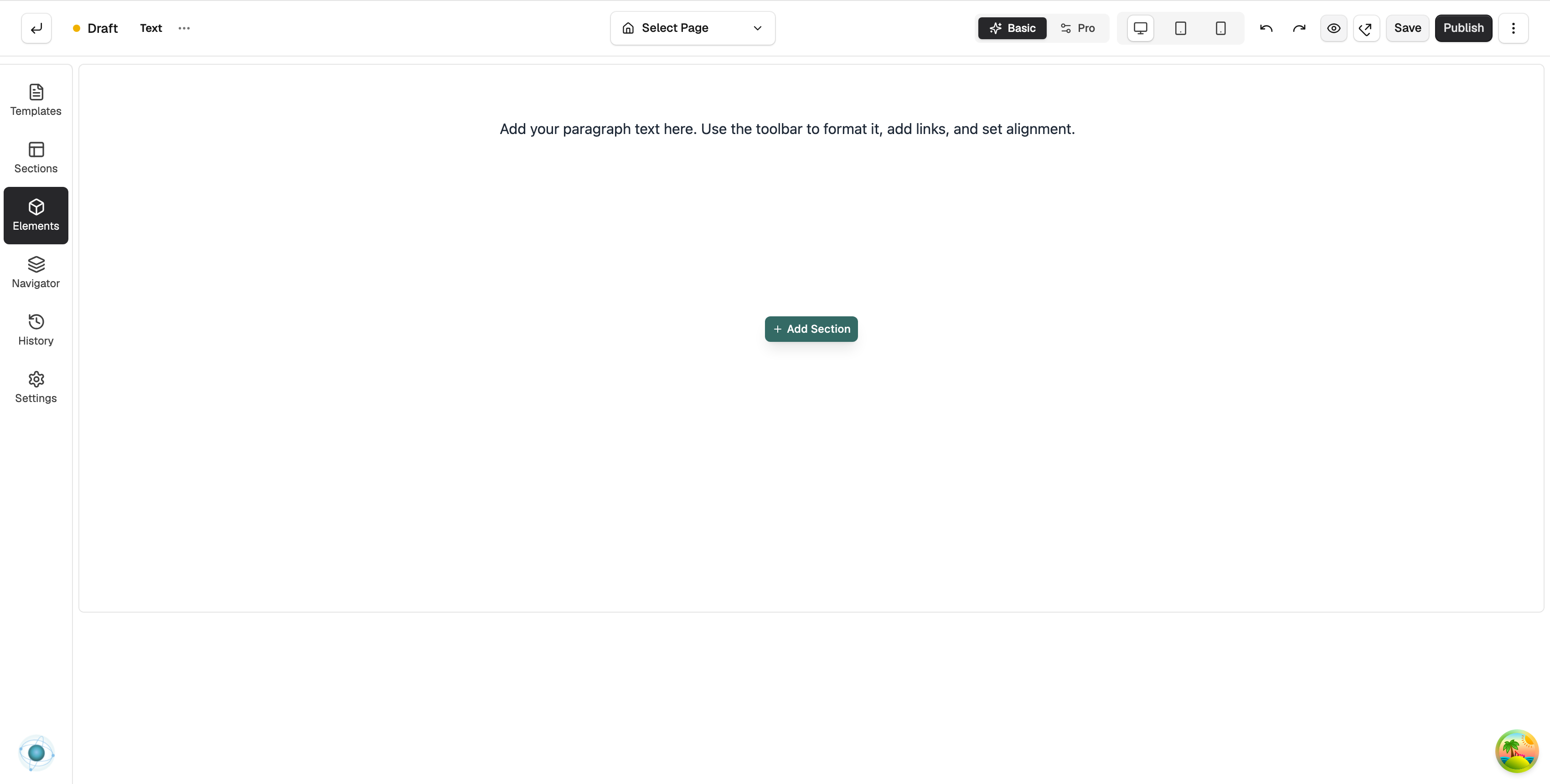
- Click the element. Its settings open on the right.
Tip: Double-click the element on the canvas to type straight into it.
Content settings
Open the Content tab in the settings panel.
- Text Content: the words in the block. The box has tools for bold, italics, underline, headings, text colour, lists, links and alignment.
- HTML Tag: the wrapper around the text. Pick Paragraph, Div, Span, Blockquote or Preformatted. This changes how search engines read the text, not how it looks.
- Drop Cap: makes the first letter large, in the style of a magazine.
Design settings
Open the Design tab.
- Typography: Global uses your theme's text styles, so all your copy matches. Pick Body Text or Small Text. Customize sets the font, size, weight and colour for this element only.
In Pro mode an Advance tab adds spacing, position, animation and per-device visibility. See Using the element settings panel.
Related guides
Was this helpful?
0 people found this helpful