Adding a blockquote
Put a quotation on a page with the name and role of the person who said it. Pick one of four style presets, including a floating pull quote.
The Blockquote element shows a quotation with the name of the person who said it. Use it to lift a line out of a page and give it room. You type the quote and the attribution yourself.
Considerations
- The Pull Quote preset floats the quote beside your text on a computer. On phones it goes full width.
- The Centered preset always centres the text, whatever you pick under Alignment.
Add the element
- Open the page in the page builder.
- In the toolbox on the far left, click Elements.
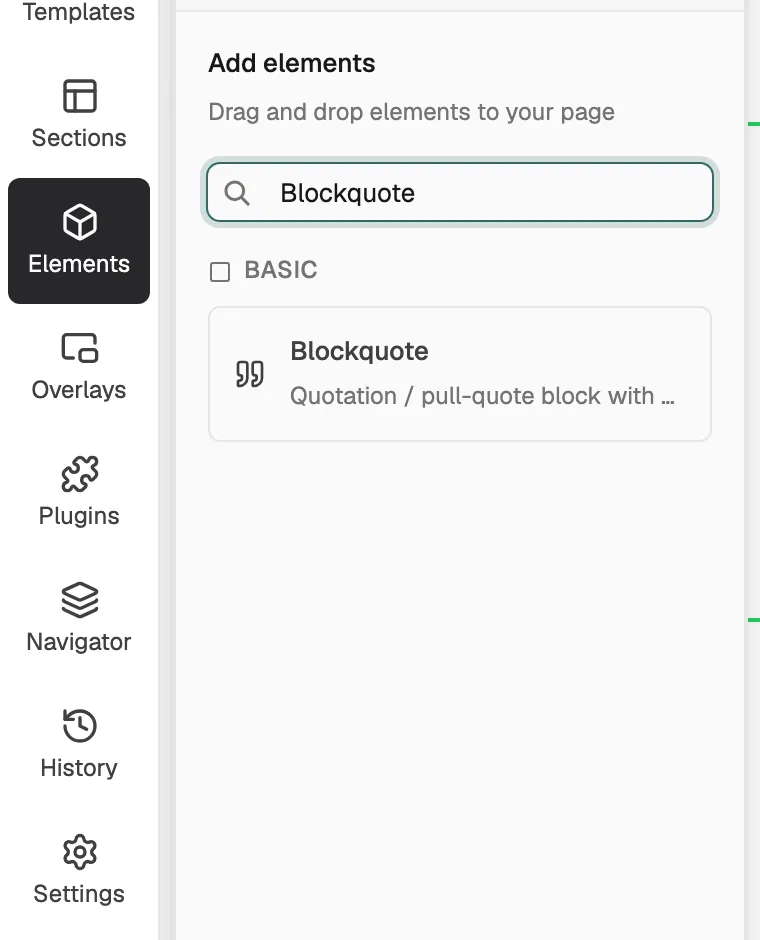
- Find Blockquote in the Basic group, or search for it.
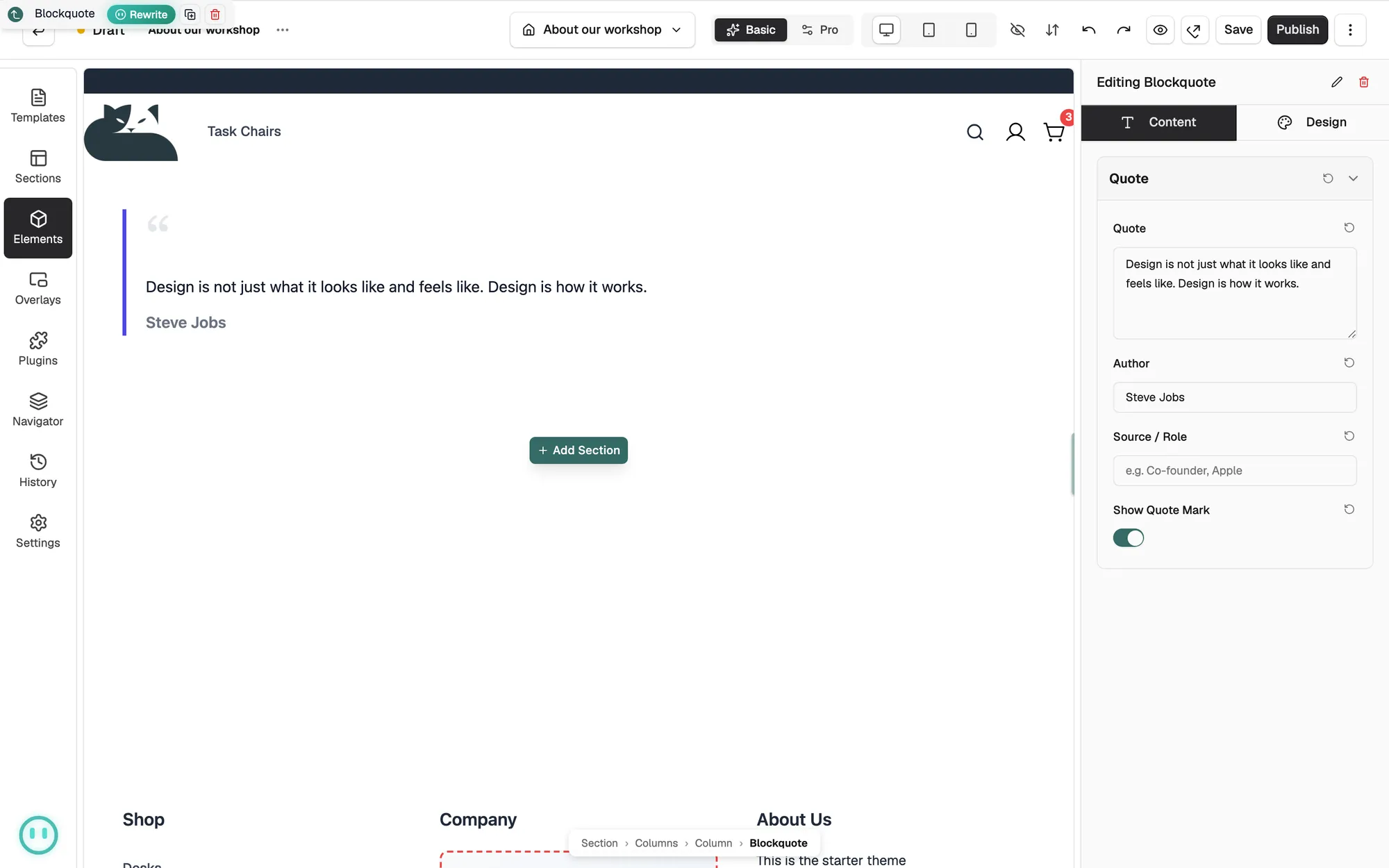
- Drag it onto the canvas and drop it where you want it. The settings panel opens on Editing Blockquote.
Write the quote
- With the element selected, open the Content tab.
- In Quote, type the quotation over the sample text. The box holds several lines and keeps your line breaks.
- In Author, type the name of the person who said it.
- In Source / Role, type their job title or where the quote came from.
- Turn Show Quote Mark off if you do not want the large quotation mark.
- Open the Design tab and pick a Style Preset: Accent Bar, Large Quote Mark, Centered or Pull Quote.
Tip: Leave Author and Source / Role empty and the attribution line is left out.
Content settings
- Quote: the quotation. Line breaks are kept as you type them.
- Author: the person's name. It shows in bold under the quote.
- Source / Role: their role or the source. It shows after the name, separated by a comma.
- Show Quote Mark: shows a large opening quotation mark.
Design settings
Open the Design tab to change the look. The groups are Layout, Typography, Appearance, Border and Spacing. Layout holds the Style Preset, Alignment, and Float and Max Width for the pull quote.
Related guides
Was this helpful?
0 people found this helpful