Seeing where an order came from
Read the Conversion summary card on an order to see how many visits led to it, how long the customer took, and which channel brought them first.
Every order placed through your storefront carries a short record of the visits that led to it. The Conversion summary card on the order page shows how many visits the customer made, how long they took to buy, and what brought them to your store the first time. You can open the full visit-by-visit journey from the same card.
Considerations
- The card is built from what your storefront tracking recorded. Orders with no tracked visit behind them show No conversion data for this order.
- The figures are worked out when you open the order. They are not saved on the order and there is nothing to set up.
- The card follows one shopper's visits, not your whole store. For store-wide figures, use Analytics.
- The days figure on the card never reads zero. An order placed on the customer's first visit shows as 1 day.
Find the conversion summary on an order
- From your Orbit dashboard, go to Orders.
- Click an order number to open the order.
- Look down the narrow column on the right of the page, below the customer and address details. The card is headed Conversion summary.
What each line on the card means
The card holds up to three short lines:
- This is their 2nd order: how many orders this customer has placed with you, counting this one. This line is not on every order.
- 1st session was organic search: how the customer reached your store on their first recorded visit. The wording after "was" changes with the channel.
- 3 sessions over 6 days: how many separate visits Orbit recorded for that shopper, and the run of days those visits cover.
Under the lines is a View conversion details link. It opens the full journey.
What a channel is
A channel is a short name for how a visit started. Orbit works it out from the first page of each visit, using two things: the site the customer came from, and the utm_source and utm_medium tags on the link they clicked. Those tags are added to links you share in emails, adverts and posts.
Orbit uses these channels, named as they appear on the card:
- direct to your store: the customer came straight to your store, with no other site and no link tags behind the visit.
- organic search: a search engine result that was not paid for.
- social media: a social network.
- email: a link in an email.
- a referral: another website.
- paid advertising: an advert.
- an AI assistant: an AI chat tool.
Open the full journey
- On the order, click View conversion details.
- Wait a moment while the sessions load. A window headed Conversion details opens.
- Read the two figures at the top, then work down the list of visits. The oldest visit is first.
- Click the close button at the top right to go back to the order.
The two figures at the top are:
- Total sessions: how many separate visits this shopper made.
- Days to conversion: whole days from their first recorded visit to the order. An order bought on the same day shows 0.
Each visit below shows:
- The channel for that visit. The oldest one is written as 1st session was followed by the channel.
- The date of the visit and how many page views it had.
- The page the visit started on, when it was recorded.
- A green Converted badge on the visit the order was placed in. That visit is the last touch.
Note: There is no separate last-touch figure on the card. The channel on the visit with the Converted badge is the one that brought the customer back to buy.
Why a card says there is no conversion data
The card reads No conversion data for this order. when Orbit cannot match the order to a tracked purchase on your storefront. That happens when:
- You created the order yourself in the dashboard. There was no storefront visit behind it.
- The order was imported from a file or came from outside your tracked storefront.
- The visit was never recorded, so nothing links the order to a shopper. Browser settings and privacy tools can stop tracking from running.
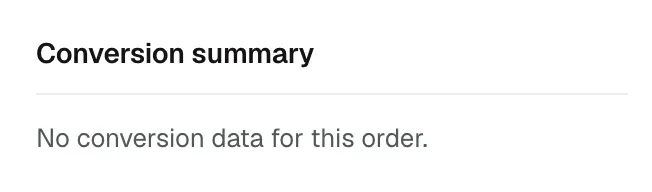
The order itself is fine. Only the journey is missing. If the window opens but the list is empty, it reads No session data is available for this order.
Use the card to read your marketing
- Compare channels: open ten recent orders and note the first-touch channel on each. The channel that shows up most is the one bringing you buyers, not only visitors.
- Check a campaign: after you send a campaign, open the orders that followed and look for its channel in the journey. See Creating a marketing campaign.
- See how long people take: if most orders run over several visits and several days, your customers are comparing before they buy. Follow-up emails and clear delivery costs matter more than a bigger discount.
- Spot a strong page: the starting page on the first visit shows which page brings people in.
Related guides
Was this helpful?
0 people found this helpful