Managing orders
Find your way around the Orders list: the tabs, filters, search and sorting, plus saved views and archiving.
The Orders page lists every order placed in your store. From here you can find an order, check whether it is paid and shipped, and open it to work on it. This guide covers the list itself. You open it from Orders in the left-hand menu of your Orbit dashboard.
Considerations
- The tabs above the table replace each other. Clicking one clears the tab you had before.
- A filter you add from Add Filter does nothing until you pick a value. Until then the pill reads Select... and the list stays as it was.
- Setting a second filter can leave no tab highlighted. The orders are still filtered.
- Clear all empties the search box as well as the filters.
- Saved views live in the browser you are using. They do not follow you to another computer.
- The list shows 50 orders per page. A count only appears when there is more than one page.
Open the Orders list
- From your Orbit dashboard, go to Orders. The page opens with your orders in a table, newest first.
- Click an order number to open that order.
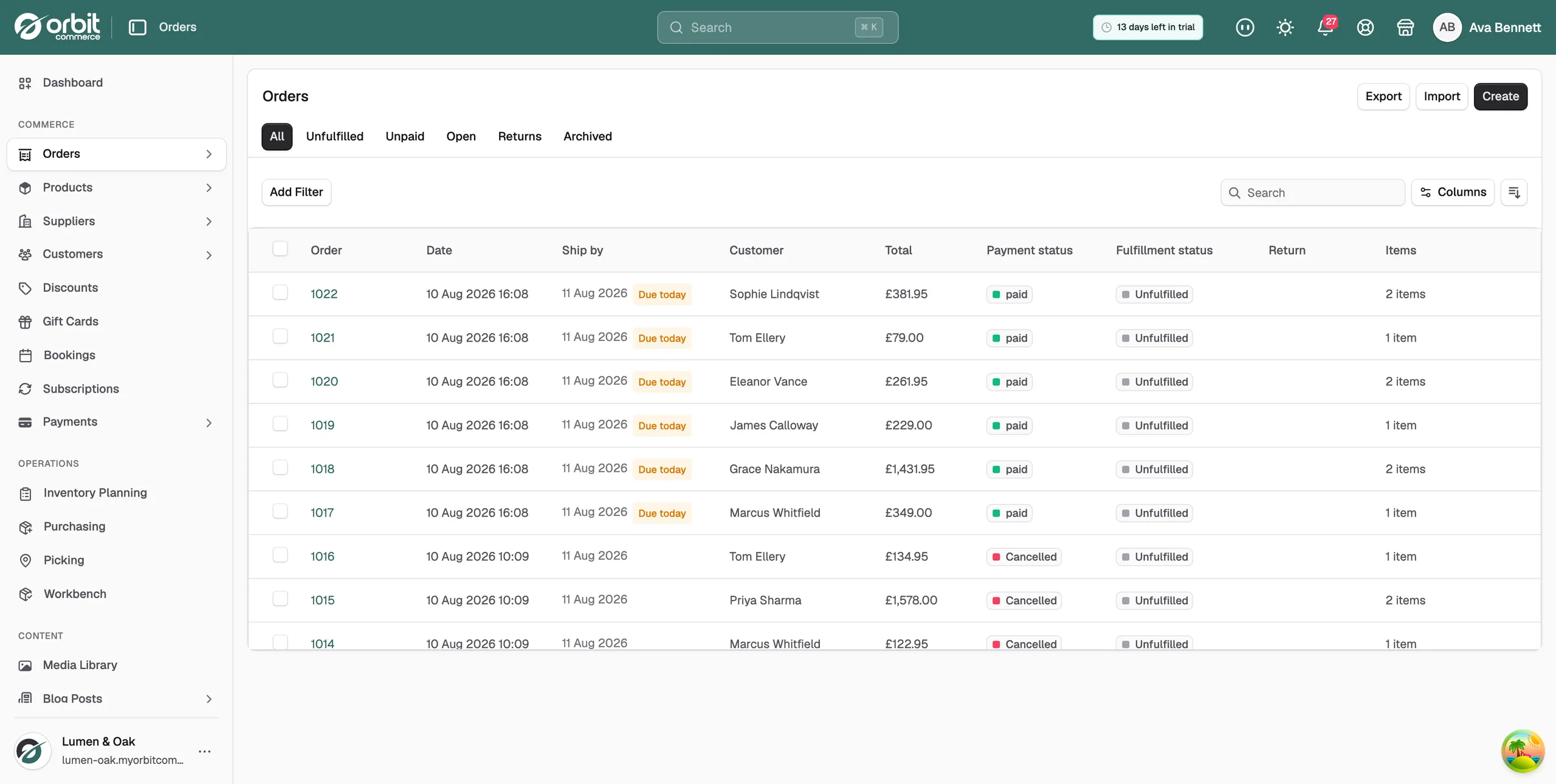
What the list shows
Each order is one row. The table has these columns:
- Order: the order number. Click it to open the order.
- Date: when the order was placed.
- Ship by: the date the order should leave you. A Late or Due today chip sits next to it when the date needs attention.
- Customer: who placed the order. A guest order with no customer record shows a dash.
- Total: what the order came to.
- Payment status: whether the money has been taken.
- Fulfillment status: how much of the order has shipped.
- Return: the state of any return on the order. Orders with no return are blank here.
- Items: how many items are on the order.
For what each badge means, see Understanding order statuses.
Filter with the tabs
The tabs above the table are the six views most stores work from. Click one to switch the list.
- All: every order in your store.
- Unfulfilled: orders you still have to send.
- Unpaid: orders the customer still owes money on.
- Open: orders being worked on now.
- Returns: orders with a return raised against them.
- Archived: orders you have moved out of the main list.
Note: These tabs are not additive. Clicking Unpaid after Unfulfilled gives you unpaid orders, not orders that are both.
Add your own filter
- On the Orders page, click Add Filter.
- Click the filter you want from the menu.
- A pill appears under the toolbar reading Select.... Click it.
- Click a value. The list narrows straight away.
- To take a filter off, click the x on its pill. To take them all off, click Clear all.
The Add Filter menu holds:
- Payment Status: Paid, Payment pending, Pending, Awaiting Payment, Failed or Refunded.
- Order Status: Unfulfilled, Open, Fulfilled or Canceled.
- Date: Today, Last 7 Days, Last 30 Days or Last 90 Days.
- Return Status: Return Requested, Return In Progress, Items Received, Returned, Return Declined or Return Canceled.
- Archive Status: Active orders or Archived orders.
- Hold: On hold or Not on hold. See Putting an order on hold.
- Dispatch: Due today or Late. This one is part of the Enterprise plan.
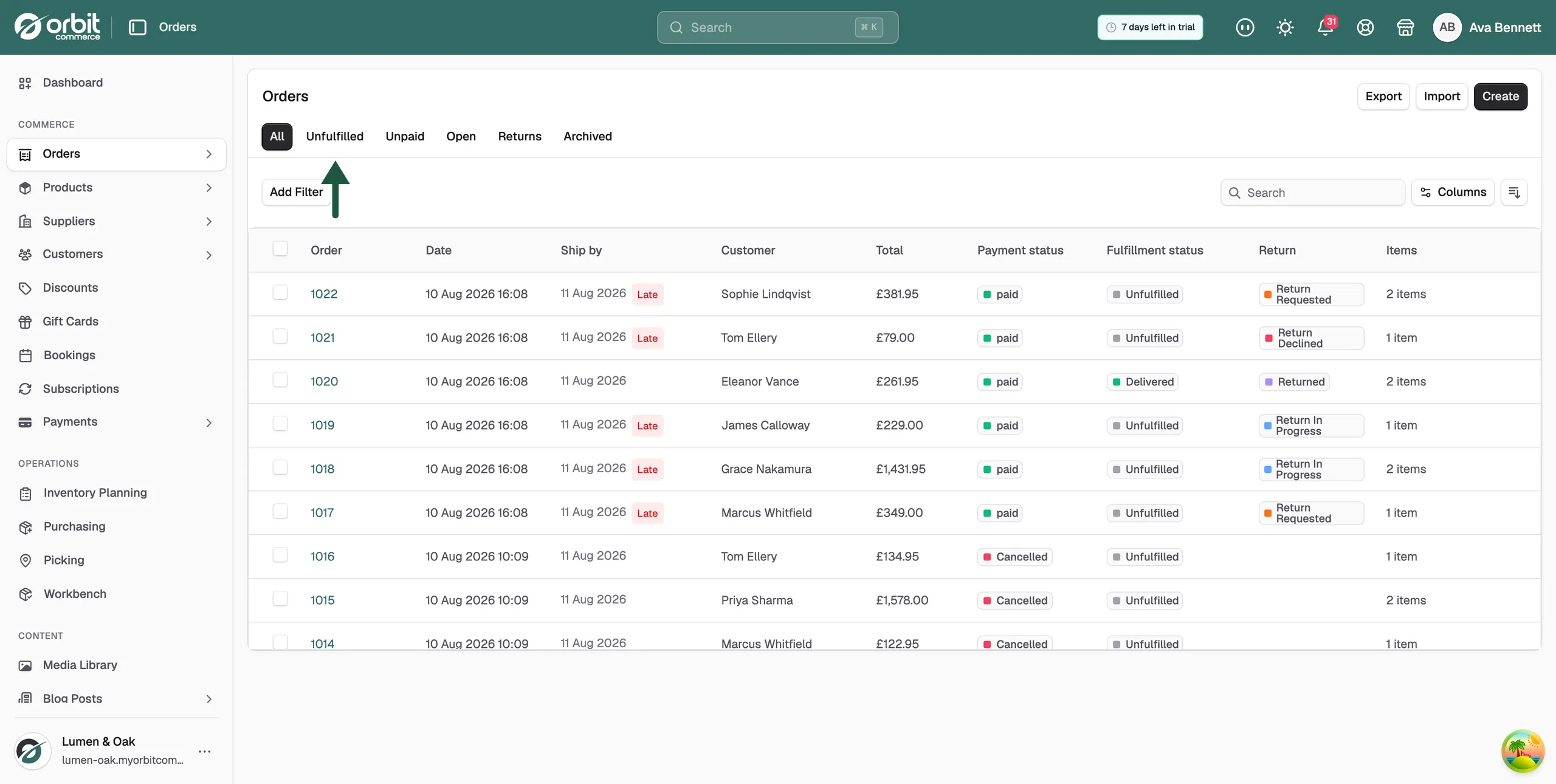
Search for an order
- Click the Search box on the right of the toolbar.
- Type an order number, an email address, or a customer's first or last name.
- Stop typing. The matching orders appear after a moment. There is no button to press.
Sort the list and pick your columns
- Click the sort button, to the right of Columns.
- Choose what to sort by: Order number, Date, Customer Name, Payment Status, Fulfillment Status or Total. Stores on the Enterprise plan can also sort by Ship by.
- Choose Ascending or Descending.
- To change which columns show, click Columns and tick the ones you want.
Save a view you use often
A view remembers your tab, your filters, your search text and your columns.
- Set up the list the way you want it.
- Click Save view, next to the tabs.
- Type a name, such as Ready to ship today.
- Click Save. The view becomes a tab of its own. One click puts everything back.
To change a view, click the bookmark icon next to the tabs. Each view in the list has four buttons:
- Set as default: Orders opens on this view from now on. Click Unset default to stop that.
- Pin as a tab or Unpin from tabs: show or hide the view in the tab row.
- Rename: give the view a new name.
- Delete view: remove it.
Archive orders you have finished with
Archiving keeps your main list to the orders that still need work. Archived orders are not deleted. You can see them again under the Archived tab.
- Tick the orders you want to archive.
- Click More actions in the bar that appears.
- Click Archive orders.
To bring one back, open it and click Unarchive under More actions.
Export, import or create an order
Three buttons sit at the top right of the page.
- Export: download your orders as a file. See Exporting orders.
- Import: bring orders in from a file.
- Create: build an order yourself. See Creating a manual order.
Related guides
Was this helpful?
0 people found this helpful