Keeping customers updated after an order ships
Show a real delivery time on your shipped emails, and get an email from Orbit when a courier reports a problem with a parcel.
Orbit keeps you and your customer in the loop after an order ships. The email you send when you ship shows the delivery time the customer was quoted at checkout. And when a courier reports a problem with a parcel, Orbit emails you about it. You set both up under Settings, then Shipping.
Considerations
- Delivery times come from your shipping methods. A method with no times set adds nothing to the email.
- Orbit never makes up a delivery time. If it does not have one, it leaves the line out.
- Courier alerts come to you by default. Emailing the customer as well is a switch you turn on.
Show a delivery time on your shipped emails
Your shipped email shows a line reading Estimated delivery and a number of days, such as 3 to 5 days. It is the same window the customer saw when they paid. To make it appear, give each shipping method its own times.
- From your Orbit dashboard, go to Settings, then Shipping.
- Click the Shipping methods tab.
- Open a method and find the Delivery estimate part of the form.
- Fill in Handling: min days and Handling: max days. This is your own time: picking, packing and getting the parcel to the courier.
- Fill in Transit: min days and Transit: max days. This is the courier's time on the road.
- Set an Order-by cutoff. Orders placed before it start their handling the same working day.
- Switch on Exclude weekends to skip Saturdays and Sundays when counting days.
- Save the method, then do the same for your other methods.
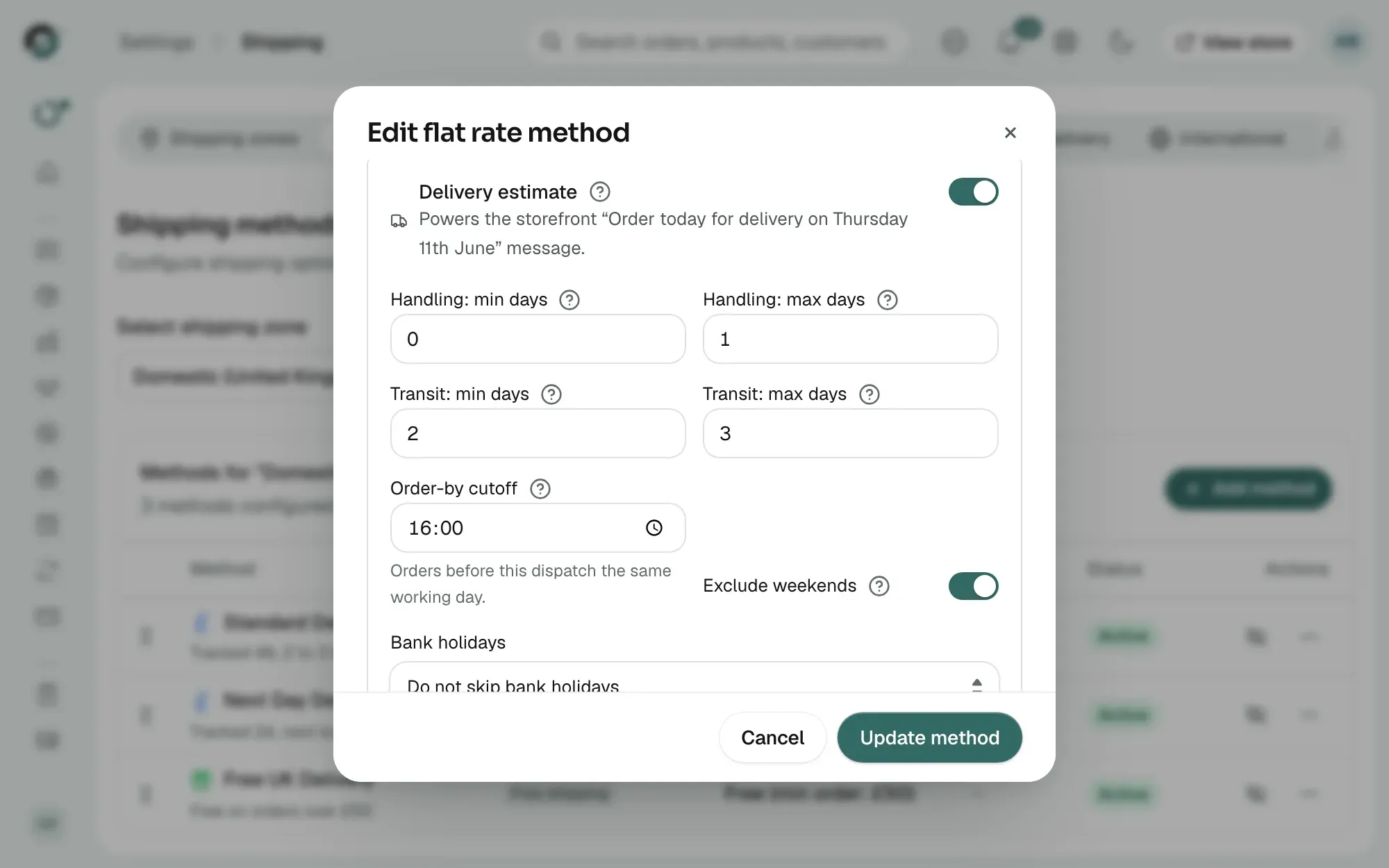
Orbit adds the two together. The lowest numbers give the earliest date and the highest give the latest.
Tip: Keep the numbers honest rather than hopeful. This is the promise your customer holds you to. If your courier is patchy, widen the transit range.
Get an email when a delivery goes wrong
Couriers report problems as they happen. A failed delivery, a wrong or missing address, or a parcel stuck at a depot all count. Orbit emails you as soon as the courier says so, so you can step in before the customer has to chase.
The email tells you which order it is and what the courier reported. From there you can call the customer, fix the address, or book a new delivery.
This is on for every shop. Nothing to switch on. The email goes to the shop owner unless you have set other people to receive store alerts. To change who gets it, go to Settings, then Notifications.
Email your customers about problems too
By default only you hear about a delivery problem. You can have Orbit tell the customer as well.
- From your Orbit dashboard, go to Settings, then Shipping.
- Click the Delivery tab.
- Switch on Email customers about delivery exceptions.
- The switch saves on its own. A message tells you the change went through.
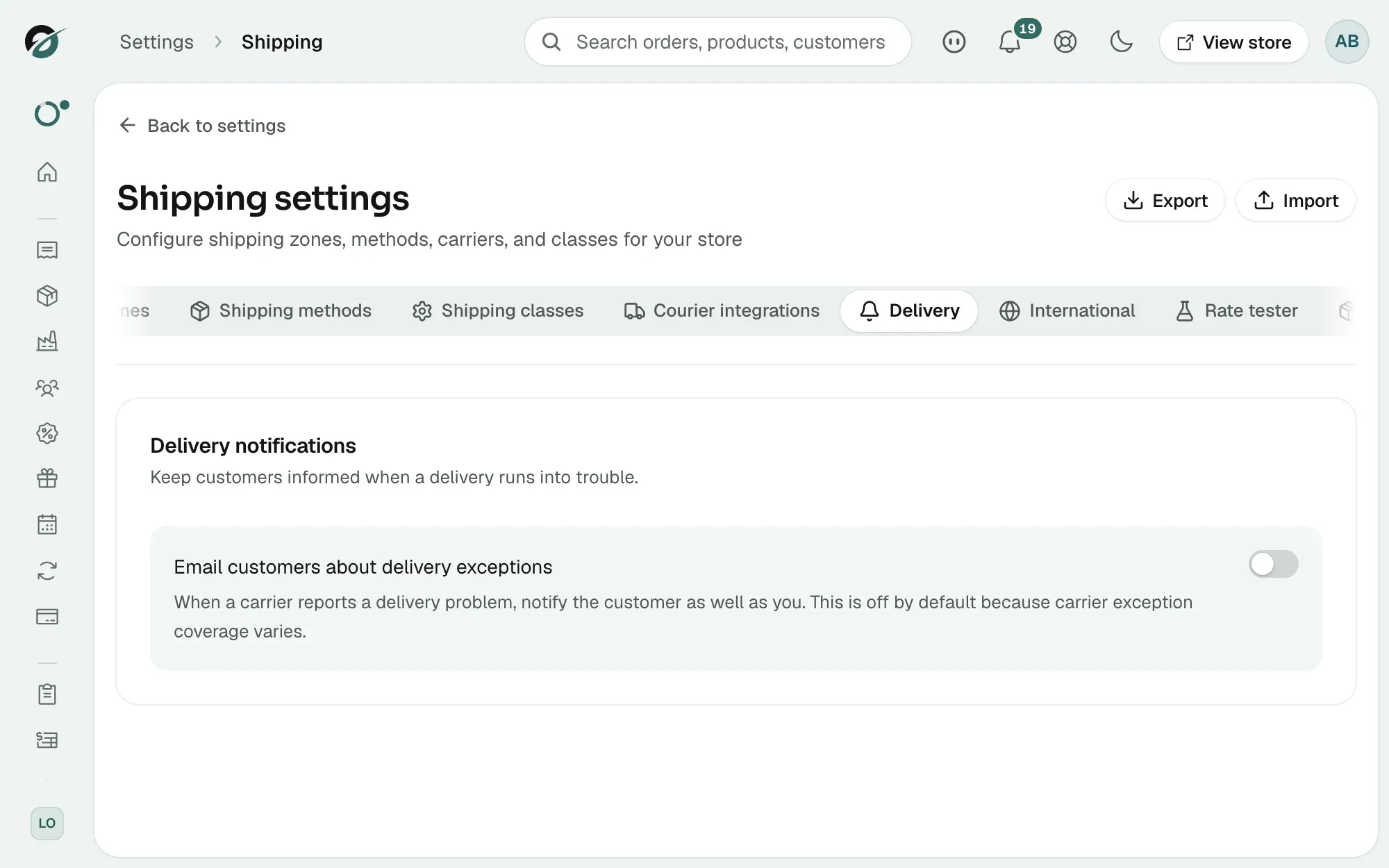
Note: This is off to start with, on purpose. Not every courier reports problems well. A false alarm worries a customer for nothing. Turn it on once you trust the couriers you use.
What your customer sees
Your customer does not have to wait for an email. Their order page always shows the latest news from the courier.
- A Delivery update panel, with what the courier reported and when, if there is a problem.
- Delivered on and the date, once the parcel arrives.
- The latest tracking status the rest of the time.
Getting the most out of it
- Give every shipping method a delivery estimate, so every shipped email carries a date.
- Read the alert emails and act on them the same day.
- Once your couriers have proved themselves, switch on the customer emails.
Related guides
Was this helpful?
0 people found this helpful