How customers request a return or cancellation
What your customers see when they ask to return items or cancel an order from their account, where the request lands in your dashboard, and how to turn the buttons off.
Customers with an account on your store can ask to cancel an order or return items from the order page in their account. A request never cancels or refunds anything on its own. It lands in your Orbit dashboard for you to approve or decline. Both request buttons are on for every store, and you can turn either off under Storefront, then Preferences.
Considerations
- The request buttons sit on the order page in the customer's account, so the customer must be signed in.
- Request Cancellation only shows while the order is still open and nothing has shipped. Once you have fulfilled any item, it goes and Request Return takes its place.
- Your return window applies. When it has closed, the customer sees The return window for this order closed on 12 September 2026 instead of the button. See Setting your return window and return reasons.
- A request from the storefront is always a refund return. If the customer wants an exchange, create the return yourself. See Creating a return on a customer's behalf.
- A customer cannot return more of an item than you have sent them. Units already on an open return count against that. Bookings, downloads, gift cards and subscriptions cannot be returned.
- Return requests at or under your Auto-approve small returns amount are approved the moment they arrive.
What your customer sees when they request a return
- In their account on your store, your customer opens their orders and clicks the order.
- They click Request Return at the top of the page. The Request a return window opens with a row for every item on the order. Each row shows the product, the variant and Purchased, the number they bought.
- For each item they want to send back, they type a number in Return qty. It cannot go above the number you have sent, less any already on a return.
- A Reason list appears under that item. It holds the active reasons from your Return reasons page. Every item with a quantity needs a reason.
- They can add one note for the whole request under Additional notes (optional).
- They click Submit return. The button stays grey until every chosen item has a quantity and a reason.
- The message Return request submitted for 2 items appears, with their item count. Orbit emails them Return Request Received. It carries the return number, the order number, the item count and the resolution.
The Request Return button stays on the page afterwards. Orbit rejects a second request for units that are already on an open return.
What your customer sees when they request a cancellation
- In their account on your store, your customer opens the order. While nothing has shipped, Request Cancellation shows at the top of the page.
- They click it. The Request cancellation window explains that the order stays active until you confirm.
- They can type a note under Reason (optional).
- They click Send request, or Keep order to change their mind.
- The message Cancellation requested. The store will review it shortly. appears. The order page now shows a Cancellation requested banner with their note, and the button is gone. A customer can only ask once per order.
What happens in your dashboard
A return request
Orbit creates a return with the status Requested and a number such as RET-0001. You will find it in three places:
- Orders, then Returns, under the Requested tab.
- The Returns section of the order page.
- The Return column of the Orders list, which reads Return requested.
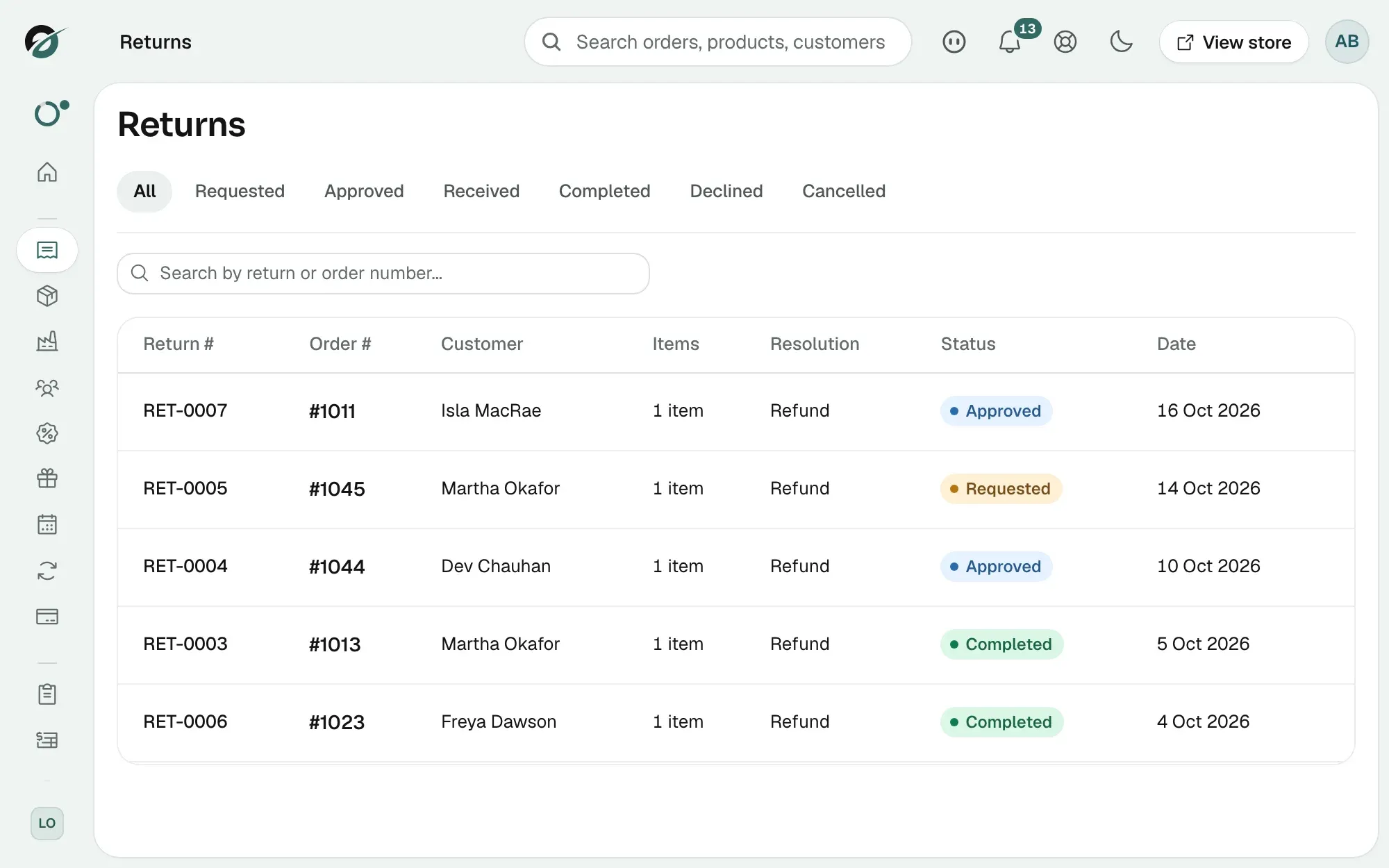
A notification reading Return requested for #1001 appears under the bell at the top of your dashboard, and the request is written to the order's timeline. Your team also gets the Return requests email if it is set up under Settings, then Notifications.
Open the return and click Approve or Decline. The customer gets an email either way: Return Approved or Return Request Update. From there the return follows the usual steps. See Processing a return.
Note: A return approved by your auto-approve amount skips the Requested stage. It arrives as Approved, with the store note Auto-approved (under threshold).
A cancellation request
The order page shows a box at the top reading Customer requested cancellation, with the customer's note. Nothing has been charged or refunded yet.
- To approve it, click More actions, then Cancel order. A paid order is refunded and its stock released in one step.
- To decline it, leave the order as it is and let the customer know.
See Cancelling an order.
Turn the request buttons off or on
Both switches are on for every store to begin with. Turn one off if you would rather handle cancellations or returns by phone or email.
- From your Orbit dashboard, go to Storefront.
- Click Preferences.
- Scroll to Customer order requests.
- Switch off Allow cancellation requests to hide Request Cancellation, or Allow return requests to hide Request Return.
- Click Save at the bottom of the page. The message Preferences saved successfully appears, and the button leaves every customer's order page.
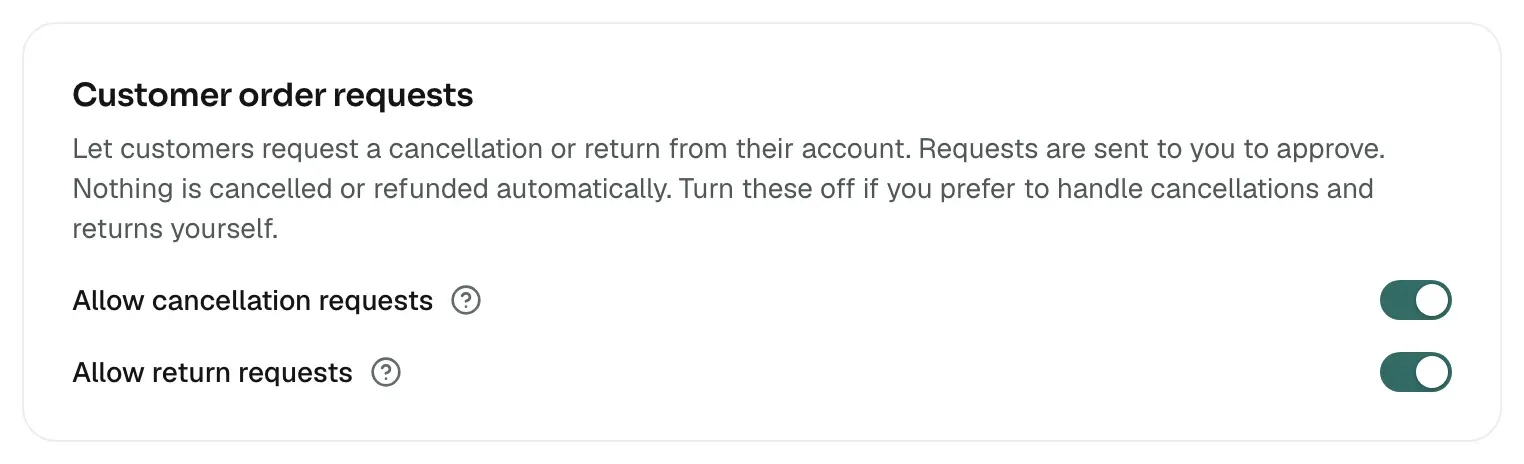
Turning off return requests does not stop you creating returns yourself from the order page.
Related guides
Was this helpful?
0 people found this helpful