Packing and shipping orders in batches
Turn a day's orders into a fulfilment batch, print the pick list, verify each unit by scanning, then buy labels for the whole run.
The Fulfilment Workbench packs and ships a group of orders as one run. You pick the orders on the Orders page, turn them into a batch, then pick, pack and ship the batch from one screen. You will find it under Operations > Workbench.
Considerations
- The Workbench is part of the Enterprise plan. On other plans the Operations section does not appear.
- Packing and shipping are separate permissions. A team member can be allowed to pack a batch without being allowed to buy labels.
- The counts in the batch header count orders, not units. A batch of three orders reads Total: 3 even when its pick list holds ten units.
- Changing a filter or a search on the Orders page clears your selection. Sorting does not.
Find the orders you owe today
The Ship by column on the Orders page holds the date you promised each customer. It is on every plan. The filter that turns it into a worklist is not.
- From your Orbit dashboard, go to Orders.
- Read the Ship by column. A red Late badge means the date has passed. An amber Due today badge means it goes out today. A grey On hold box means the order is held.
- Click Add Filter and choose Dispatch at the bottom of the menu.
- The filter is added but nothing is filtered yet. Click Select on the new pill.
- Choose Late to see what is already behind, or Due today to see what goes out today. You can only pick one at a time.
- Open the sort menu and choose Ship by.
- Open the sort menu again and choose Ascending, so the oldest promise is at the top.
Note: Due today runs on your shop's clock, not the clock of whoever is looking. Unpaid orders appear in the queue as well, so check payment before you ship.
Create a fulfilment batch
- On the Orders page, tick the orders you want in the run. The tick box in the header row selects every order on the page.
- The header row is replaced by the bulk bar. Click Create fulfilment batch.
- A message confirms the batch, for example Batch FB-1001 created with 3 orders, and the batch opens.
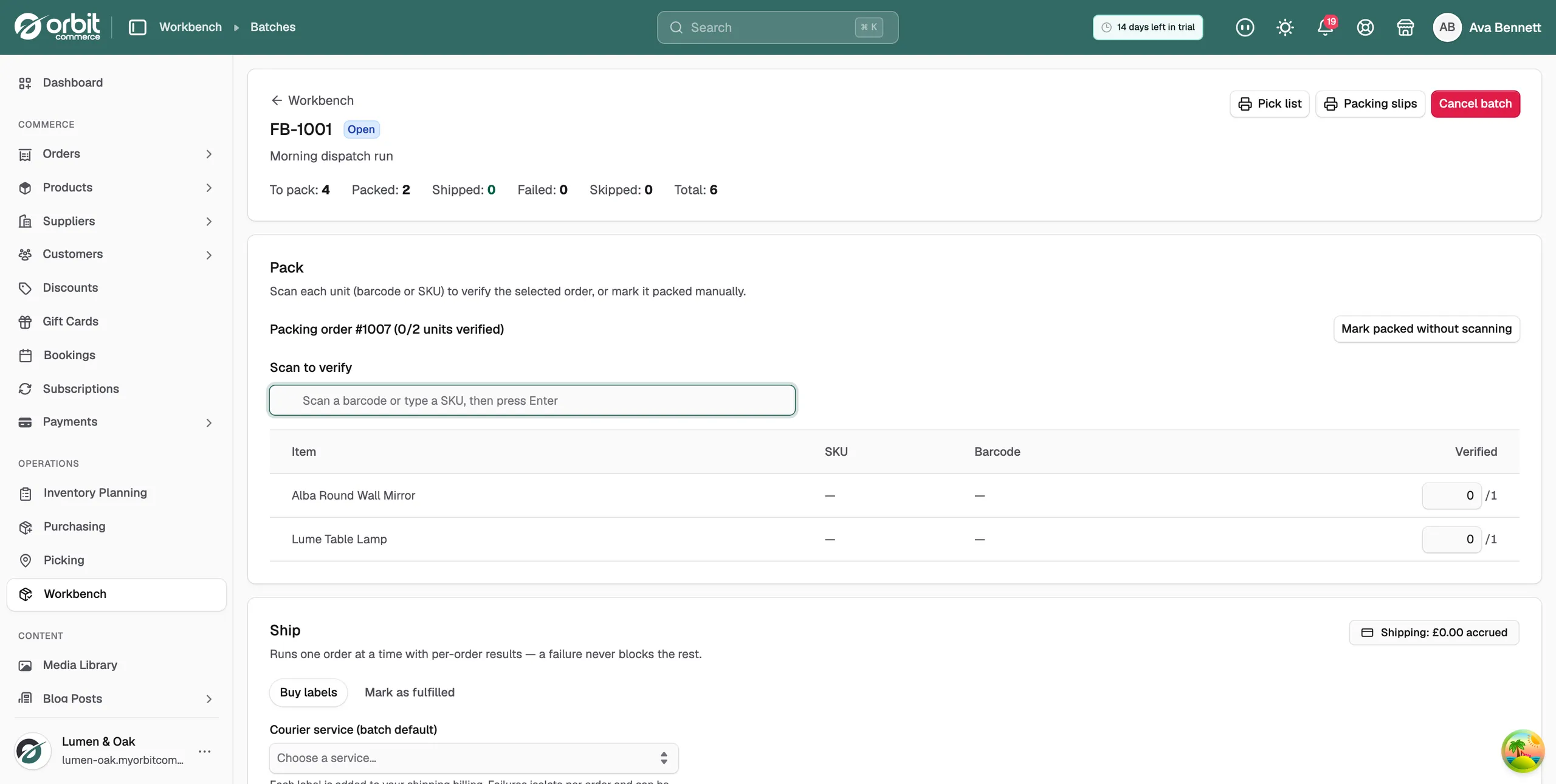
Work the batch from the top down: print the paperwork, pack each order, then ship.
Print the pick list and packing slips
- At the top right of the batch, click Pick list. It opens in a new tab.
- The pick list totals each item across the whole batch, so you collect every unit of a product in one go.
- Click Packing slips for the documents that go in the boxes.
Pack the orders
The pack panel takes one order at a time and chooses the first one for you. There is no save button. An order packs itself as soon as every unit is verified, and the next order opens.
- Scan a unit's barcode, or type its SKU and press Enter. The Verified count for that line goes up by one.
- To record a whole line at once, type the number into the Verified box instead.
- If a barcode will not read and you have checked the order by hand, click Mark packed without scanning.
Tip: Leave scanning on for anything valuable. The verified count stops a short pick or an over-pack before the box leaves the building.
Ship the orders
The ship panel has two tabs. Use Buy labels when Orbit buys the postage, and Mark as fulfilled when you post the orders another way.
- On the Buy labels tab, pick the courier service for the batch.
- To send one order by a different courier, change that order's own service. Every other order stays on Batch default.
- Click the buy button. It names the count, for example Buy labels for 3 packed orders, and asks you to confirm.
- Orders ship one at a time and the counts update as each one goes. Your card is charged as each label is bought.
On the Mark as fulfilled tab you get a Tracking number (optional) box for each packed order, then a button to fulfil them.
Note: A failure on one order never blocks the rest. If an order fails, the batch stays open and a Retry button appears with the number of failed orders on it. Fix the problem, then retry.
What the batch counts mean
- To pack: orders waiting to be packed.
- Packed: orders packed and ready to ship.
- Shipped: orders that have a label or have been marked as fulfilled.
- Failed: orders whose shipping did not go through.
- Skipped: orders left out of the ship run.
- Total: orders in the batch.
Manage your batches
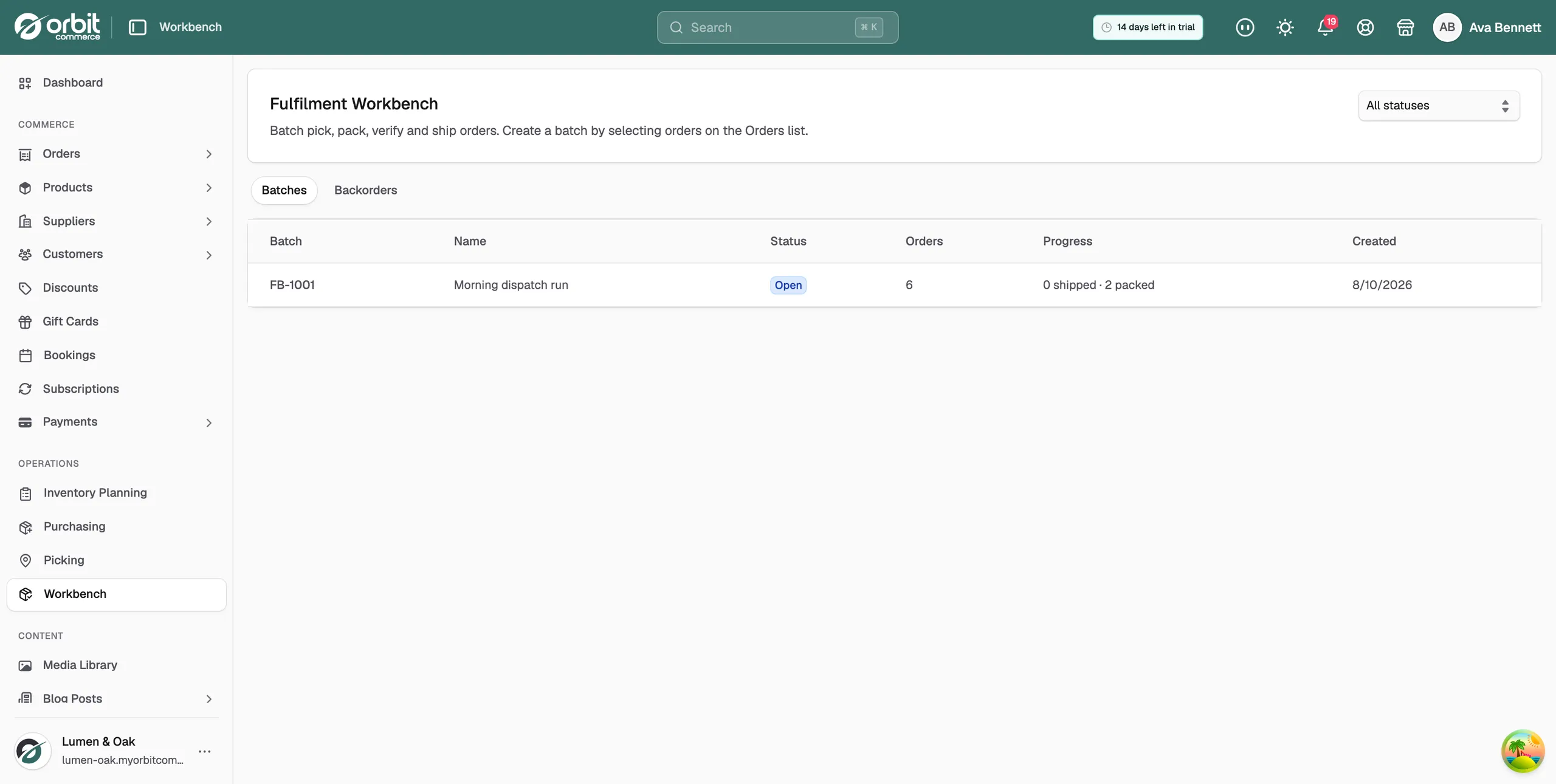
The Workbench lists every batch with its status, its order count and its progress. The Backorders tab holds lines that are waiting on stock.
To empty a batch without touching the orders in it, open the batch and click Cancel batch. Its orders go back to the pool and can be batched again.
Related guides
Was this helpful?
0 people found this helpful