Migrating from Squarespace or Wix
Products, customers and content move across from Squarespace or Wix. The design is rebuilt in the page builder. Here is the order to do it in.
Squarespace and Wix keep your shop and your website design in one place. Your products, customers and content move to Orbit. Your design does not, so you rebuild it in the page builder.
Considerations
- Orbit does not recognise a Squarespace or Wix export by name, so you match the columns to Orbit's fields yourself in the mapping editor.
- Your file needs a column that gives each product a short unique reference. Orbit calls it Handle.
- A column with no home in Orbit does not have to be thrown away. Choose + Create custom field… for it and Orbit keeps it.
- Product images come across from the web addresses in the file, so keep your old site live until the import has finished.
- Passwords never move. Customers set a new password the first time they sign in.
1. Set up your Orbit store first
- Create the store and choose your plan.
- Set your currency, timezone and units.
- Set up your shipping zones and rates.
- Leave your domain where it is. You point it at Orbit at the very end.
2. Move your products
- Export your products to a CSV. In Squarespace this is under Commerce, then Inventory, then Export. In Wix it is the export on your store products list.
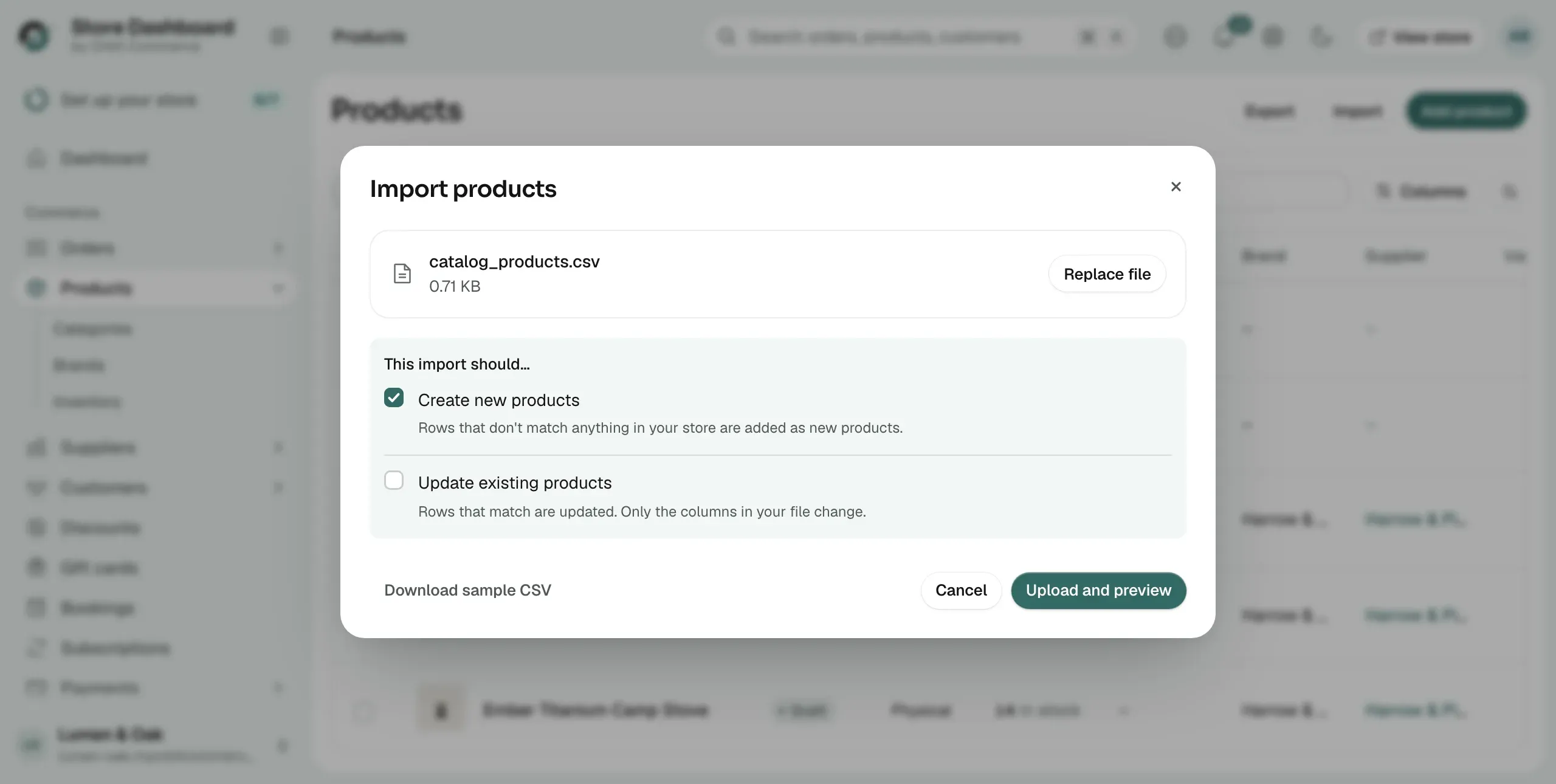
- From your Orbit dashboard, go to Products and click Import.
- Click Download sample CSV and compare it with your file. It shows the exact shape Orbit expects.
- Click + Add file, choose your export, then click Upload and preview.
- Click the line that reads, for example, 3 of 5 columns mapped. Point each of your columns at the Orbit field it belongs to. The screen lists any required fields you have not mapped, such as Handle, Status, Is physical and Is taxable.
- For a column Orbit has no field for, choose + Create custom field… and give it a name. For a column you do not want, choose Do not import.
- Click Import products. You can close the dialog and the import carries on.
Tip: Import ten products first, check them on your storefront, then run the full file. Fixing a mapping is much quicker on ten rows than on a thousand.
3. Move your customers
- Export your contacts or customers to a CSV.
- From your Orbit dashboard, go to Customers and click Import.
- Add the file, map the columns and import.
- Plan an email telling customers about the new shop and asking them to set a new password.
4. Rebuild your design and content
- Install an Orbit theme close to the look you have now, then adjust it in the page builder.
- Copy the blog posts and pages that earn you traffic into Orbit. Leave the rest behind.
- Rebuild your contact and enquiry forms.
- If you took bookings, set those services up again in Orbit.
5. Finish before you point your domain
- Add a redirect for every old address that has search traffic or links pointing at it.
- Recreate the discount codes that are still running.
- Reissue any gift cards that still have a balance on them.
- Order something on the Orbit store yourself and check the whole checkout.
- Point your domain at Orbit, on your quietest trading day. Give the change a full day to settle.
Related guides
Was this helpful?
0 people found this helpful