Redirecting an old URL to a new one
Create, find, edit and delete 301 redirects so old links keep working, and see which redirects Orbit adds for you when a handle changes.
A URL redirect sends visitors from an old web address to a new one. Use one when you rename a page, retire a product, or move your shop to Orbit and want old links to keep working. You manage redirects under Storefront, then URL Redirects.
Considerations
- Every redirect is a 301, which means permanent. Browsers and search engines treat the page as moved for good, so your search ranking passes to the new page.
- Orbit creates redirects for you. When the handle of a product, page, category or blog post changes, a redirect from the old address is added with the source Auto.
- Redirects you add by hand show the source Manual. They are for links Orbit cannot know about, such as pages from your old shop.
- Only the store owner and store admins can see URL Redirects. Staff accounts do not have it in the menu.
Create a redirect
- From your Orbit dashboard, go to Storefront.
- Click URL Redirects. The list of redirects opens.
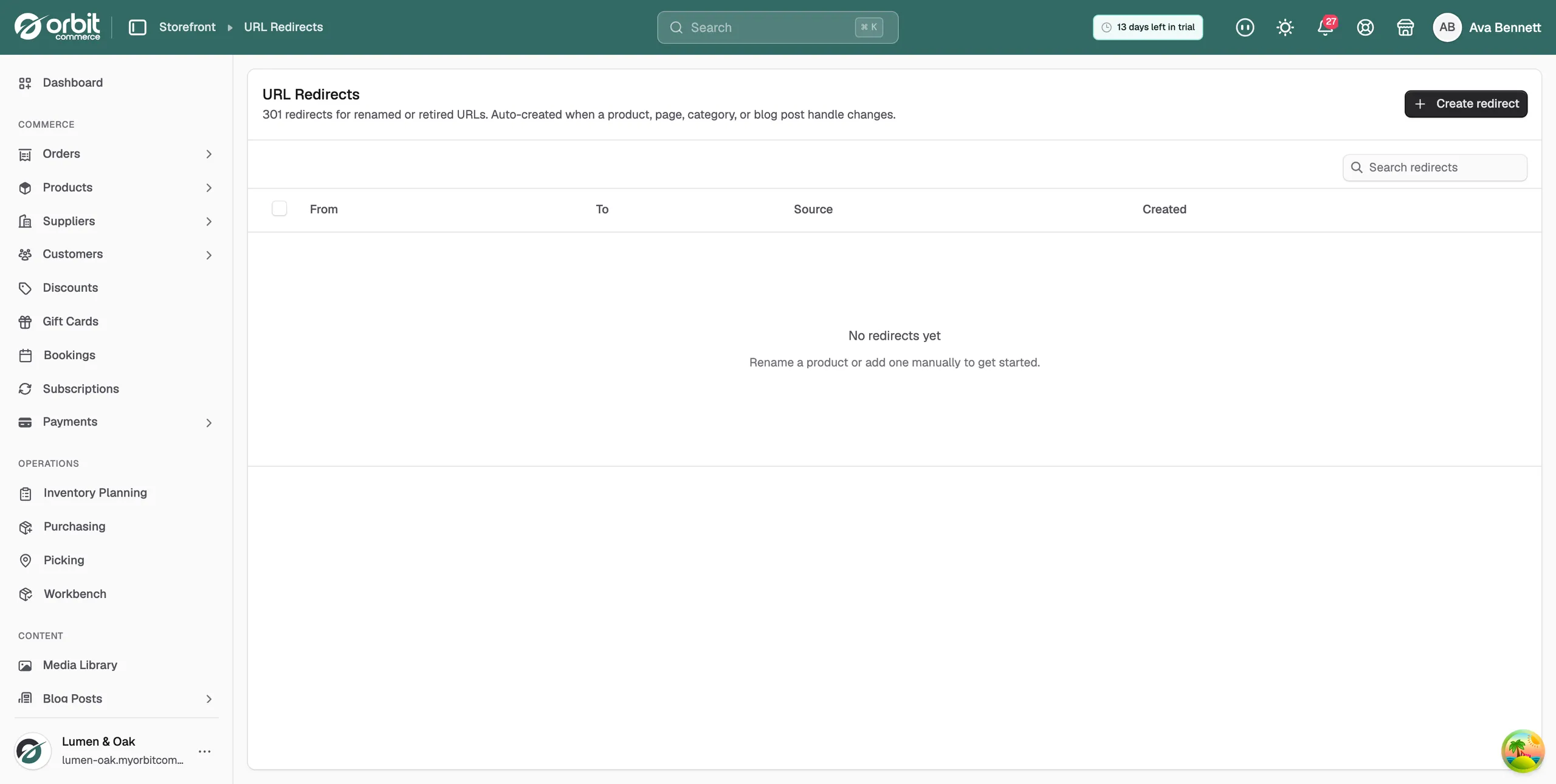
- Click Create redirect. The Create URL redirect page opens with one card and two fields. Both must be filled in.
- In From path, type the old address from the slash onwards, for example /old-product.
- In Redirect to, type where visitors should end up. For a page on your own store, type the path only, for example /new-product. For another website, type the full address starting with https://.
- Click Create redirect in the top bar. Orbit saves the redirect and takes you back to the list. The message Redirect created appears and the new row shows the source Manual.
Tip: Anything that starts with http:// or https:// counts as external, even your own domain. For your own pages, drop the domain and keep the path. A path survives a domain change.
Find a redirect
Each redirect is a row in the list. The columns are:
- From: the old path visitors arrive on.
- To: where they are sent. A small link icon marks a destination on another website.
- Source: Manual for redirects you added, Auto for ones Orbit created.
- Created: the date the redirect was added.
Type in Search redirects to filter the list by its From or To path.
Edit a redirect
- In the list, click the redirect's row. The Edit redirect page opens.
- Change From path or Redirect to.
- Click Save changes. The message Redirect updated appears.
You can edit an Auto redirect too. The edit page shows a note that it was created when a handle changed, and that renaming the same item again may create new entries.
Delete a redirect
- To delete one redirect, click the bin icon at the end of its row.
- In the Delete redirect? prompt, click Delete. The message Redirect deleted appears.
To delete several at once, tick the redirects you want, then click Delete in the bar that appears above the list.
Warning: Deleting a redirect takes effect straight away. Visitors who open the old URL afterwards get a 404 page instead of being sent on.
Related guides
Was this helpful?
0 people found this helpful