Choosing and activating a theme
See your active theme, install and activate a new one, resolve page conflicts, customise, update or uninstall a theme, and read the Page Speed panel.
A theme is the design of your storefront: its colours, fonts and layout. Only one theme is active at a time. On the Themes page you can see your active theme, install more from the marketplace, activate one you have installed, update it, and check your store's page speed. You find it under Storefront, then Themes.
Considerations
- Activating a theme changes your storefront straight away. Customers see the new design at once.
- Activating resets theme settings such as colours and fonts to the new theme's defaults. Your pages, products and content stay as they are.
- Your old theme stays installed, so you can switch back at any time.
- If the new theme has pages that clash with pages you already have, Orbit asks what to do with each one before it finishes.
View your active theme
- From your Orbit dashboard, go to Storefront.
- Click Themes. You can also click Manage on the Active Theme card of the Storefront Overview.
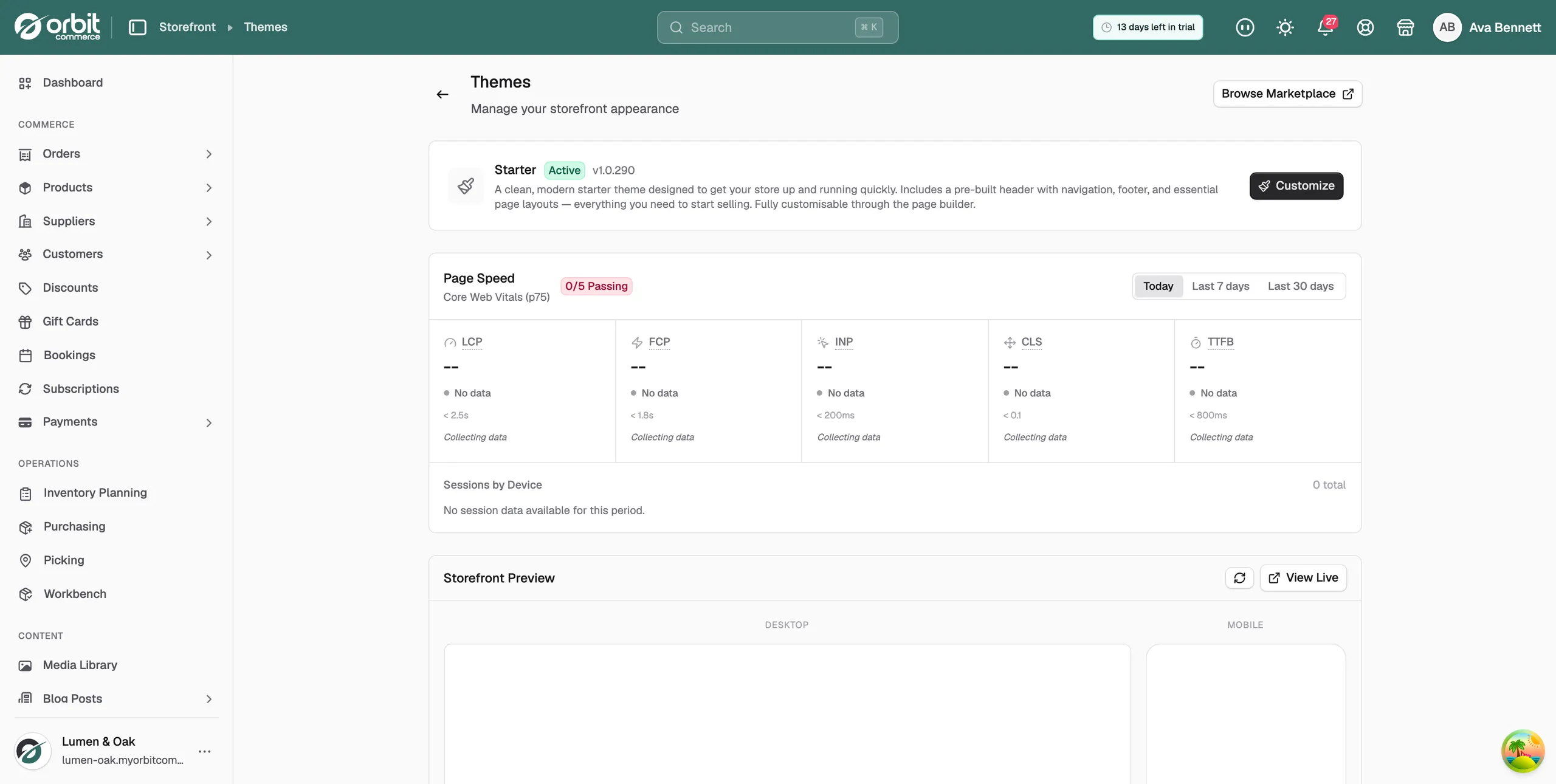
The top of the page shows your active theme with a green Active badge, its version and a short description. Lower down, Storefront Preview shows how it looks on Desktop and Mobile. Click View Live to open your store.
Install a theme from the marketplace
- Click Browse Marketplace at the top of the page. The theme store opens in a new tab.
- Choose a theme and install it.
- Back on the Themes page, the theme appears in the Theme Library, ready to activate.
You can install several themes and keep them in your library without making any of them live. For prices and licences, see Installing and activating a theme.
Activate an installed theme
- Scroll down to the Theme Library. Each installed theme shows its name, description and version.
- Click Activate next to the theme you want.
- Read the Activate Theme window. It lists what will happen: your storefront changes at once, your current theme is deactivated, theme settings reset to defaults, and new pages are created from the theme's templates.
- Click Activate Theme.
- If the Page Conflicts Detected window opens, choose an option for each page listed:
- Overwrite existing page: replace the page with the theme's version. You can roll back using revisions.
- Create new page: keep your page and add the theme's version with a new name, such as "About Us 2".
- Skip this page: keep your page and do nothing.
- Check the Summary line, which counts your choices, then click Activate Theme. Every choice is applied in one go.
- The message Theme activated successfully appears and your new look is live.
Tip: Choose Create new page for your homepage if you have already built it. Your version stays safe and you can compare the two.
Customise the active theme
- Next to your active theme, click Customize. The page builder opens on your homepage.
- Change the design to suit your brand, then publish. If you have no homepage yet, Orbit asks you to create one first and takes you to Pages.
Update a theme
Theme authors release new versions from time to time. When an update is ready, the version next to the theme name turns orange and reads Version X available. This shows for your active theme and for themes in your library.
- Click the Version X available label.
- Click Update. To read what changed first, click View release notes.
- Read the Update Theme window. Updating resets your theme settings to the new version's defaults and may refresh your header and footer layouts. Your pages, products and other content are not changed.
- Click Update Theme. The message Theme updated successfully appears. An active theme stays active.
Uninstall a theme
In the Theme Library, click Uninstall next to a theme you no longer need. The message Theme uninstalled successfully appears.
Warning: Uninstall removes the theme as soon as you click it. There is no confirmation step and no undo. You can install it again from the marketplace.
Check your page speed
The Page Speed panel shows your store's Core Web Vitals, measured from real visitor sessions. A badge at the top shows how many metrics pass, for example 3/5 Passing. The panel fills up as real visitors arrive; until then each metric reads Collecting data.
- LCP: how fast the main content of a page loads.
- FCP: how fast the first part of a page appears.
- INP: how quickly the store responds when customers click or type.
- CLS: how stable the layout is while a page loads.
- TTFB: how fast the server starts to respond.
Each metric shows its value, a rating of Good, Needs Work or Poor, and the target it is measured against. Hover a metric name to see what it means. Switch the period between Today, Last 7 days and Last 30 days. Sessions by Device shows how your visitors split across Desktop, Tablet and Mobile.
Related guides
Was this helpful?
0 people found this helpful