Setting reorder points and raising a purchase order
Set a reorder point and safety stock per item and location, get a daily digest of what is low, then turn the flagged items into a purchase order.
Inventory Planning watches your stock for you. Set a reorder point on the items you care about, and Orbit flags each one as soon as it falls that low. From the same page you can pick the flagged items and raise a purchase order. You will find it under Operations > Inventory Planning.
Considerations
- Inventory Planning is part of the Enterprise plan. On other plans the Operations section does not appear.
- Planning never changes your stock numbers. It only drives the flags on this page and the digest email.
- There is one row per item, per location. Each location has its own reorder point and safety stock.
- Velocity, days of stock and ABC are worked out across the whole store, because orders do not record a location.
- A purchase order covers one location. If your picked rows span two locations, the button stays greyed out.
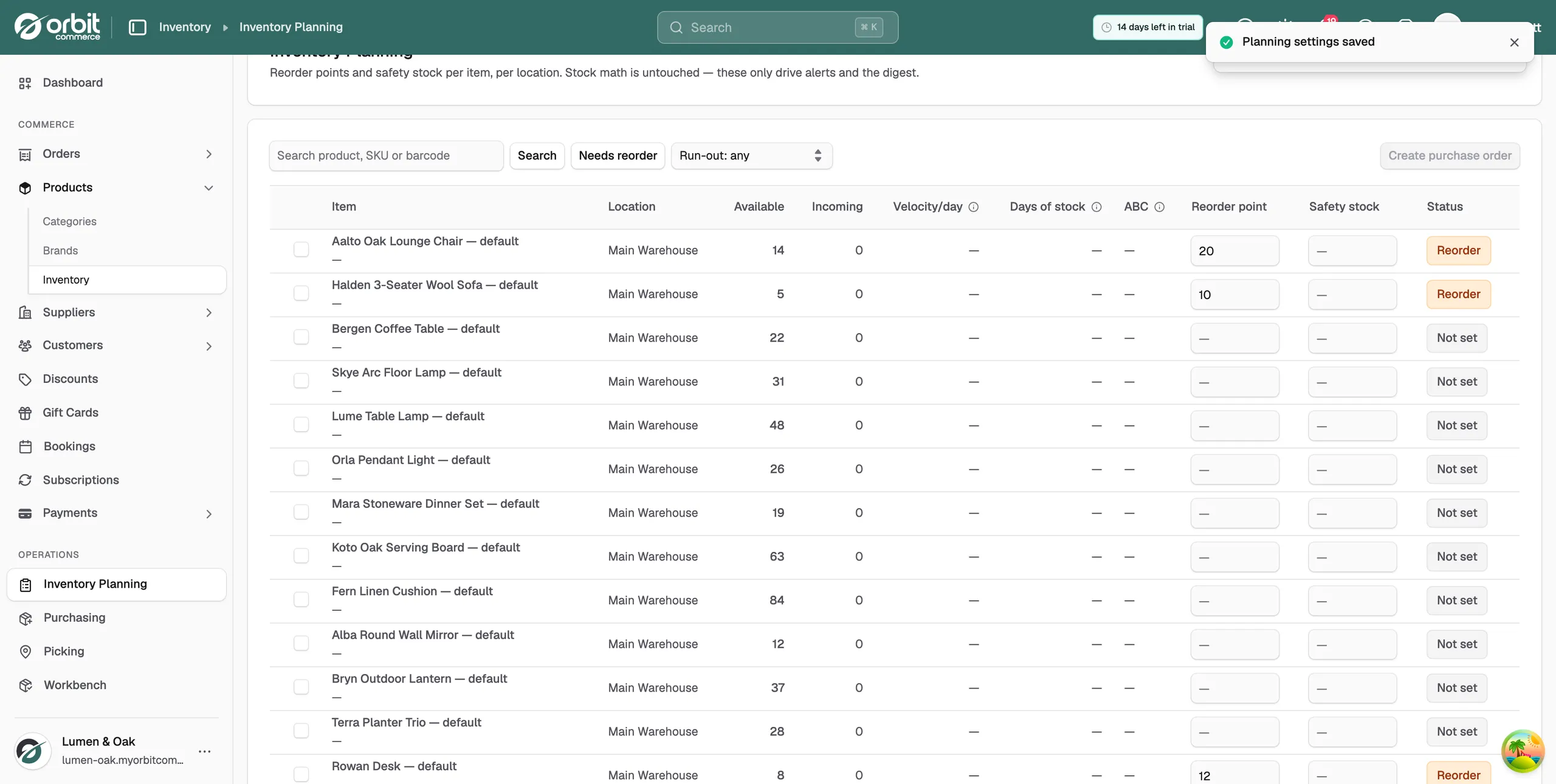
Set a reorder point
A reorder point is the stock level at which you want to buy more.
- From your Orbit dashboard, go to Operations > Inventory Planning.
- Find the item's row. Use the search box to find it by product, SKU or barcode.
- Type a number in the Reorder point box.
- Press Enter. The box saves itself and the Status column updates.
- Repeat on the next row. Each box saves as you leave it, so there is no Save button.
Tip: Base the number on your supplier's lead time. If a lamp takes 14 days to arrive and sells one a day, 20 is a safer point than 10. Start with your A items.
Where an item has a preferred supplier with a lead time, Orbit shows Suggested under the box with a figure it has worked out. Click Adopt to use it.
Add safety stock
Safety stock is the buffer you never want to dip below.
- Find the item's row.
- Type a number in the Safety stock box.
- Press Enter. At or below that figure, the item is flagged Urgent instead of Reorder.
What the statuses mean
- Not set: the item has no reorder point, so nothing is being watched.
- OK: available stock is above the reorder point.
- Reorder: available stock has fallen to the reorder point. Time to buy.
- Urgent: available stock is at or below your safety stock.
Turn on the daily digest
- Go to Operations > Inventory Planning.
- At the top right, turn on Daily reorder digest email.
Orbit confirms with Daily reorder digest enabled. You then get the list by email instead of checking the page.
See what needs reordering
- Click Needs reorder above the table. The list drops to items at or below their reorder point.
- To narrow it further, use the Run-out: any menu and choose Runs out ≤ 7 days, ≤ 14 days or ≤ 30 days.
- Click Needs reorder again to see every item.
If nothing is low, the page says Nothing needs reordering. For what the velocity and days of stock figures are telling you, see Understanding demand forecasts.
Create a purchase order
- Tick the box on each item you want to order. They must all be at the same location.
- Click Create purchase order at the top right. The number in brackets is how many lines it will contain.
- Choose a Supplier. To add one now, click New supplier, type the name and click Add.
- Check the Currency and the Receive to location.
- Set an Expected arrival date and add Notes if you need to.
- Under Line items, check the Quantity Orbit has worked out for each line and type the Unit cost. The line total and the order Total add themselves up.
- Click Create purchase order.
The purchase order is saved as a draft and opens so you can check it. What you ordered then shows in the Incoming column on your inventory. Sending it and receiving the goods is covered in Creating and receiving purchase orders.
Related guides
Was this helpful?
0 people found this helpful