Managing gift cards
Search your gift cards, read the balance and history on any card, and edit, deactivate or delete one.
The Gift Cards page in your Orbit dashboard lists every card you have issued or sold. It shows how much value is still outstanding, who each card went to, and every credit and debit against it. From here you can search a card, edit it, stop it being used, or delete it.
Considerations
- The list hides part of every code. Open a card to see the full code.
- You cannot change the amount on a card after it is issued. Edit covers the recipient and the expiry date only.
- Deleting a card removes its history with it and cannot be undone.
Open the Gift Cards page
- From your Orbit dashboard, go to Gift Cards.
- Four figures sit across the top of the page, above the list.
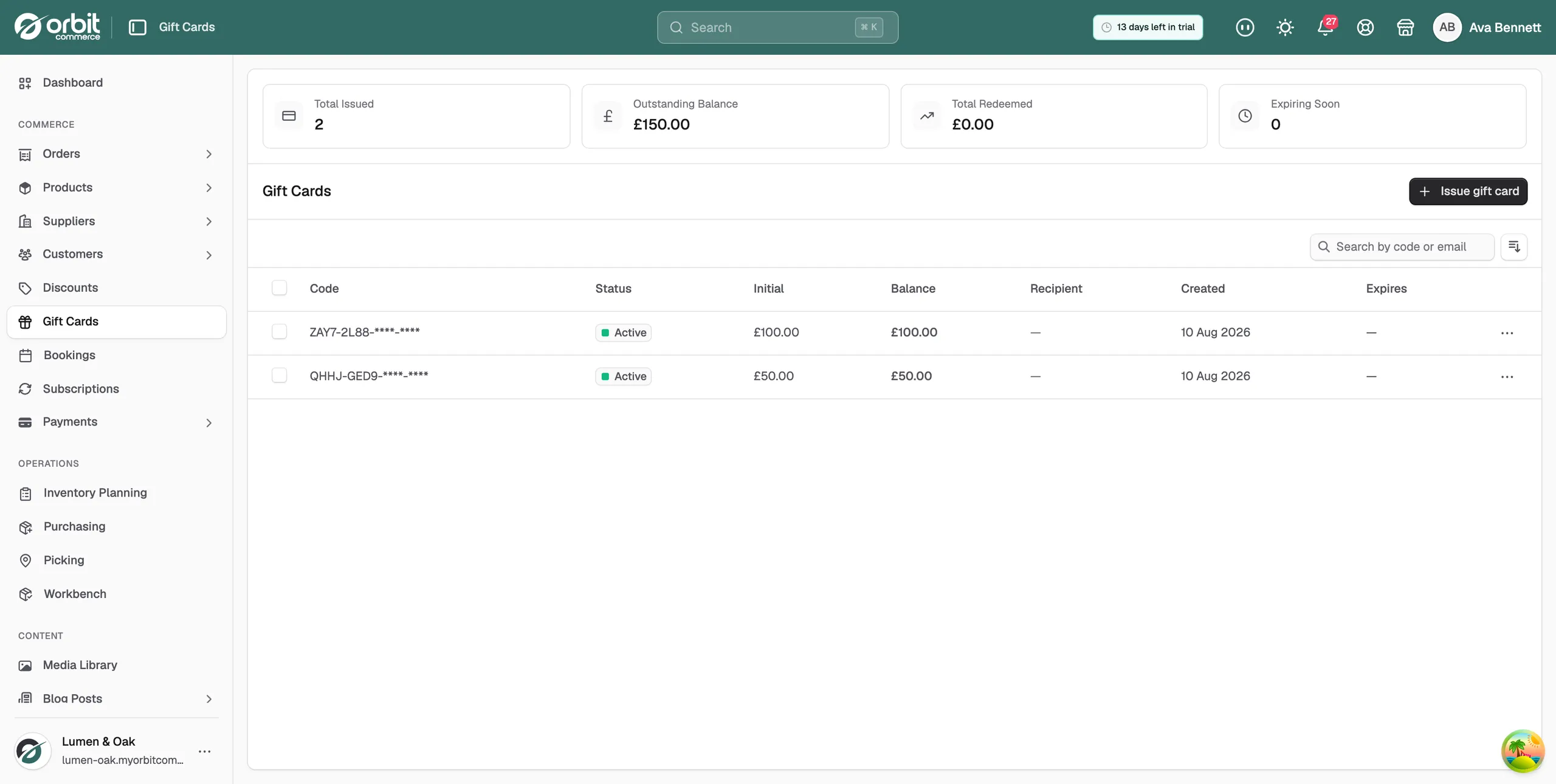
- Total Issued: how many cards you have created.
- Outstanding Balance: the value still sitting on your cards, waiting to be spent.
- Total Redeemed: the value spent across all cards so far.
- Expiring Soon: how many active cards expire in the next 30 days.
Read the list
Each row is one card.
- Code: the card code, with the last two groups hidden.
- Status: how the card can be used.
- Initial: the value the card started with.
- Balance: the value left on it.
- Recipient: the email address and name the card was issued to. A dash means no email was entered.
- Created: the date the card was issued.
- Expires: the expiry date, or a dash if the card never expires.
The four statuses mean:
- Active: the card works and can be spent at checkout.
- Inactive: the card has been deactivated and cannot be spent until you activate it again.
- Expired: the card is past its expiry date and can no longer be spent.
- Depleted: the balance is 0, because all of the value has been spent.
Search for a card
- On the Gift Cards page, click Search by code or email.
- Type the card code, or the email address it was sent to.
- The list narrows as you type. Click a row to open the card.
Sort the list
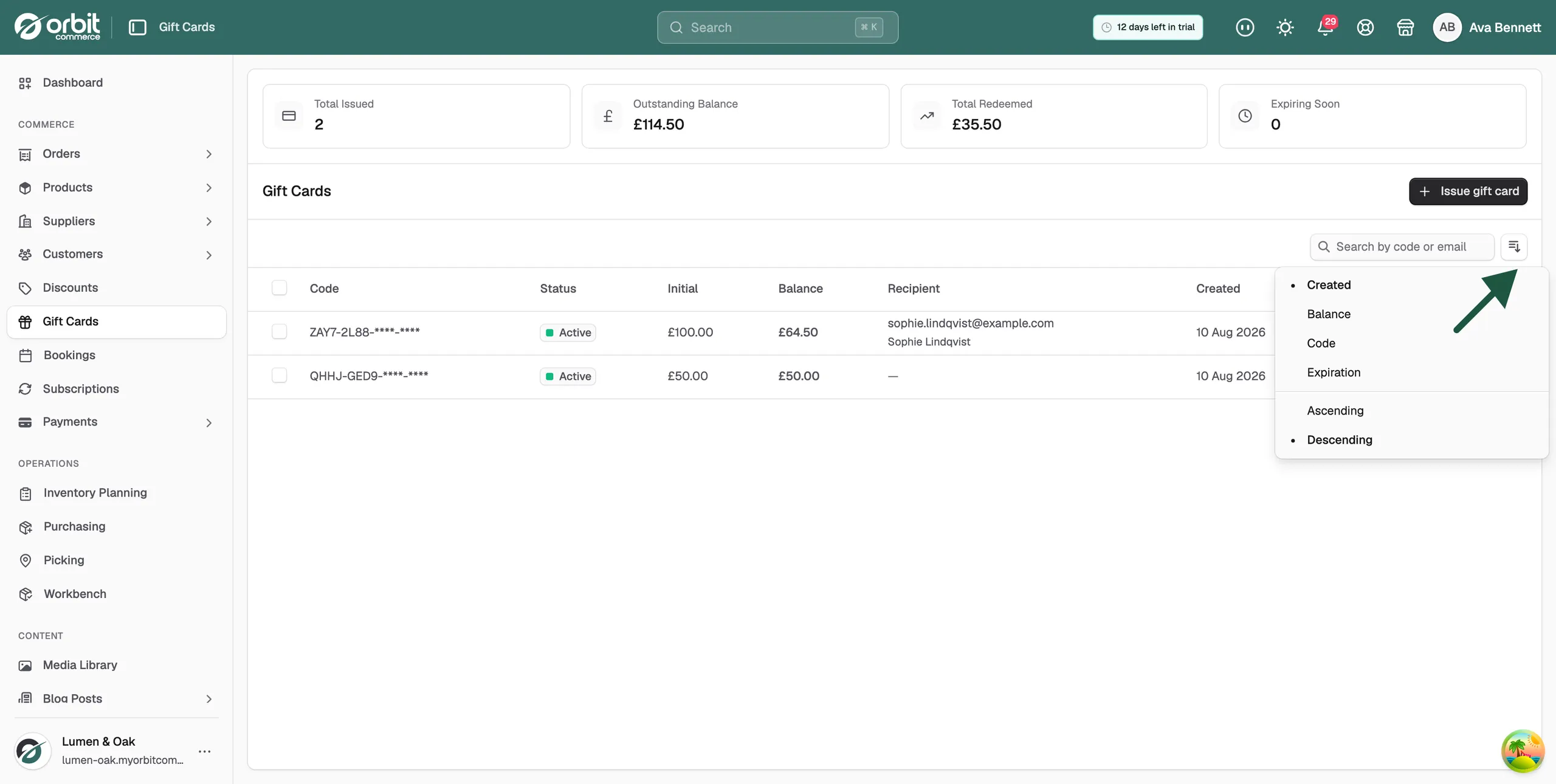
- Click the sort button to the right of the search field.
- Choose Created, Balance, Code or Expiration.
- Choose Ascending or Descending.
Open a gift card
- Click any row in the list.
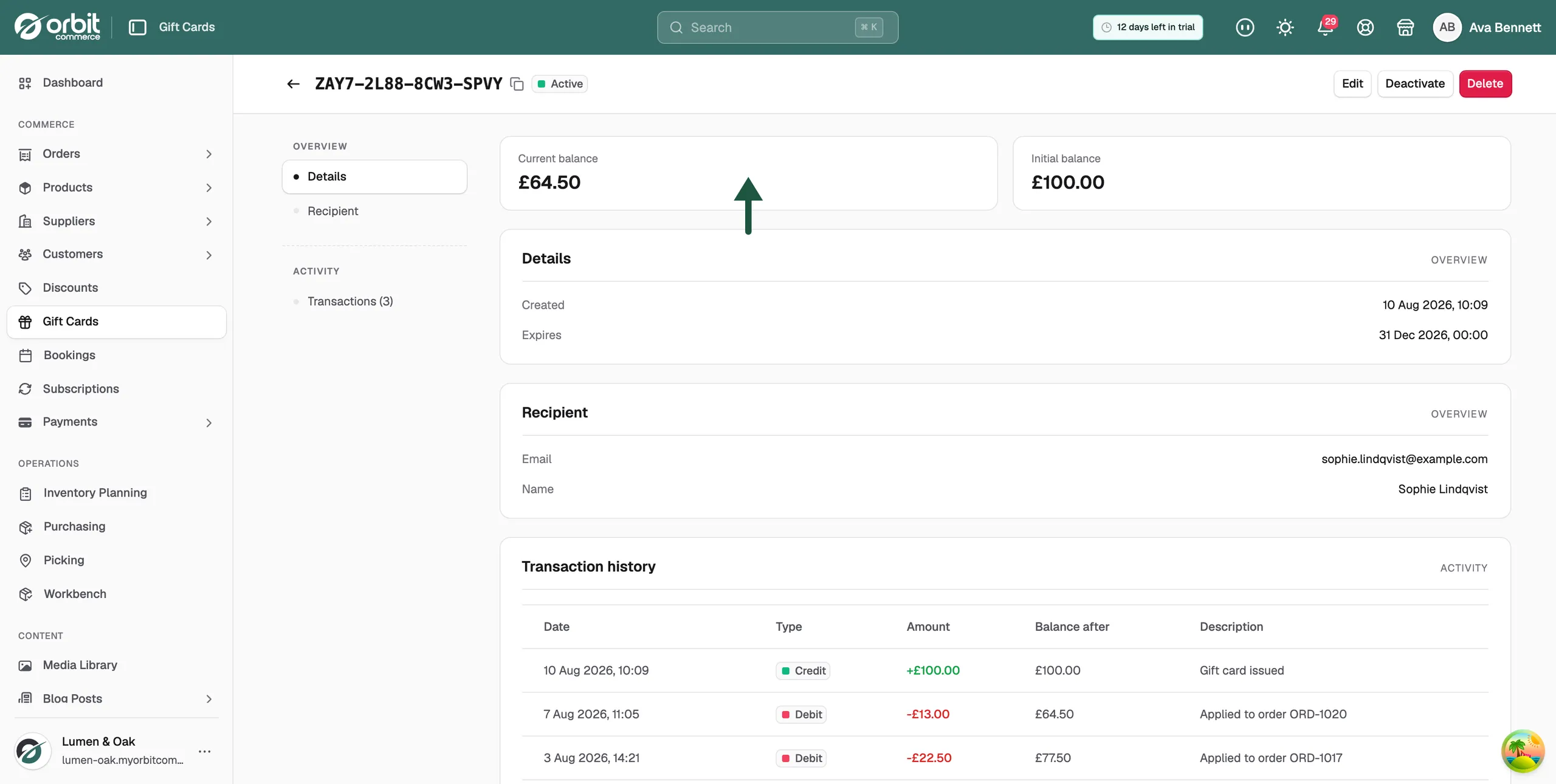
- The full code is at the top of the page, with a copy button and the status beside it.
- Click the copy button to copy the code. The message Code copied to clipboard appears.
The card page is laid out in three parts.
- Current balance and Initial balance: what is left, and what the card started with.
- Details: when the card was Created, and when it Expires. A card with no expiry date reads Never.
- Recipient: the email address, name and personal message entered when the card was issued.
Read the transaction history
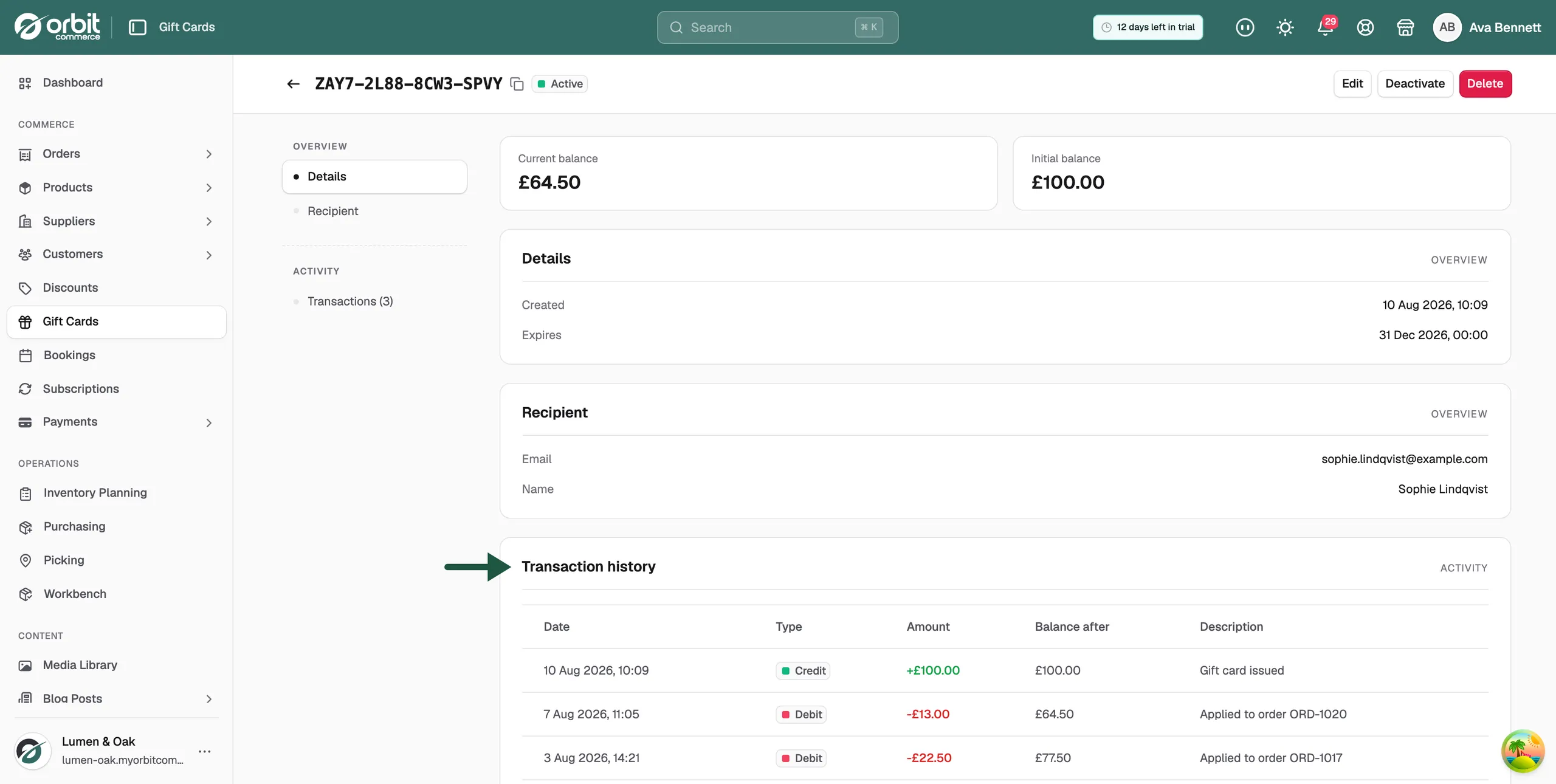
Transaction history lists every change to the balance, starting with the credit that created the card. Each row shows:
- Date: when it happened.
- Type: Credit for value added, Debit for value spent.
- Amount: how much went on or came off.
- Balance after: what was left on the card afterwards.
- Description: what the change was, such as the order the card was spent on.
Edit a gift card
- Open the card and click Edit.
- Change the Email, Name or Personal message under Recipient.
- Change or clear the Expiration date under Expiration. A new date cannot be in the past.
- Click Save changes.
Deactivate or activate a gift card
- Open the card and click Deactivate.
- Confirm in the box that appears. The card moves to Inactive and cannot be spent.
- To let it be used again, open the card, click Activate and confirm.
Deactivate a card when the code has been lost, shared by mistake, or issued for the wrong reason.
Delete a gift card
- Open the card and click Delete.
- Confirm in the box that appears.
To delete several at once, tick the box on each row in the list, then click Delete in the bar above the table and confirm.
Warning: Deleting a card cannot be undone, and it removes the transaction history as well. If you only want to stop a card being spent, deactivate it instead.
Related guides
Was this helpful?
0 people found this helpful