Issuing a gift card
Create store credit from your dashboard. Set the amount, send the code to a recipient, and choose whether the card expires.
Issuing a gift card creates store credit with its own code. You set the amount, and Orbit makes the code. You can address the card to someone, and you can give it an expiry date. Cards are issued from Gift Cards in your Orbit dashboard.
Considerations
- Amount is the only field you have to fill in. It must be more than 0 and cannot be more than 999,999.99.
- The starting balance cannot be changed after you issue the card. Check the figure before you save.
- The amount uses your store currency. A card can only be spent on an order in the same currency.
- If you enter an email address, the code is emailed to that person as soon as the card is issued.
- An expiry date has to be in the future. Leave the field empty and the card never expires.
Issue a gift card
- From your Orbit dashboard, go to Gift Cards.
- Click Issue gift card. The form opens with three sections: Amount, Recipient and Expiration.
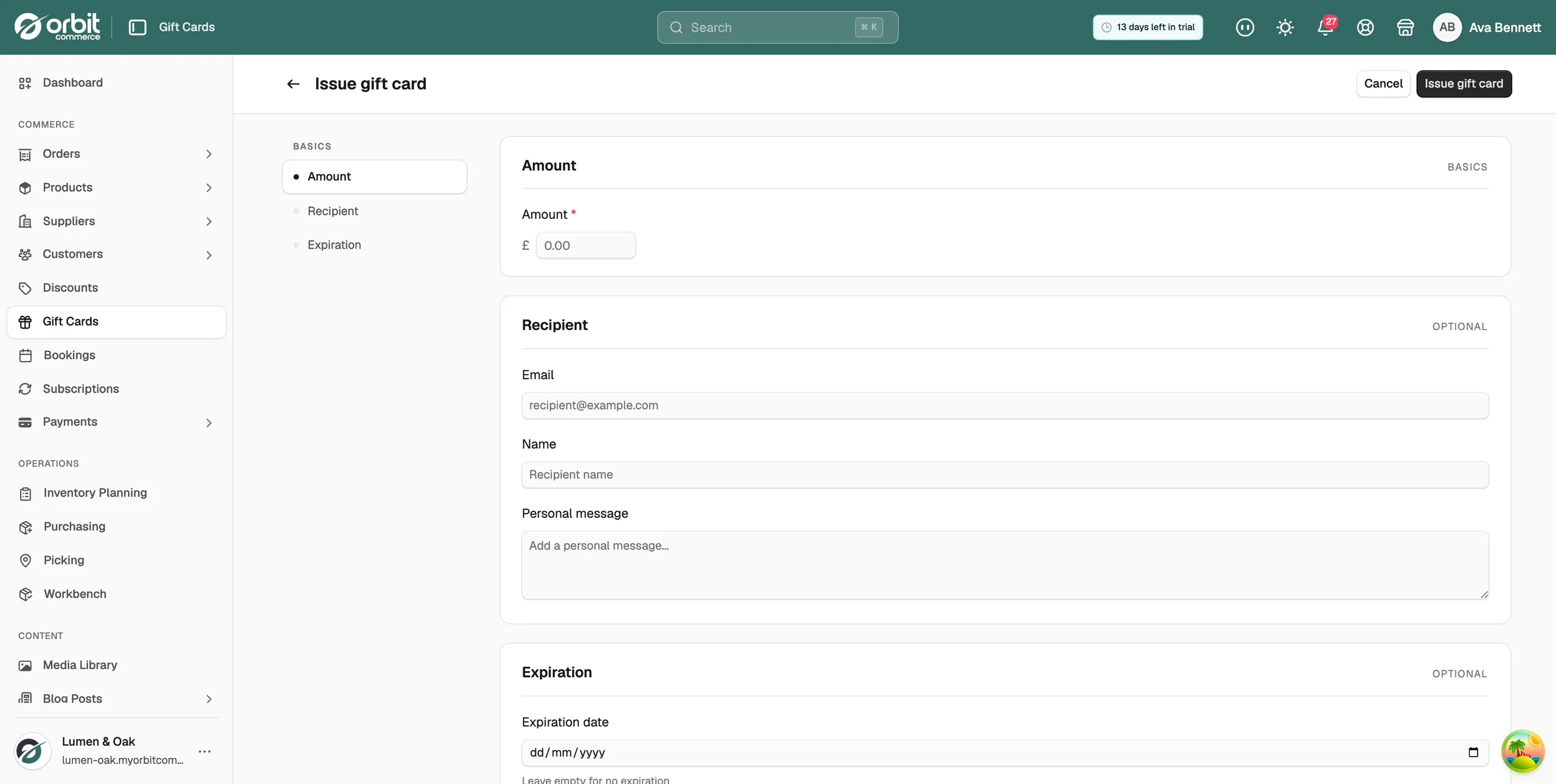
- In Amount, type the value of the card. Your currency symbol sits beside the field, so type the number only.
- In Recipient, add the Email, Name and Personal message if you want the card to go to a named person. Leave them empty to hand the code over yourself.
- In Expiration, pick an Expiration date, or leave it empty for a card that never expires.
- Click Issue gift card at the top right.
- The card is created as Active and you are taken back to the Gift Cards list, with the new card in it.
Note: An issued card is real money. Anyone on your team who can reach this page can create credit, so keep the permission with people you trust.
Fields on the Issue gift card page
- Amount: the value loaded onto the card. This becomes the starting balance. Required.
- Email: where the code is sent. Leave it blank and nobody is emailed.
- Name: the name of the person the card is for. It shows on the card in your dashboard.
- Personal message: a short note kept with the card.
- Expiration date: the day the card stops working. Leave it blank and the card shows Never.
Get the code
The Gift Cards list hides part of each code, so you cannot read a full code from the table. Open the card to see all of it.
- On the Gift Cards page, click the row for the card you issued.
- The full code is at the top of the page, next to the status.
- Click the copy button beside the code. The message Code copied to clipboard appears.
- Paste the code wherever you need it, such as an email to the customer.
Tip: Before you set an expiry date, read Setting gift card expiry dates. In many places a card with no expiry is the safer choice.
Related guides
Was this helpful?
0 people found this helpful