Selling and issuing gift cards
Sell gift cards as a product with a choice of amounts, or issue one yourself from the dashboard. How each works and when to use it.
Gift cards reach customers in two ways, and they are set up in different places. You sell a gift card as a product from Products, and customers buy it like anything else. You issue a gift card yourself from Gift Cards, without a sale. Both make a card with a code and a balance, and both are managed from the Gift Cards page.
Considerations
- A gift card you sell is a product, so it has a title, images and a price like any other product.
- You cannot change a product's type after the product is created.
- A gift card product is not posted, so Inventory and Shipping leave the product form.
- The price the customer pays is the credit the recipient gets.
Sell a gift card on your storefront
- From your Orbit dashboard, go to Products.
- Click Add product.
- Under Product Type, choose Gift Card. The Logistics group leaves the form, because there is nothing to post.
- Enter a Title, such as your shop name followed by Gift Card.
- Open Pricing and enter a Price. Every amount you add next starts at this price.
- To offer a choice of amounts, open Variants and tick This product has variants. The Pricing section leaves the page.
- Click Add options like size or color, then change the Option name to Denomination.
- Under Option values, type each amount as a plain number, such as 25, 50, 100 and 250. Currency symbols are not accepted here.
- In the Variant Options table, set the Price on each row. That figure is the credit on the card.
- Click Publish.
On your storefront the customer picks an Amount, fills in Recipient email, and can add a Recipient name and a Personal message. When the order is paid, the card is created and emailed to the recipient. It then appears on your Gift Cards page like any other card.
Issue a card yourself
Issuing makes a card from your dashboard without a sale. Nobody pays for it, so the value comes out of your margin.
- From your Orbit dashboard, go to Gift Cards.
- Click Issue gift card.
- Enter the Amount.
- Add the Recipient details, or leave them empty to hand the code over yourself.
- Set an Expiration date, or leave it empty for a card that never expires.
- Click Issue gift card.
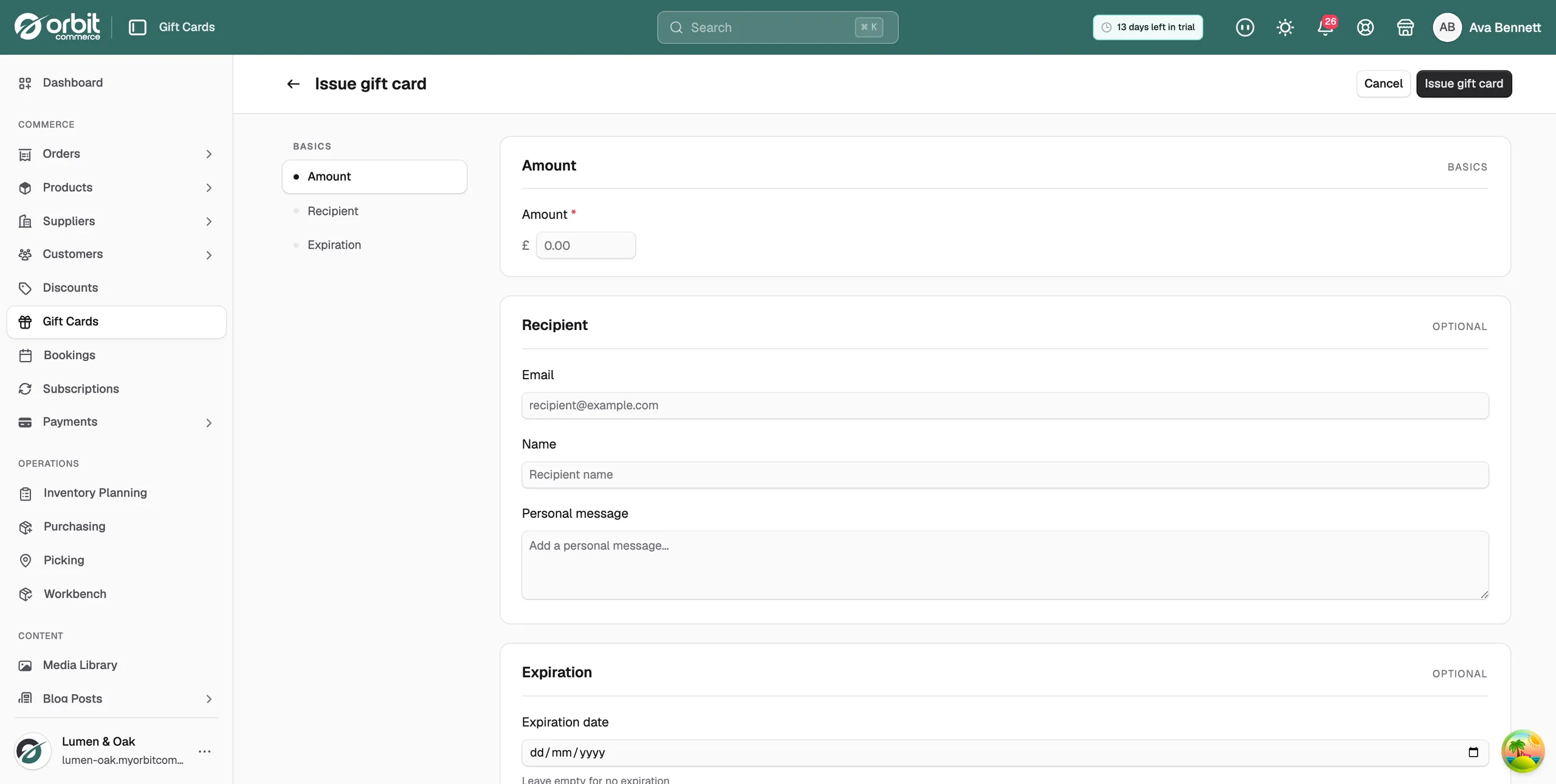
The full steps are in Issuing a gift card.
When to issue rather than sell
- A goodwill gesture after something went wrong with an order.
- A refund you and the customer agree to take as store credit.
- Competition prizes, samples for reviewers, and staff perks.
Note: An issued card is money you have given away, while a sold card is money you have taken. Keep an eye on Outstanding Balance on the Gift Cards page so you know how much credit is still owed.
Related guides
Was this helpful?
0 people found this helpful